> For the complete documentation index, see [llms.txt](https://docs.mydbsync.com/cloud-workflow/llms.txt). Markdown versions of documentation pages are available by appending `.md` to page URLs; this page is available as [Markdown](https://docs.mydbsync.com/cloud-workflow/connectors/linnworks/creating-the-dbsync-application-on-linnworks-developer-instance.md).
# Creating the DBsync Application on Linnworks Developer Instance
Learn how to create the DBSync application on Linnworks Developer Instance
## Introduction
This guide walks you through the process of creating a custom **DBSync application within the Linnworks Developer Portal**. By following the steps outlined below, you will be able to register an integration app that can interact with Linnworks APIs and support synchronization with DBSync workflows.
## **Step-by-Step Instructions**
#### **Step 1: Navigate to the Applications Section**
1. Log in to your Linnworks developer account.
2. From the left-hand navigation panel, click on **Applications**.
3. On the top-right corner of the Applications page, click **`+ New App`**.
#### **Step 2: Enter Basic Application Information**
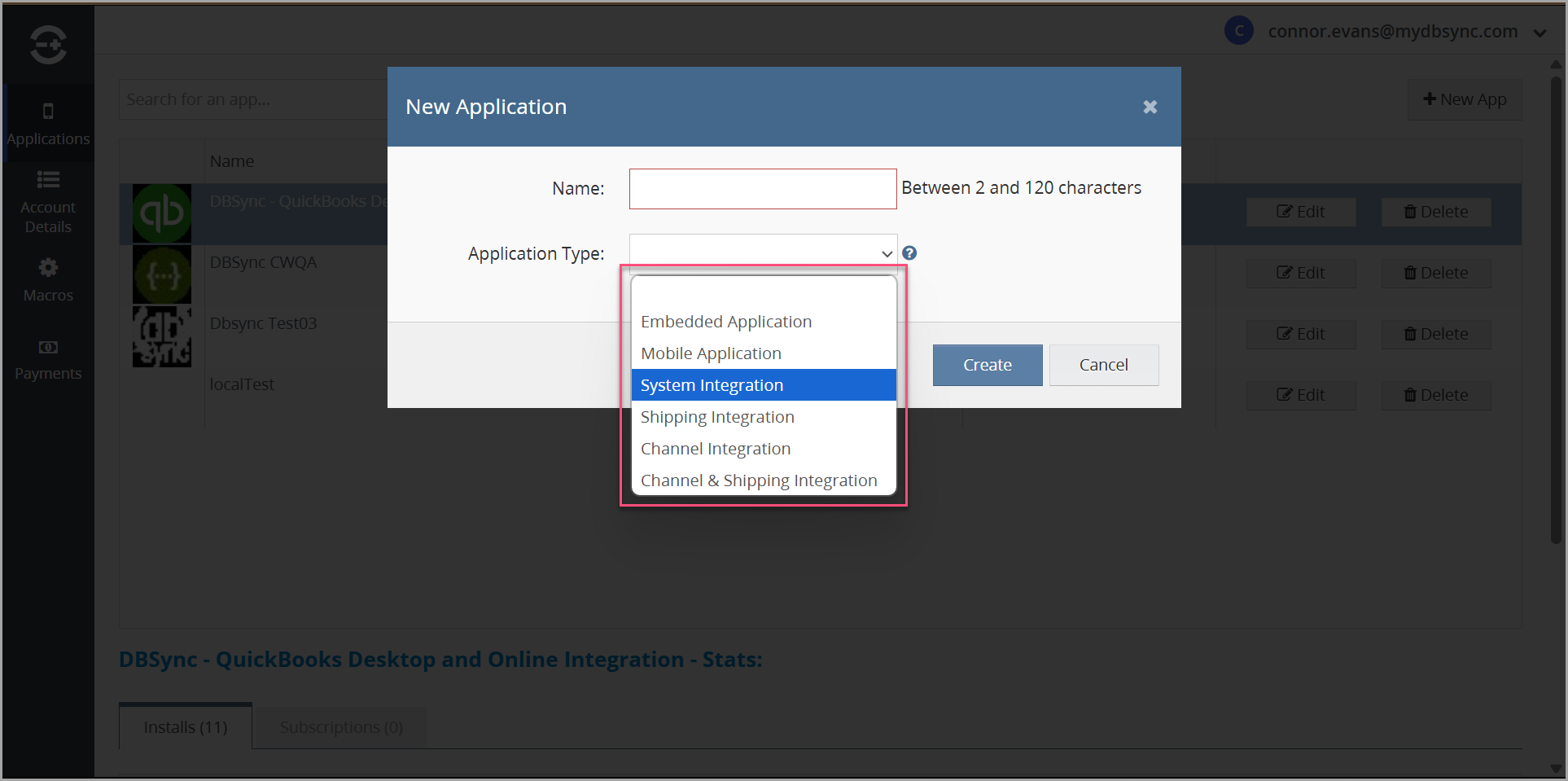
4. A popup titled **New Application** will appear.
5. In the **Name** field, enter a name for your application (e.g., `DBSync Integration`).
6. In the **Application Type** dropdown, select `System Integration` from the list of application types.
{% hint style="info" %}
**NOTE:** This option is suitable for back-end server integrations like DBSync.
{% endhint %}
7. Click the **Create** button to save and generate your application instance.
### **Configuring the DBSync Application**
Once the application is created, it will appear in your application list.
1. Click on **Edit** provided for the application to configure its settings.
#### Step 1: Fill in General Application Details
2. In the **General** section, enter:
* **Application Website:** your DBSync documentation or product URL
* **Summary:** a brief description of what the app does
* **Description:** a more detailed explanation of its integration capabilities
3. The **Application ID** and **Application Secret** will be generated automatically and can be used later in the OAuth configuration within DBSync Cloud Workflow platform.
#### **Step 2: Define App Modules and Permissions**
4. Go to the **App Modules** tab.
5. Under **Modules**, click **Add Module** and provide:
* **Module Name** (e.g., `Production`)
* **Formatted Name**, **Type**, and **Path** (as applicable)
6. Set the module **Type** to `External Application`.
#### **Step 3: Assign Required Permissions**
7. Click the **Add** button in the **Permissions** section.
8. From the dropdown, select appropriate API scopes required for the integration.
* For example: `Change stock levels (GlobalPermissions.Inventory.Stock.StockWrite.ChangeStockLevelsNode)`
9. Add any additional scopes based on the data you plan to access.
#### **Step 4: Review Module Type and Finalize**
10. Confirm that the **Type** of the module remains set to `External Application`.
11. Add any **scripts**, **styles**, or **parameters** if required by your implementation.
12. Click **Save Manifest** to apply your changes.
### **Next Steps**
Once the application is created and configured:
* Use the **Application ID** and **Secret** in DBSync to authenticate the Linnworks connector.
* Proceed to create and schedule your integration workflows.