> For the complete documentation index, see [llms.txt](https://docs.mydbsync.com/cloud-workflow/llms.txt). Markdown versions of documentation pages are available by appending `.md` to page URLs; this page is available as [Markdown](https://docs.mydbsync.com/cloud-workflow/template-library/hubspot-to-xero-order-to-invoice.md).
# HubSpot to Xero - Order to Invoice
Learn how to use the HubSpot to Xero Template.
## Introduction
DBSync’s HubSpot to Xero Integration provides a seamless and configurable solution for synchronizing financial and CRM data between HubSpot and Xero.
This integration supports the following object mappings:
* **HubSpot:** Contacts, Companies, Products, Deals and Line Items, Invoices, and Invoice Line Items.
* **Xero:** Contacts, Items, Invoices and Line Items, Quotes and Line Items.
Alongside real-time synchronization, DBSync enables historical data migration—such as outstanding invoices—making it ideal for system transitions or accounting data consolidation.
The integration includes pre-built field mappings while remaining flexible enough to support complex, conditional, or business-rule-driven scenarios.
DBSync automatically updates its integration templates, ensuring access to the latest features without requiring manual intervention.
## Data Flow
An example of the data flow for the integration from HubSpot to Xero is shown in the table below.
HubSpot
Xero
Contacts
Contacts
Companies
Contacts
Products
Items
Deals and Line Items
Invoice & Invoice Line Items/Sales Quote & Sales Quote Line Items
Invoices and Line Items
Invoice & Invoice Line Items/Sales Quote & Sales Quote Line Items
## Process to Run the Integration
To use the pre-built HubSpot to Xero Integration template, follow these steps:
1. Add the Template
* Login to DBSync Cloud Workflow.
* From the home screen, click **Add Template**.
* Select the **HubSpot to Xero Integration** Template which supports bi-directional workflows between HubSpot and Xero.
* The template will be added to your Projects.
2. Connect Applications
* Select the template to open the Task screen.
* Click **Setup** to launch the setup wizard.
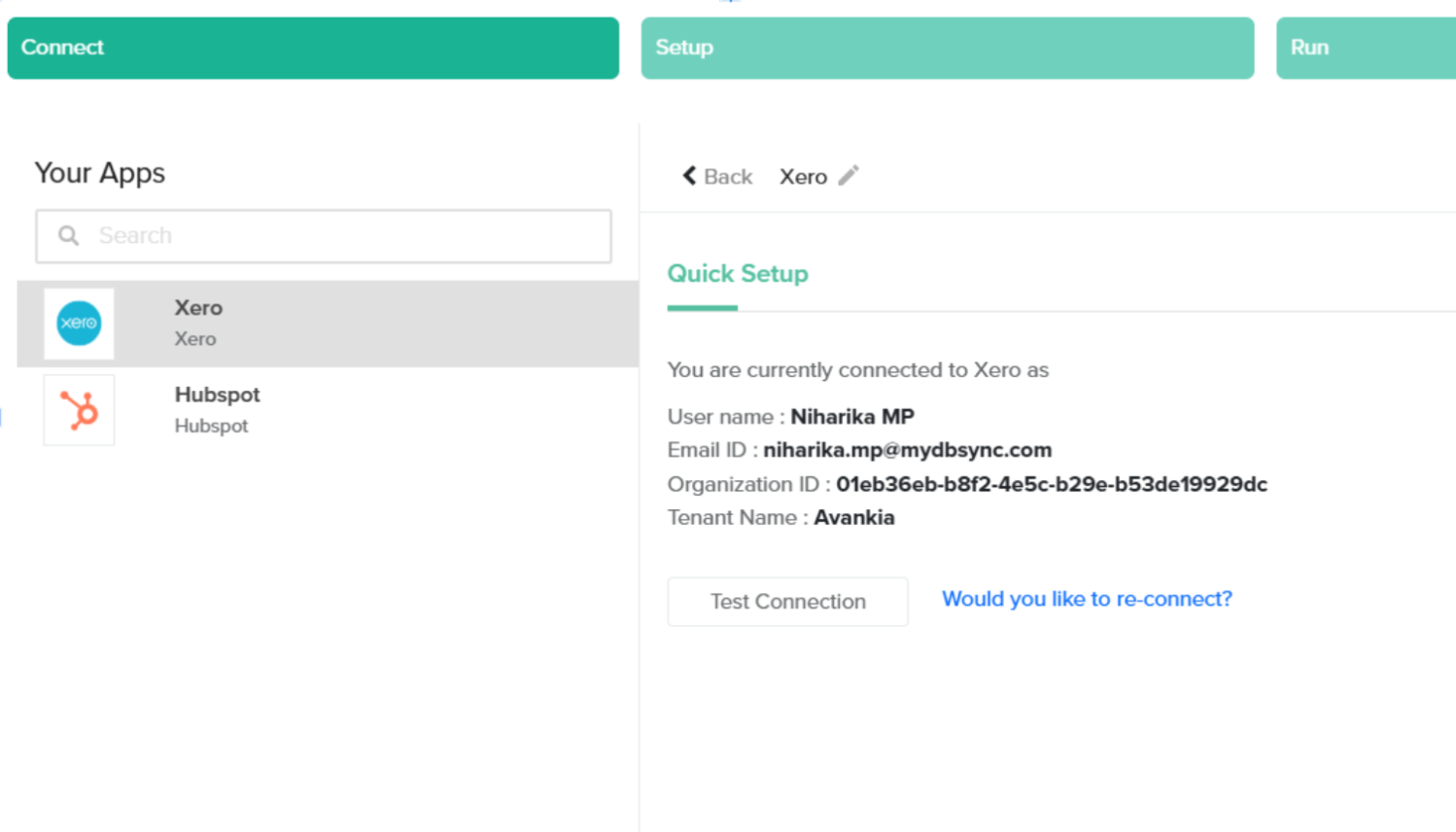
* Under the **Connect** tab, confirm both Salesforce and Xero are connected.
For HubSpot connection help, click \[[here](https://docs.mydbsync.com/cloud-workflow/connectors/hubspot)].
For Xero connection help, click \[[here](https://docs.mydbsync.com/cloud-workflow/connectors/xero)].
* Click **Test Connection** under **Advanced Properties** to ensure proper linkage.
## Configuration Forms
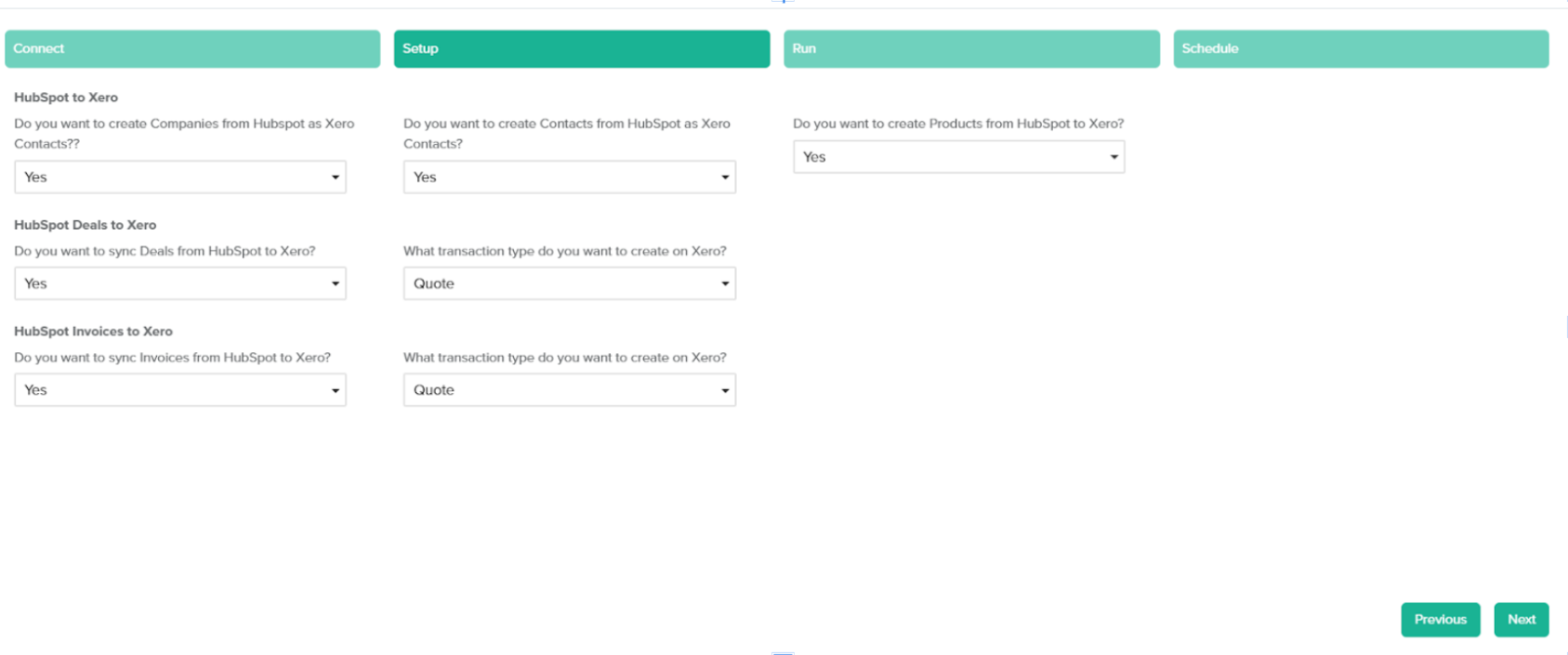
The Setup screen provides you with multiple pre-populated forms to configure the sync.
This configuration allows you to control which HubSpot objects are synchronized with Xero and how they are created.
* **Sync Companies from HubSpot to Xero Contacts**\
Select *Yes* from the dropdown to create or update HubSpot Companies as Contacts in Xero. Select *No* from the dropdown to disable this sync.
* **Sync Contacts from HubSpot to Xero Contacts**\
Select *Yes* from the dropdown to create or update HubSpot Contacts as Contacts in Xero. Select *No* from the dropdown to disable this sync.
* **Sync Products from HubSpot to Xero**\
Select *Yes* from the dropdown to create or update HubSpot Products as Items in Xero. Select *No* from the dropdown to disable this sync.
* **Sync Deals from HubSpot to Xero**\
Select *Yes* from the dropdown to sync HubSpot Deals to Xero.\
When enabled, select the transaction type to be created in Xero: *Quote* or *Invoice*.
* **Sync Invoices from HubSpot to Xero**\
Select *Yes* from the dropdown to sync HubSpot Invoices to Xero.\
When enabled, select the transaction type to be created in Xero: *Invoice* or *Quote*.
This setup provides flexibility to enable or disable object-level synchronization based on business requirements.
### Run or Schedule Integration
Once the configuration is complete:
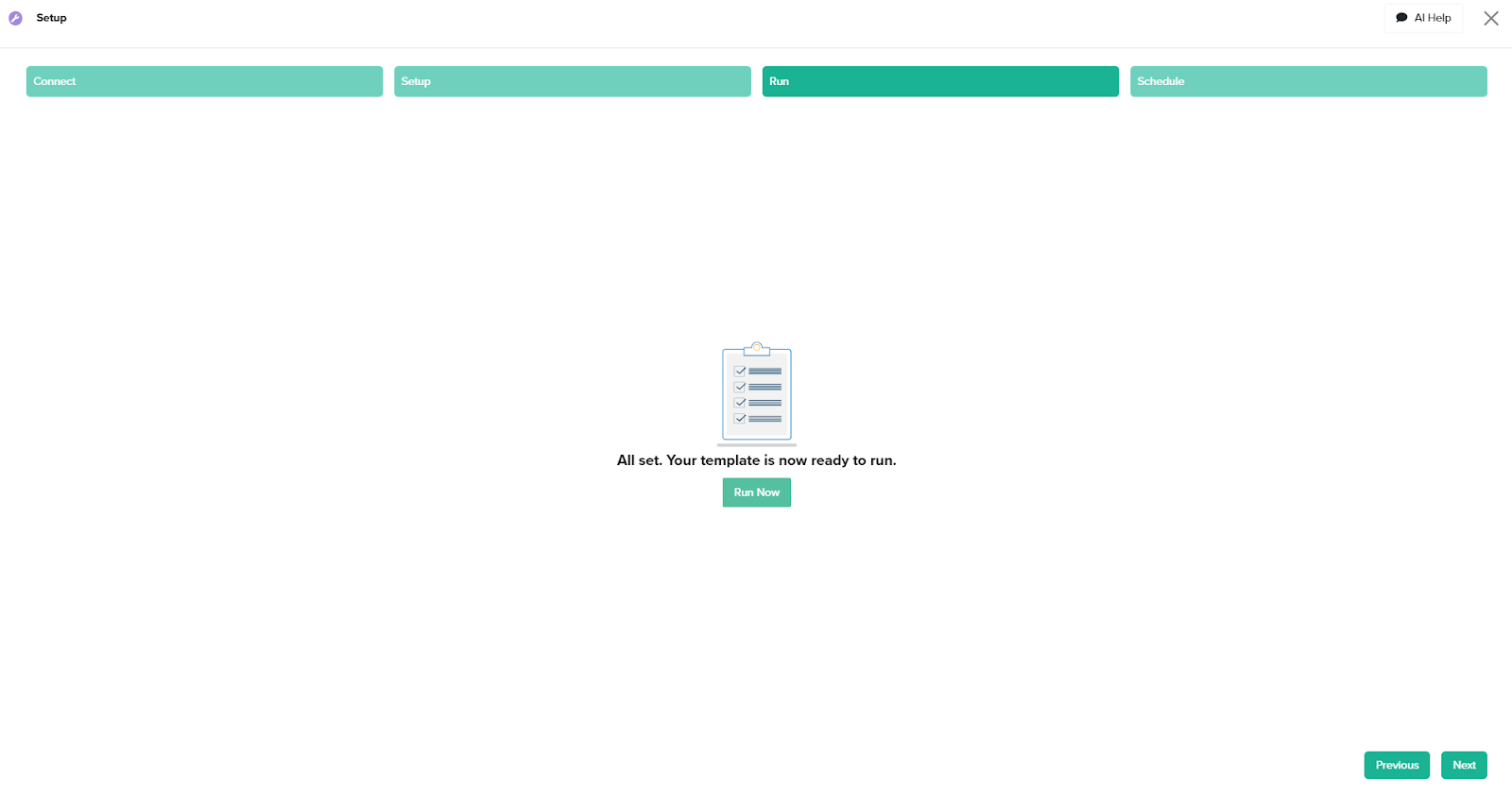
* Click **Run Now** to execute the sync immediately.
* Or, click **Next** to schedule the integration.
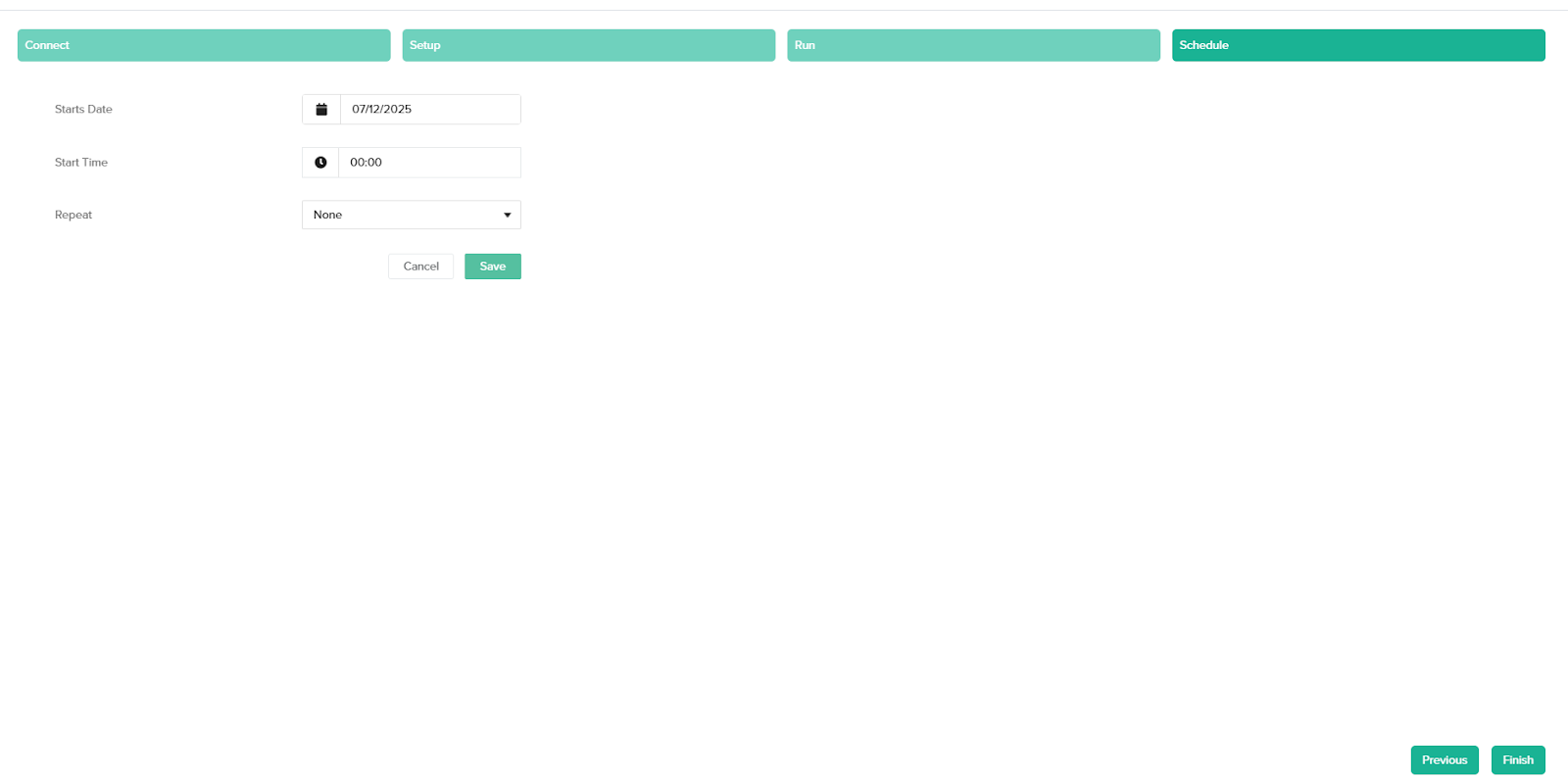
To schedule:
* Set **Start Date** and **Start Time**.
* From the **Repeat** dropdown, select a frequency: *Minutes*, *Hours*, or *Days*.
* If *Minutes* is selected, specify the interval.
* Click **Save** to apply or **Cancel** to discard changes.
* Use **Previous** to modify settings and **Finish** to confirm.
### Required Field Setup for Proper Synchronization
For a successful synchronization, the following fields must be created on the specified HubSpot objects.
**Contact Object – Fields to Create**
* dbsync\_id
**Companies Object – Fields to Create**
* dbsync\_id
**Product Object – Fields to Create**
* dbsync\_id
**Deals Object – Fields to Create**
* dbsync\_id
* generate (Picklist with values: Invoice, Invoice Updated, Invoice not Updated, Quote, Quote Updated, Quote not Updated.)
**Invoice Product Object – Fields to Create**
* dbsync\_id
* generate (Picklist with values: Invoice, Invoice Updated, Invoice not Updated, Quote, Quote Updated, Quote not Updated.)