> For the complete documentation index, see [llms.txt](https://docs.mydbsync.com/cloud-workflow/llms.txt). Markdown versions of documentation pages are available by appending `.md` to page URLs; this page is available as [Markdown](https://docs.mydbsync.com/cloud-workflow/connectors/shopify/steps-to-create-a-new-custom-app-on-shopify.md).
# Steps to create a new custom app on Shopify
**Steps to create a new custom app in Shopify**
1. Log in to your Shopify account.
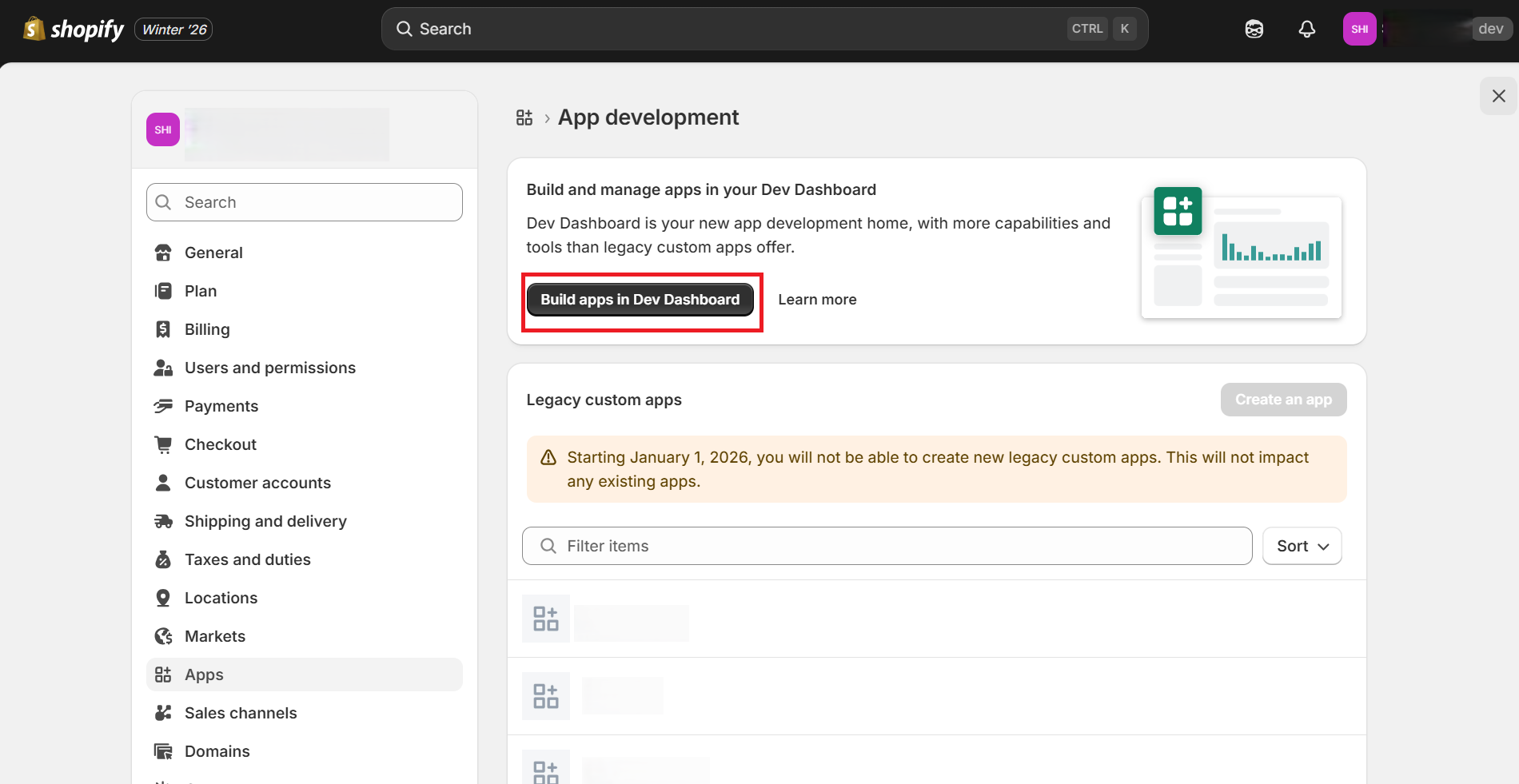
2. In the Shopify UI, navigate to **Settings**.

3. From **Settings**, navigate to **Apps** and click **Develop apps**.

4. Click **Build apps in Dev Dashboard**.
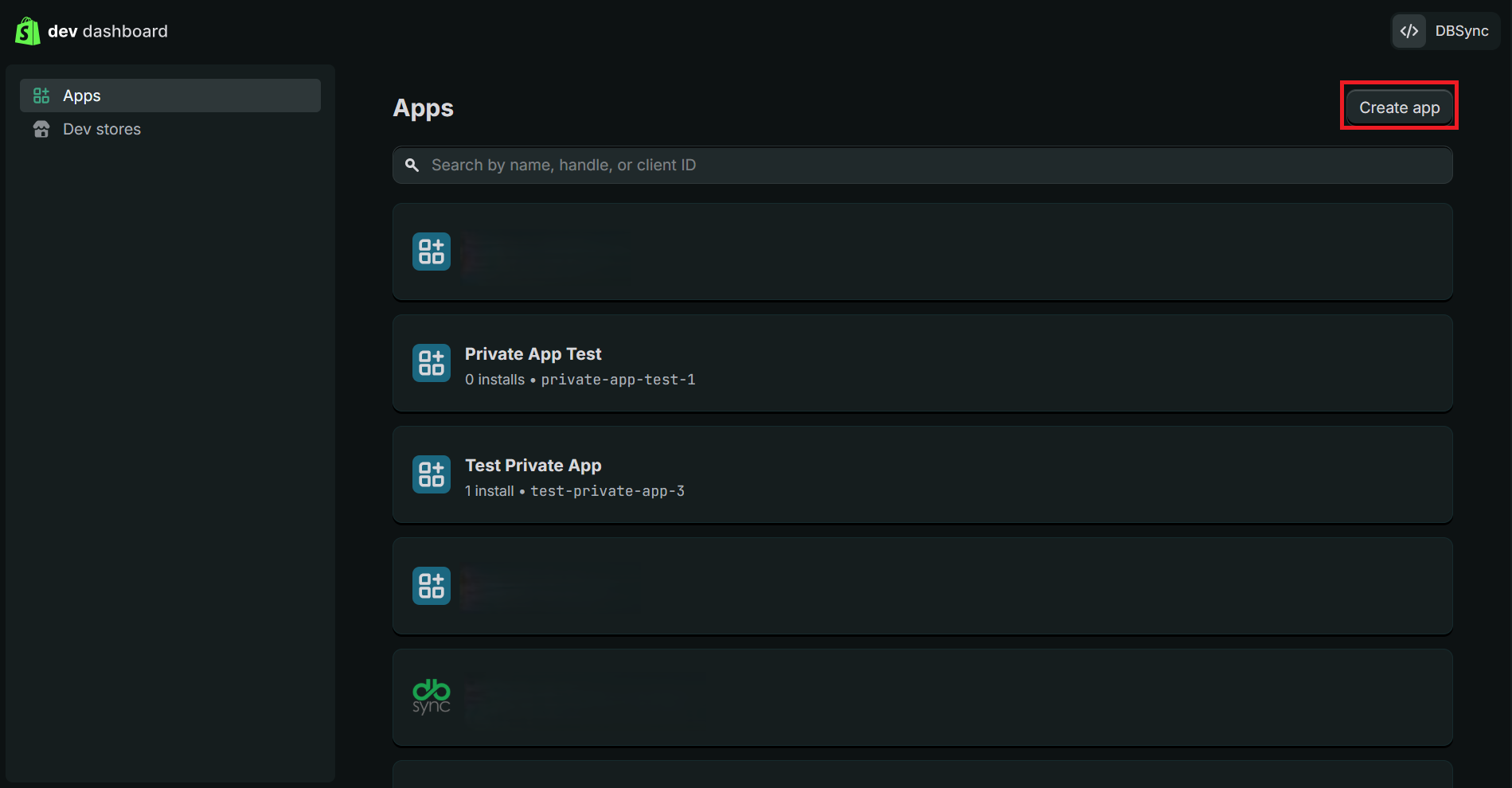
5. Click **Create app**.
6. In the App name field, provide a name for your app.

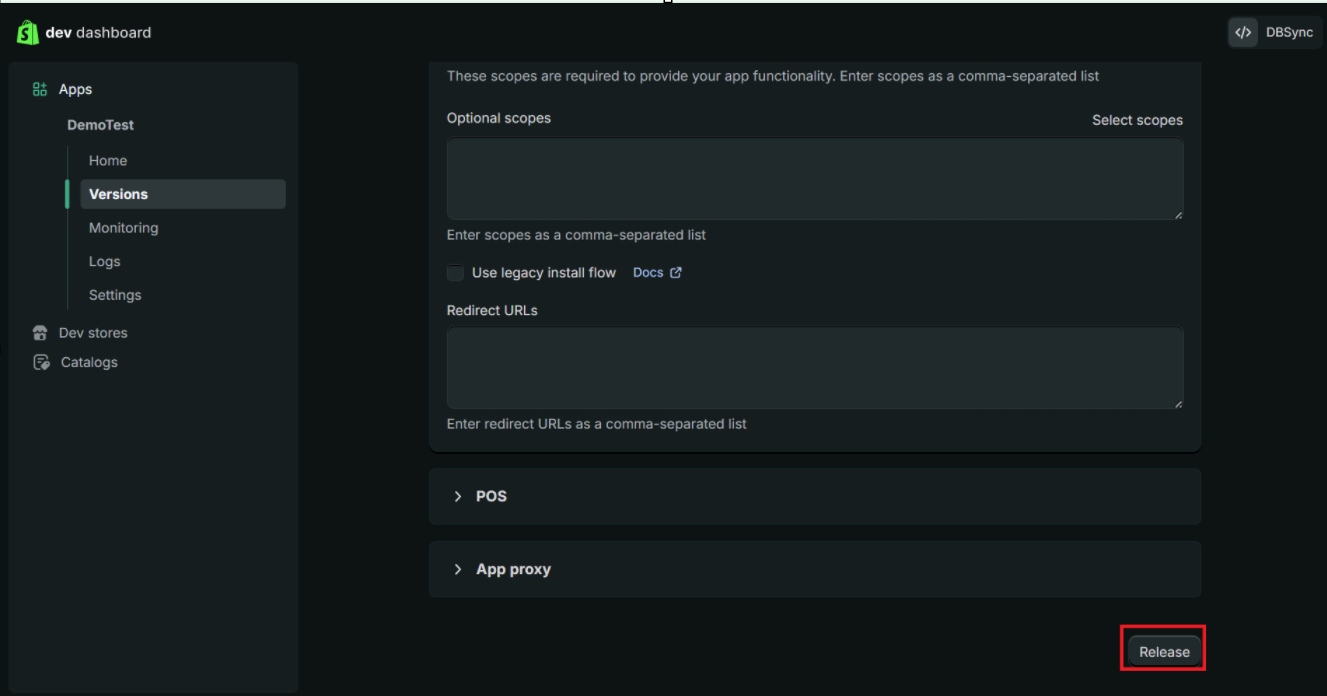
7. In the following App creation page, add **Scopes**, **Optional scopes**, and **Redirect URL**s. Click the Select Scope hyperlink on the right side to choose required Scopes and Optional scopes. Additionally, you can add a URL under **App URL**.

Scopes- read\_reports,write\_reports,read\_shopify\_payments\_disputes,read\_shopify\_payments\_payouts,read\_discounts,write\_discounts,read\_price\_rules,write\_price\_rules,read\_fulfillments,write\_fulfillments,read\_shipping,write\_shipping,read\_inventory,write\_inventory,read\_customers,write\_customers,read\_products,write\_products,read\_product\_listings,read\_orders,write\_orders,read\_draft\_orders,write\_draft\_orders,read\_checkouts,write\_checkouts,read\_all\_orders,read\_assigned\_fulfillment\_orders,read\_merchant\_managed\_fulfillment\_orders,read\_third\_party\_fulfillment\_orders,write\_merchant\_managed\_fulfillment\_orders,write\_assigned\_fulfillment\_orders,write\_third\_party\_fulfillment\_orders,write\_translations,write\_locales
Redirect URL-

8. Click **Select Scopes** hyperlink to get the following dialog box to quickly select the required scopes. Similarly, click select **Optional Scopes** hyperlink to quickly select the required optional scopes.

9. Once you have added all the parameters, click **Release** at the bottom of the page to release your app.
10. From the left navigation pane, navigate to the App's **Home** page.
11. In the right panel, under **Distribution**, click **Select distribution method**.

12. From the list of **Distribution** available, select **Custom distribution**.

13. Once selected, you will get a screen to add the Store domain. Paste the domain name of your store from the **Home page** as shown below.

14. Then, click **Generate link**.

15. An Install link is generated as shown below. Copy this link and paste it in your browser.

16. Select the store that you had in step 12.

17. In the Install app page, click **Install**.

18. Once the installation is complete, you will be directed to a page similar to the one shown below.

19. Navigate to the dev dashboard page and click **Settings**.

20. Under Settings, you will see your **Client ID** and **Secret**. Keep these credentials secure.

21. Use these credentials to connect your store in **DBSync Cloud Workflow**. DBSync:
22. Once logged in to **DBSync Cloud Workflow,** navigate to Apps, select **Shopify** and you will see the below options under dropdown-
1. Private App
2. Custom App
23. Select the **Private App** option. Enter your **Client ID** and **Secret** to connect to your Shopify.