> For the complete documentation index, see [llms.txt](https://docs.mydbsync.com/cloud-replication-main/llms.txt). Markdown versions of documentation pages are available by appending `.md` to page URLs; this page is available as [Markdown](https://docs.mydbsync.com/cloud-replication-main/target-setup/fabric-data-warehouse.md).
# Fabric Data Warehouse
**To set up your Database instance, follow the steps below:**
* Log in to the DBSync Cloud Replication instance
* To configure, navigate to the Database tab.
* Click the Database icon from the top navigation toolbar
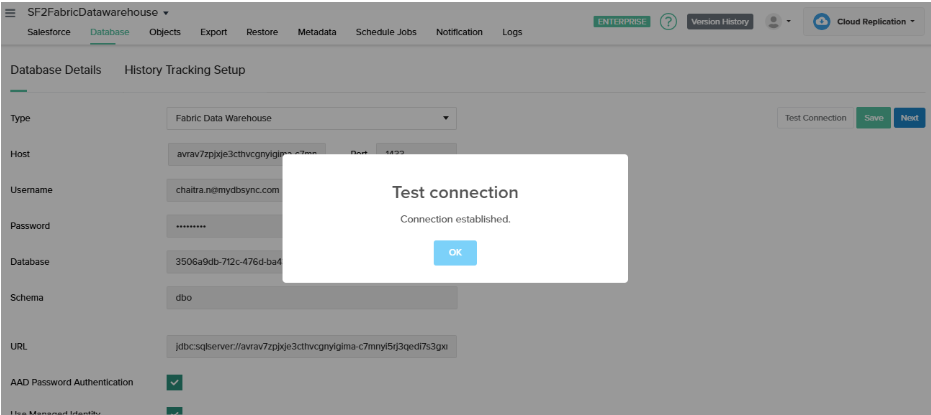
* To start with, select Fabric Warehouse and enter all the configuration details like host, port, username, password, database name, and schema.
> 
>
> How to get Fabric SQL details
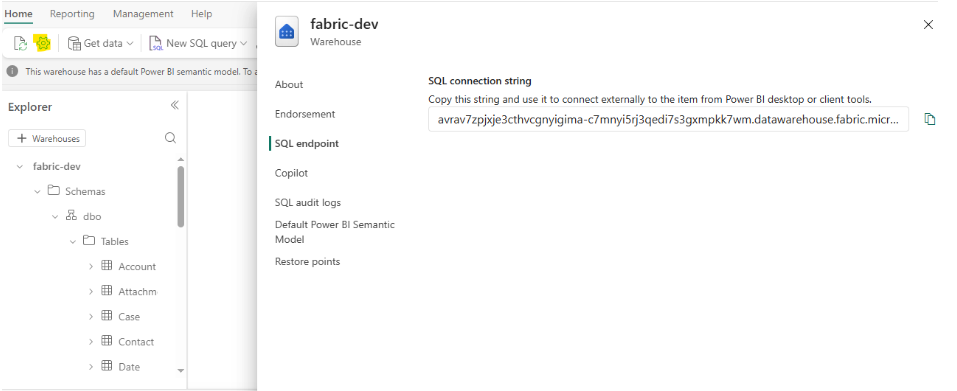
* Log in to the Azure portal and open your Fabric workspace at:[ https://app.fabric.microsoft.com/](https://app.fabric.microsoft.com/)
* Create a warehouse inside the workspace, then click the settings icon in the left panel
* Then select the Connection strings.
* Copy the SQL connection string to obtain the host name. For example:
```
avrav7zpjxje3cthvcgnyigima-c7mnyi5rj3qedi7s3gxmpkk7wm.datawarehouse.fabric.microsoft.com
```
* Use port number 1433
* Use your Azure username and password for authentication
* 1. The database name can be identified in the URL, immediately after warehouses/. For example: 3506a9db-712c-476d-ba43-695546e2ed8e
* Once the user enters all the details, the URL details will get auto-filled.
* Click Save
* You can save and test your Database connection.
* Click Next
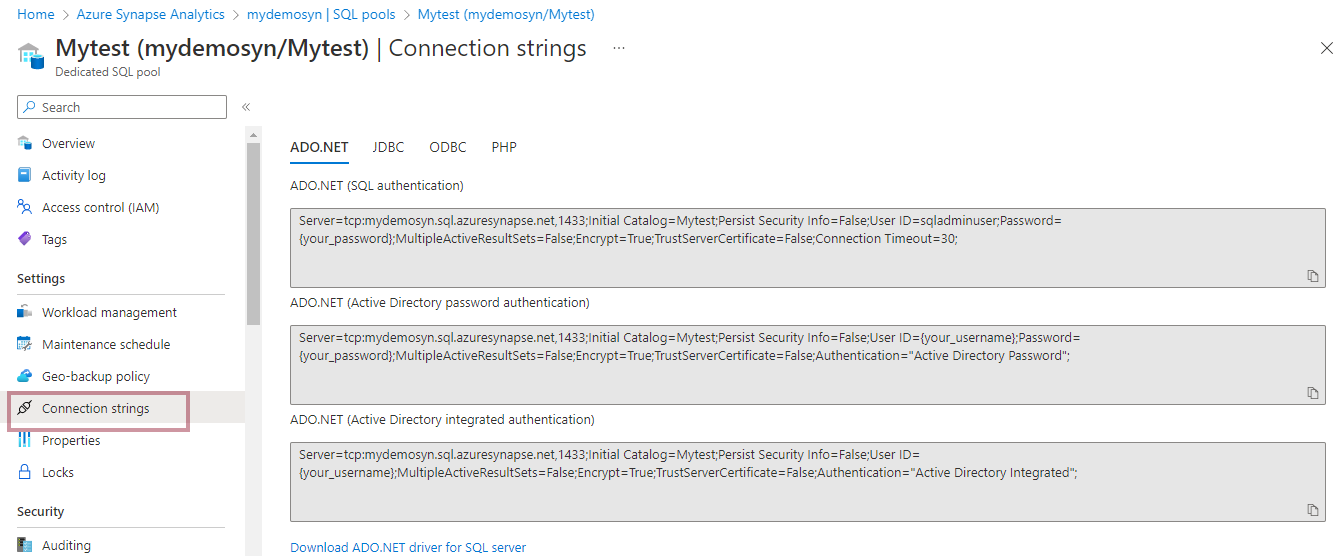
* You can find login details by logging into the Azure portal and navigating to
* Azure Synapse Analytics -> SQL Pool -> Select your database -> Select connection string
> **Note it is required to use Azure Blob storage when using Fabric data warehouse**
\
**Steps to Obtain the Access Key and Connection String for Using Azure Blob Storage.**
**Step 1- Log in to your** [**Azure portal**](https://login.microsoftonline.com/organizations/oauth2/v2.0/authorize?redirect_uri=https%3A%2F%2Fportal.azure.com%2Fsignin%2Findex%2F\&response_type=code%20id_token\&scope=https%3A%2F%2Fmanagement.core.windows.net%2F%2Fuser_impersonation%20openid%20email%20profile\&state=OpenIdConnect.AuthenticationProperties%3DQKAF7iE5hiUvzXXH_lVZu0ytKIsIuKOazTwX06t762bl7KCx3bSDw4RElkaJ-geBfgdrRD2wdrf_EtOSmuPX6vZIK1HhdRSEtUM_Yps2pk-z3QrnleGLWnxsDo11_c6zGNgct7YIAssWziJYe3AMN1O78JUb0040gXx162ucAyZHkIK6jldgy7Jdi_5VUVHt6gsLZywX7QwzTtN0FOFRzrDXQ7ui8Ap3sQatVHaHSLlNXH-9amZ3b3qvBQuX9R0DNSAG7OPQ-KZNYVaJD77jJkvJGmx3BGdpvyD9-6bnxnHGm6h6r5GHnIpc1oVr-MukZSCFjdntXtIl44QBSRJJqqCGU6KV6DdGlJMxC4p8KnzRtEpvAYyWxP3NeAtuDkwwIaijxD8whuZOeKxROLqqAHu5tOee01bzTSDbxF0DvxNJ7X1HIXhLfT_xNz4EEMv0xg0MEW2ZtKey7O6M13J6K0vsYYuN2Zq1zDdPuUtcQp4\&response_mode=form_post\&nonce=637998796405180311.YmQwOTM3ZTYtNjk4NS00MGNmLTk3MWEtNDRiZDc2MDcyYThlY2UwMjQzMmItZjhhNi00MTBmLTgwMTItMmU2MzlmYTM5ZWQw\&client_id=c44b4083-3bb0-49c1-b47d-974e53cbdf3c\&site_id=501430\&client-request-id=e546651e-772c-4c28-a231-b83a7765db72\&x-client-SKU=ID_NET472\&x-client-ver=6.16.0.0\&sso_reload=true)
**Step 2- On the home screen, select the Storage account from Azure services**

\
**Step 3- Inside Storage accounts, select the desired storage you want to connect with**

**Step 4- Inside the selected storage, click on the access key from left-hand panel**
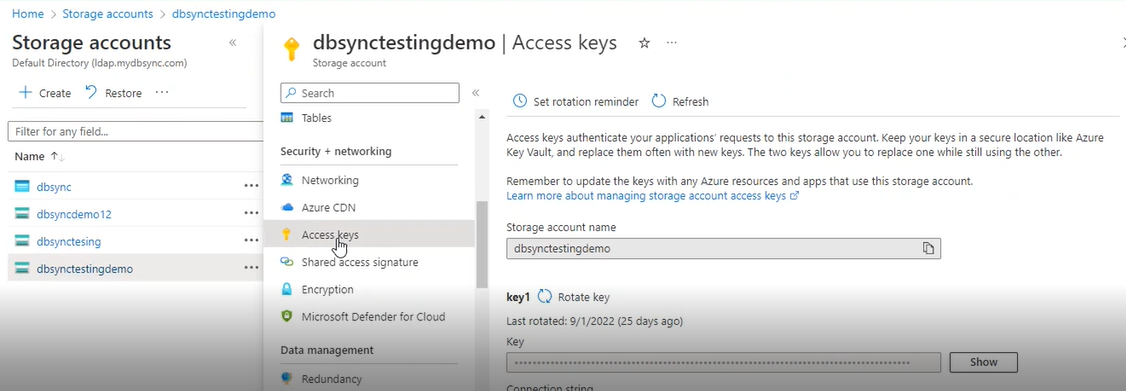
**Step 5 - Copy the Key and connection string and paste them into the given space on the DBSync Database connection page**\