# Azure Datalake Gen2

* DBSync Cloud Replication (Salesforce with Azure Synapse)
* Azure Synapse Database details in DBSync Replication Profile

### **DBSync Cloud Replication (Salesforce with Azure Data Lake Gen2** <a href="#azuredatalakegen2-dbsynccloudreplication-salesforcewithazuredatalakegen2" id="azuredatalakegen2-dbsynccloudreplication-salesforcewithazuredatalakegen2"></a>

* Go to the database section and select database type as Azure Data Lake Gen2\
  ![](https://lh5.googleusercontent.com/m0cw78JAX36pP8ZbOIoVDlwRfW4A0nAHjOZHFpFTTWdvlw8NUw0h7E6QrqERbNCh94DK7ttGvpGh_0LS6C-rsJmq_d1VOkM6-jgb7WoLKil69K55GFHtiRdHQ93FwXKKqAUlxGlPmktF4fIU3FesaQ)
* The credential you will get from the Azure portal:&#x20;
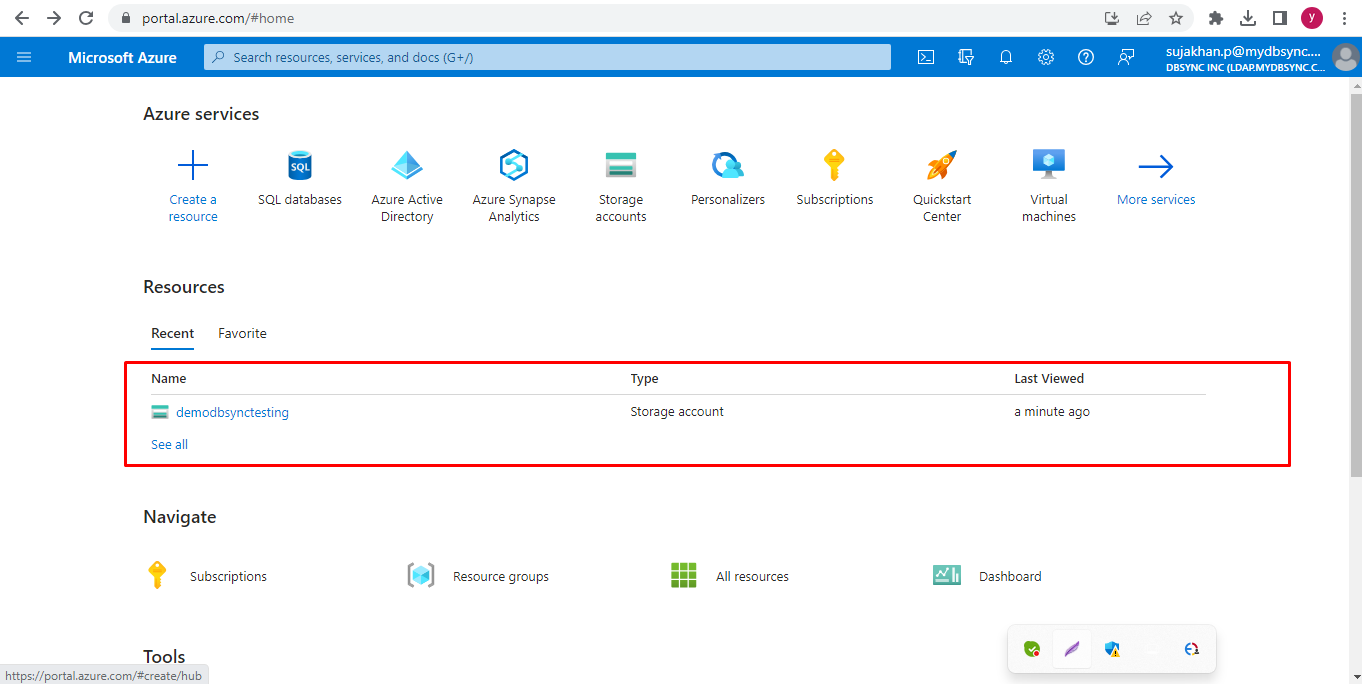
* Just log in to [portal.azure.com](http://portal.azure.com/) and create a storage account:\
  ![](https://lh4.googleusercontent.com/-fJbJSAmI3_tERKR1-_DbL97sJks-1pgCbe9Xd6L0_xKhZzeVhrdNf8XaNIOO5elBR2UHuufIOf_kMDPn_kLwZ1V2k7jJYMroyFL1KlVeycWUrzAZIswfIMWE4_Piiiw-UULpSr8kHFGh5V5wuRLHA)
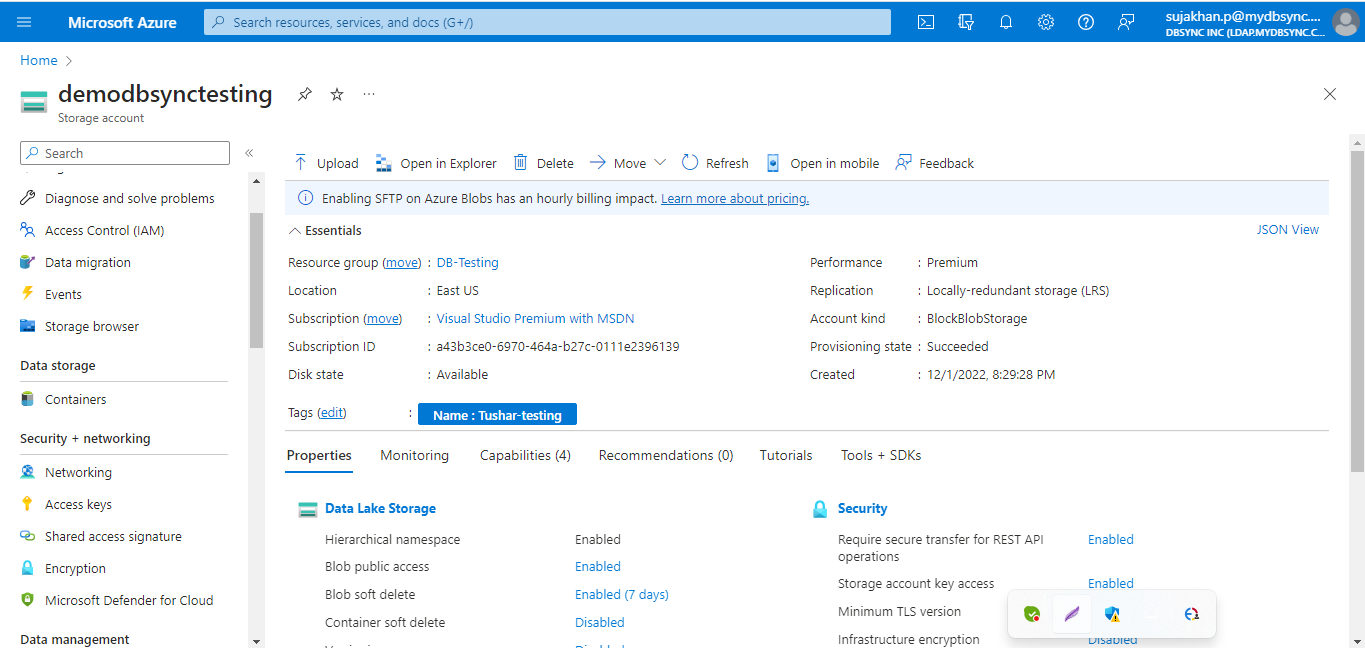
* Get inside of the storage account(demodbsynctesting in my case\
  &#x20;![](https://lh4.googleusercontent.com/tSt5CDHaPFEUXp3SB6XMzUizQIUWFjhCNX0NSb56gh0xwGef26vTj5aQknNKPXMr1_i5XxBQs3NkVwxA8m4u2btzpAud47_QdyVa9gdYRKSLbEmJmzhPOZpjdbpVNhrYD9y1J0XiXdzGljIfyHiVgA)
* Now scroll down the left panel and search for Access keys in the Security+Networking section.\
  &#x20;![](https://lh3.googleusercontent.com/ooiEtP-rK8yQNSusA7O9e-eZOERfKX9Xj4nxXvmV0__OUf0M37LIHdOtxXgVtkxBPBEMjSRbtrVN9C8ZQfBb8eGBT59Jx8NTFLaEnikELYzaClVvQIGeinEDXNc_WGznNj7GYbTaxGXxA7JbI_1d6w)
* Click on the Show button and Copy the Storage Key.&#x20;

<br>

<br>

![](https://lh5.googleusercontent.com/7wq9gNGpd7COd-4r6WOzZfigFG6Ccl_z6IDwQAfKMloipoGrIVlsjbbtwC8SE5lEckjEhvPFudxp1IGzIuvoe2D6R6JhrzC9ML_D-FojbfG1aeSJifADHFRiMlR3KEjDTklver3J0diqHFhIm4H8-A)

* Now copy the storage account name and key copy the database section in the database section:

![](https://lh3.googleusercontent.com/0ZSk-iYEwJDLjVpkXmqI9HOt6SabDmb89dQ78DZSa5QmrMcqmri4wMXtDVi3h7_Jv2avBTmIizPKoykJxhmoZcb42TQUjld3lkwRd1ko8tR6--Rj91OF40MPO6Pph3R3uGJ5xpz4N1Z13OrMsrPtTg)

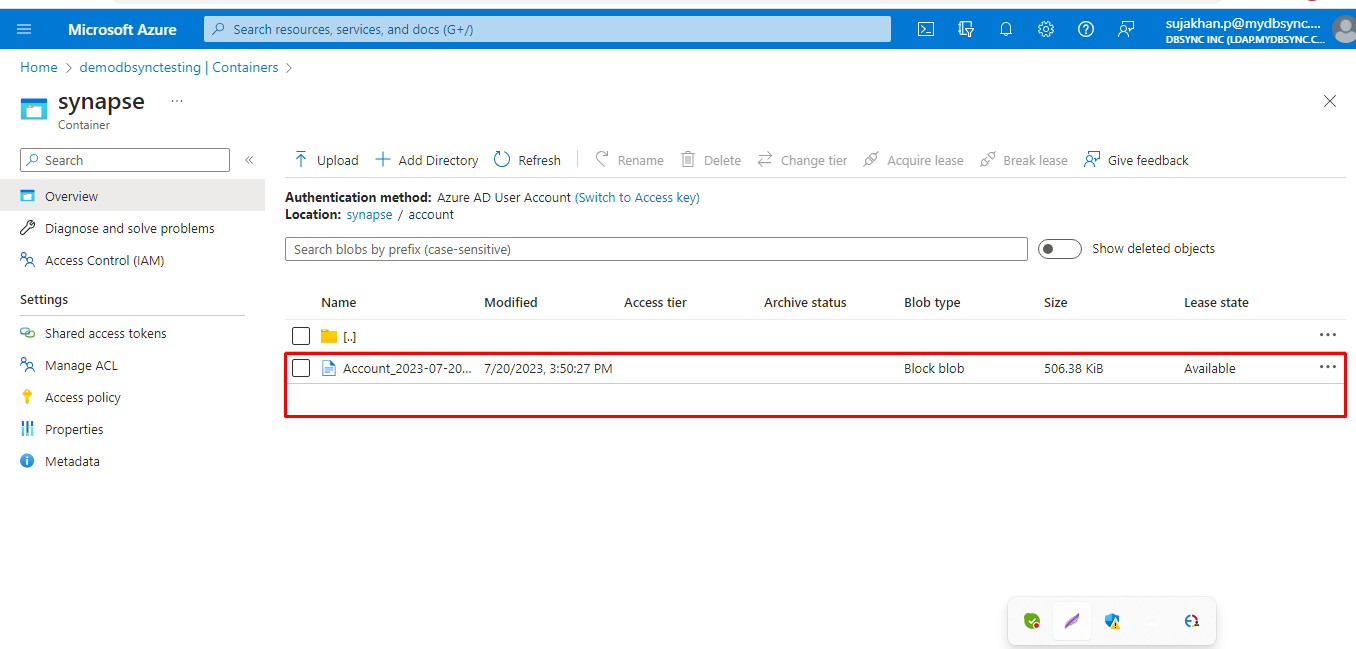
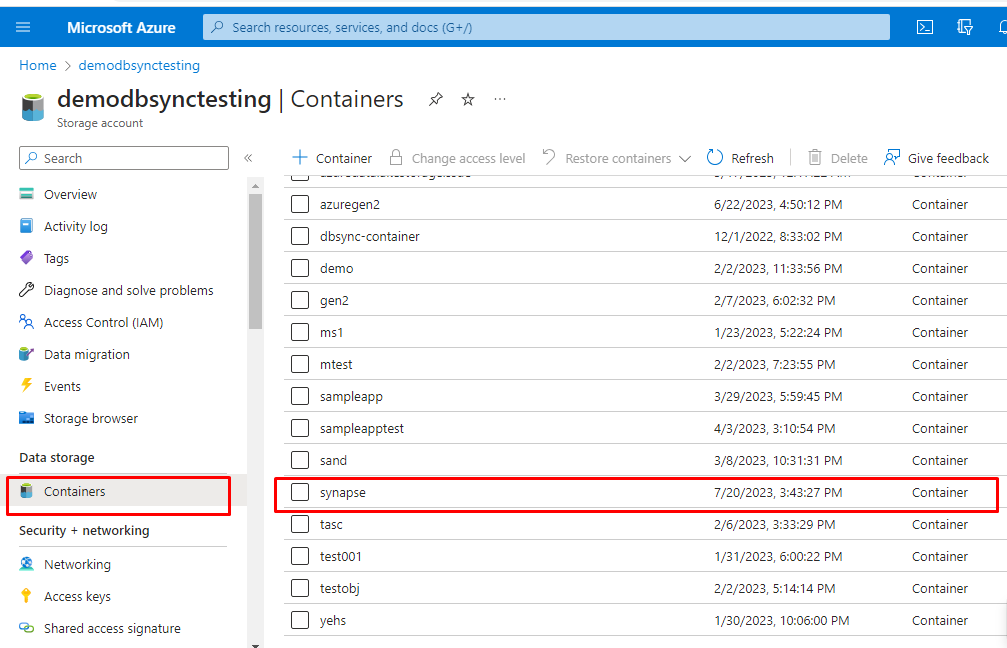
* After the Sync goes on the container in the Azure portal, A folder is created with the name same as your profile name.
<br>

<br>

&#x20;      ![](https://lh6.googleusercontent.com/wSZD8yUDZziu4UA59MCaGGlDbdba0pRjwz0VXawJENTT3zqXb2TcERM_Nhi6SSmzXeNij8rLEXsGuYolfy97Y1fmn8tixaZygpASLT2DWnpHsMx7Cp9a2dlgd7rFZ2pbZxi8KHDlG3KQJeoInim-2w)

<br>

* Click on it, and all the objects you sync, those folders get created (Account in my case)\
  ![](https://lh3.googleusercontent.com/r0SE-MpCzuwbtsje-MK_lmFEeP62UoLMod_UywMoUMvwoaSP28nmxsLnf7zYdwWOeS2WdNhF_aXwBH8MjuQ3ucaM_CYwzehVwDNsU1CZzat--5P8i9EMRUsCETwxxDYD8EH4kIQq7EcPd31M5JmeFQ)
* The data is saved in CSV format.\
  ![](https://lh6.googleusercontent.com/YfsKo1ID_eCQipErgLZg8Lj1KUmrcMiqyq-ksCcTsEqzfqq6uMomYRP0WSmlufqI4vEl8uXuCTHsSAcFIBkWARp2sZVLIFKnjtOfMwRGSEmLdp8JuyBgQbmOLN3kcKYQDMTzSnNTxO8TOvwlJi0Nqg)


---

# Agent Instructions: Querying This Documentation

If you need additional information that is not directly available in this page, you can query the documentation dynamically by asking a question.

Perform an HTTP GET request on the current page URL with the `ask` query parameter:

```
GET https://docs.mydbsync.com/cloud-replication-main/target-setup/azure-datalake-gen2.md?ask=<question>
```

The question should be specific, self-contained, and written in natural language.
The response will contain a direct answer to the question and relevant excerpts and sources from the documentation.

Use this mechanism when the answer is not explicitly present in the current page, you need clarification or additional context, or you want to retrieve related documentation sections.