> For the complete documentation index, see [llms.txt](https://docs.mydbsync.com/cloud-replication-main/llms.txt). Markdown versions of documentation pages are available by appending `.md` to page URLs; this page is available as [Markdown](https://docs.mydbsync.com/cloud-replication-main/target-setup/wasabi-storage.md).
# Wasabi storage
### Setting up Wasabi as a Database
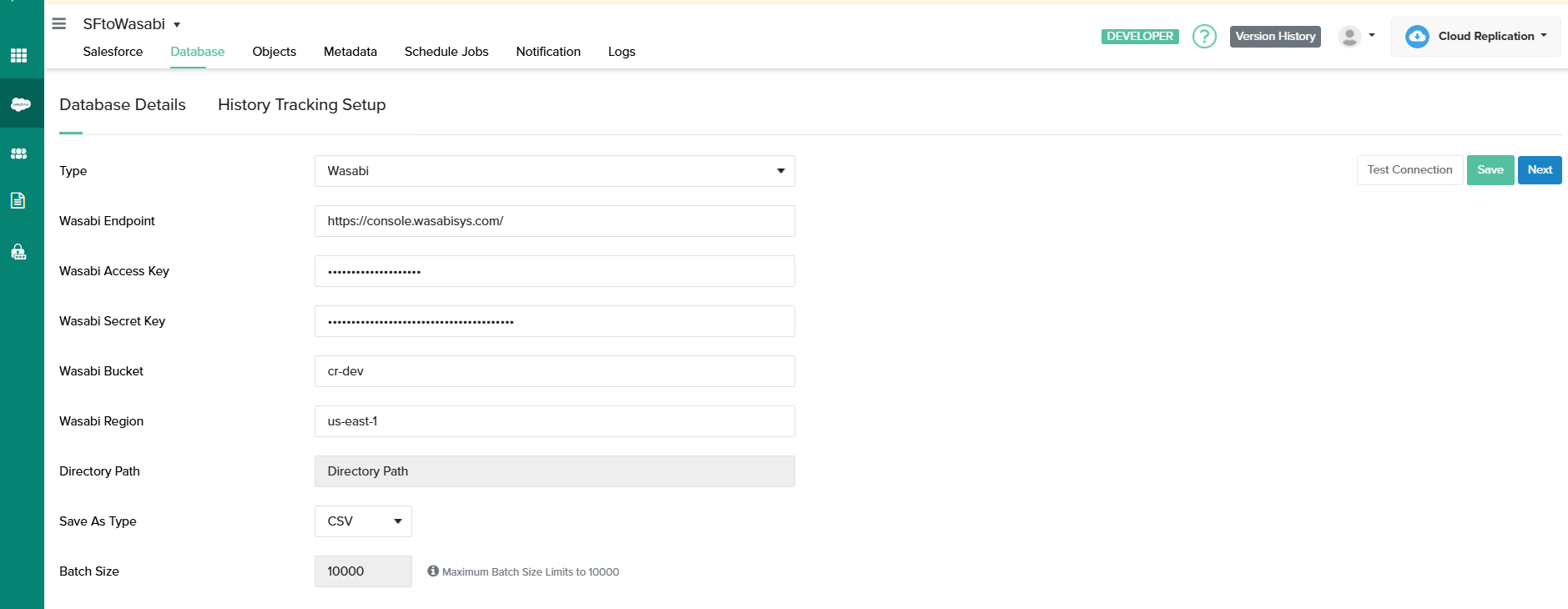
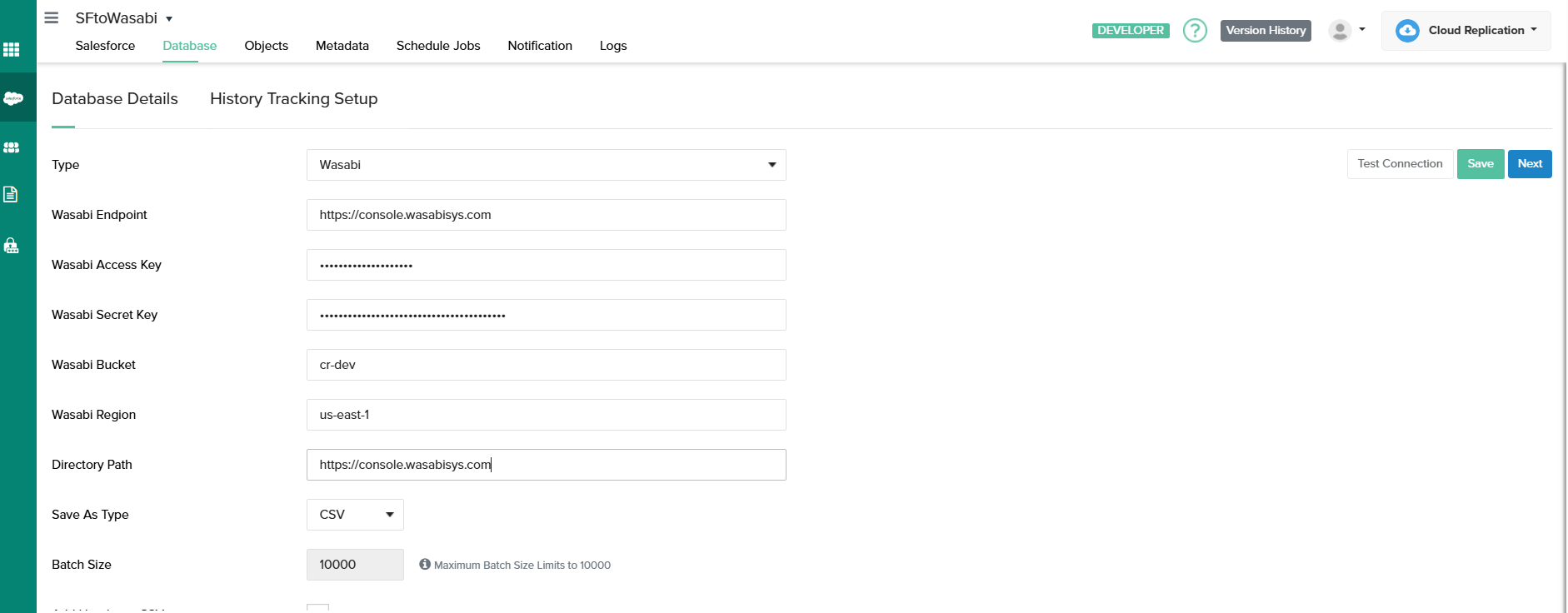
Select Wasabi: Navigate to the database section and choose Wasabi as the database type.
#### Gather Wasabi Details: Open your Wasabi URL in a separate tab to retrieve the necessary database information.
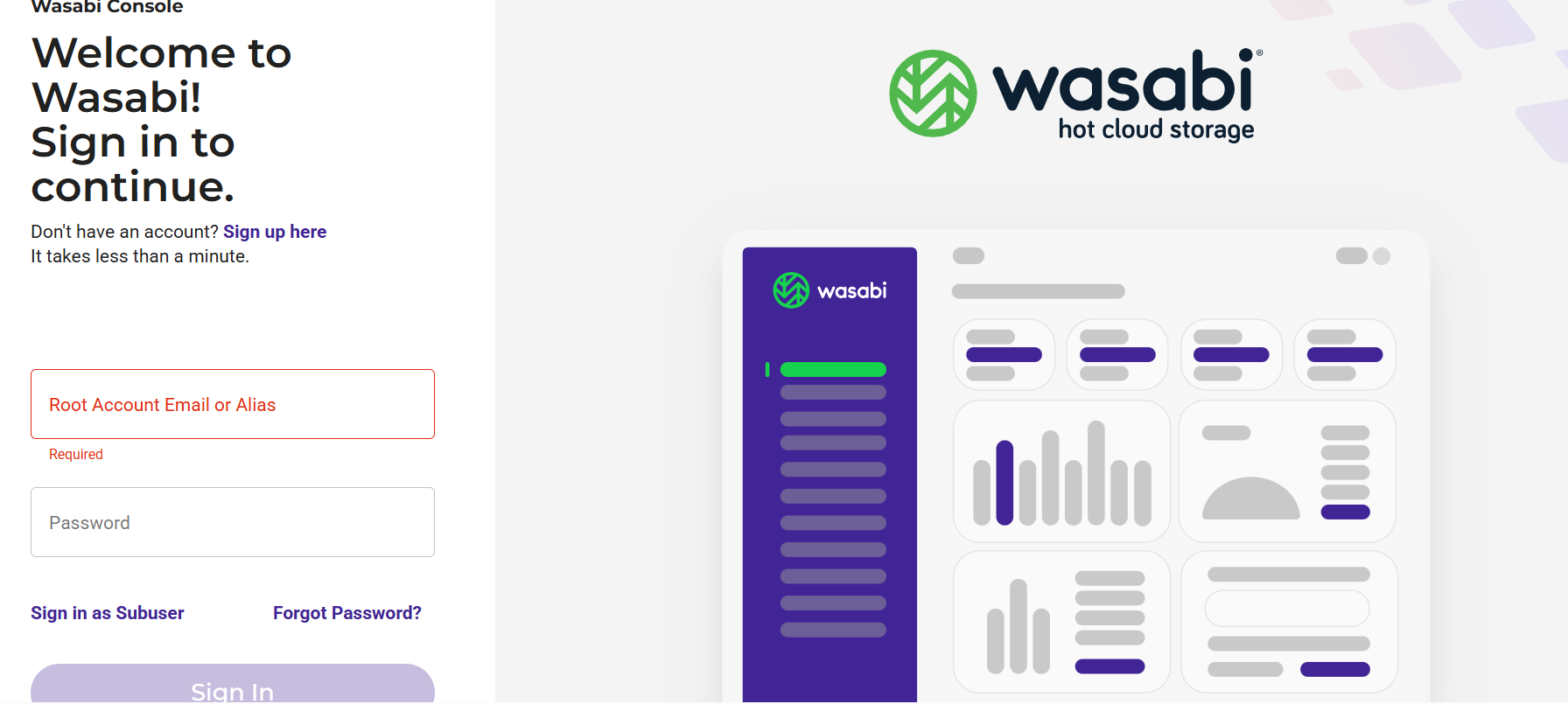
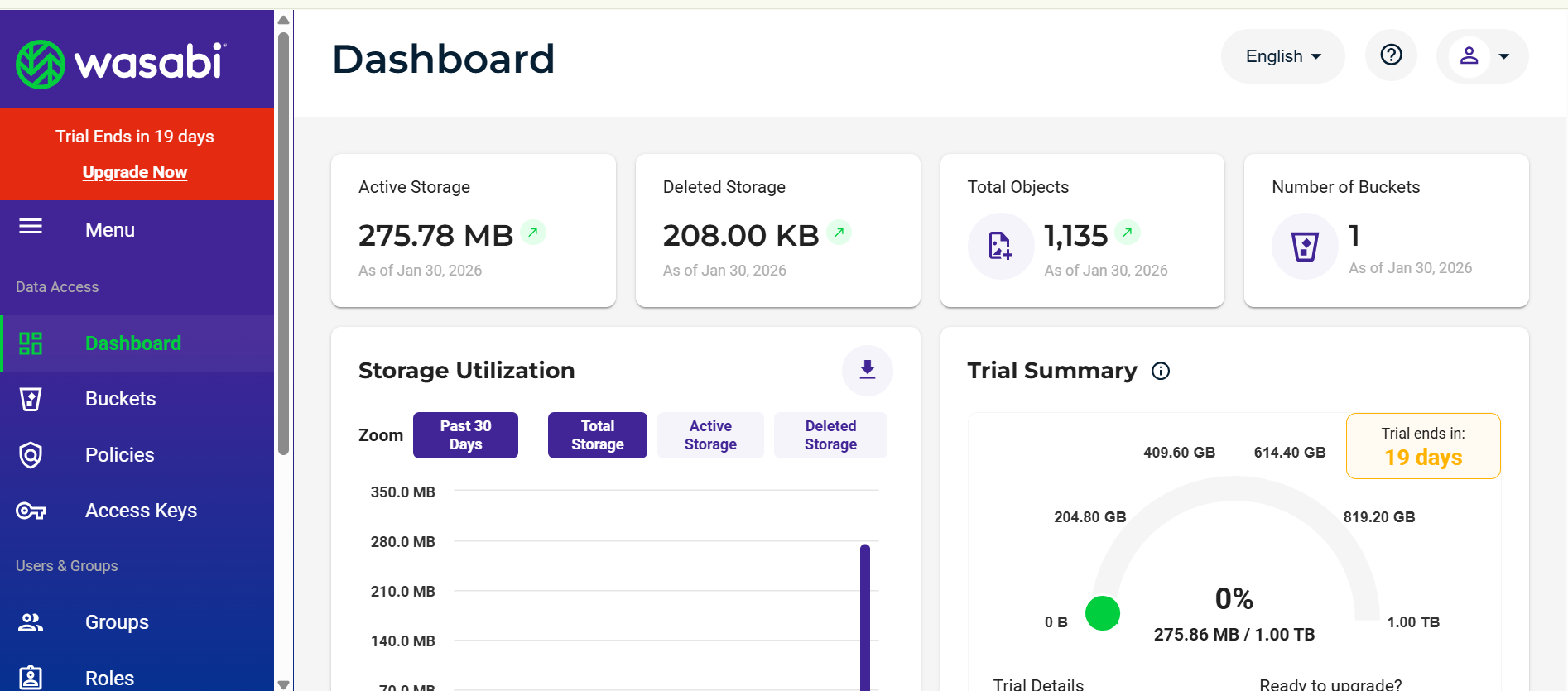
* Log in to Wasabi: Enter your username and password credentials. Upon successful login, you will be directed to the Wasabi Dashboard.
#### Creating Buckets and Access Keys
* Create a Bucket: Go to the bucket section and create a new bucket. Assign a name to it (e.g., cr-dev).
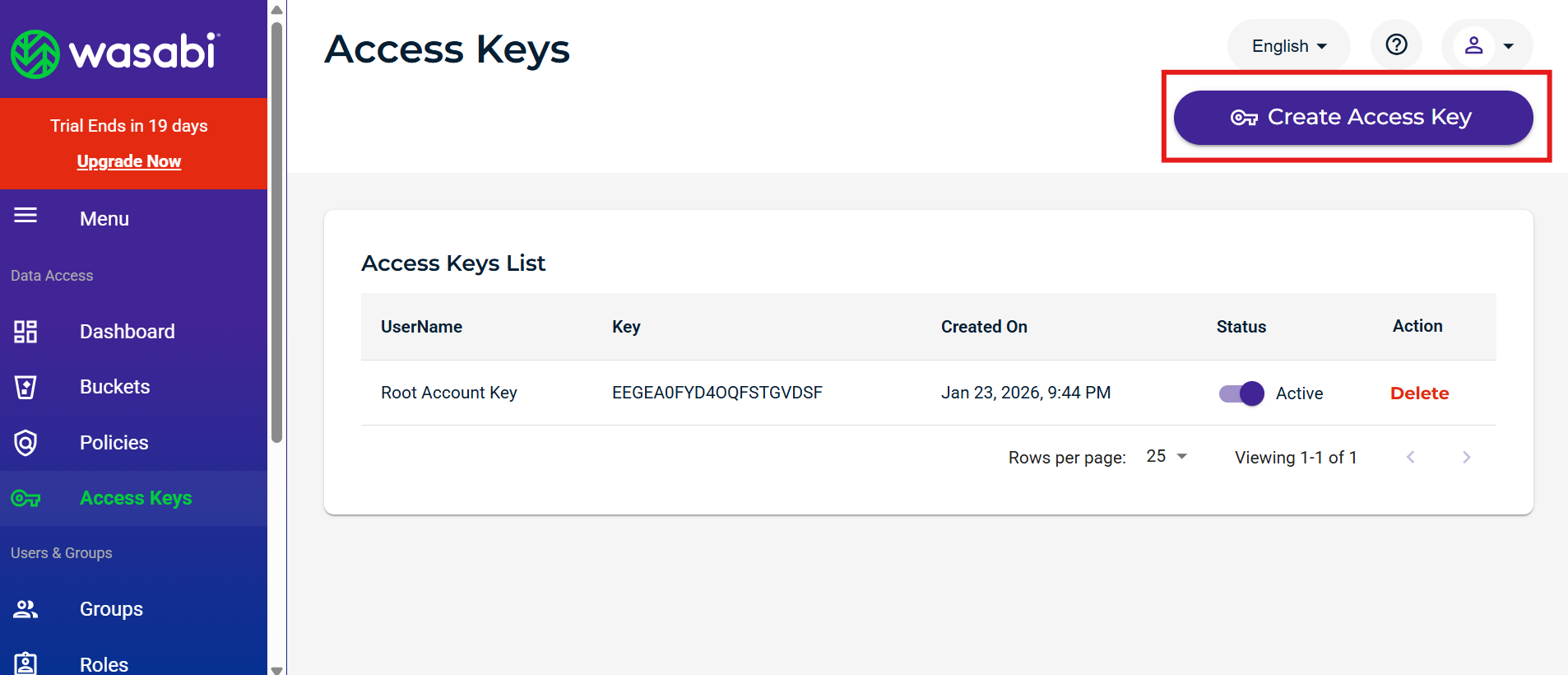
* Generate Access Keys: Navigate to the Access Keys section and click "Create access key."
* Secure Secret Key: The Access Key and Secret Key will be displayed. Keep the Secret Key safe as it is generated and visible only once.
#### Configuring Data Synchronization
* Enter Credentials: Input all the necessary credentials.
* Select Data Format: Choose the desired format (CSV/Parquet) for saving your data in Wasabi Storage. This option determines the format of the data saved in Wasabi Storage.
* Set Batch Size: Specify the batch size for data processing.
* Clean Old Data (Optional): Enable the "Purge Old Data For a Clean Copy" option if you want to remove existing data before performing the clean copy and adding new data to the bucket.
* Test Connection: After filling in all the details, test the connection to ensure everything is configured correctly.
#### Post-Synchronization Verification
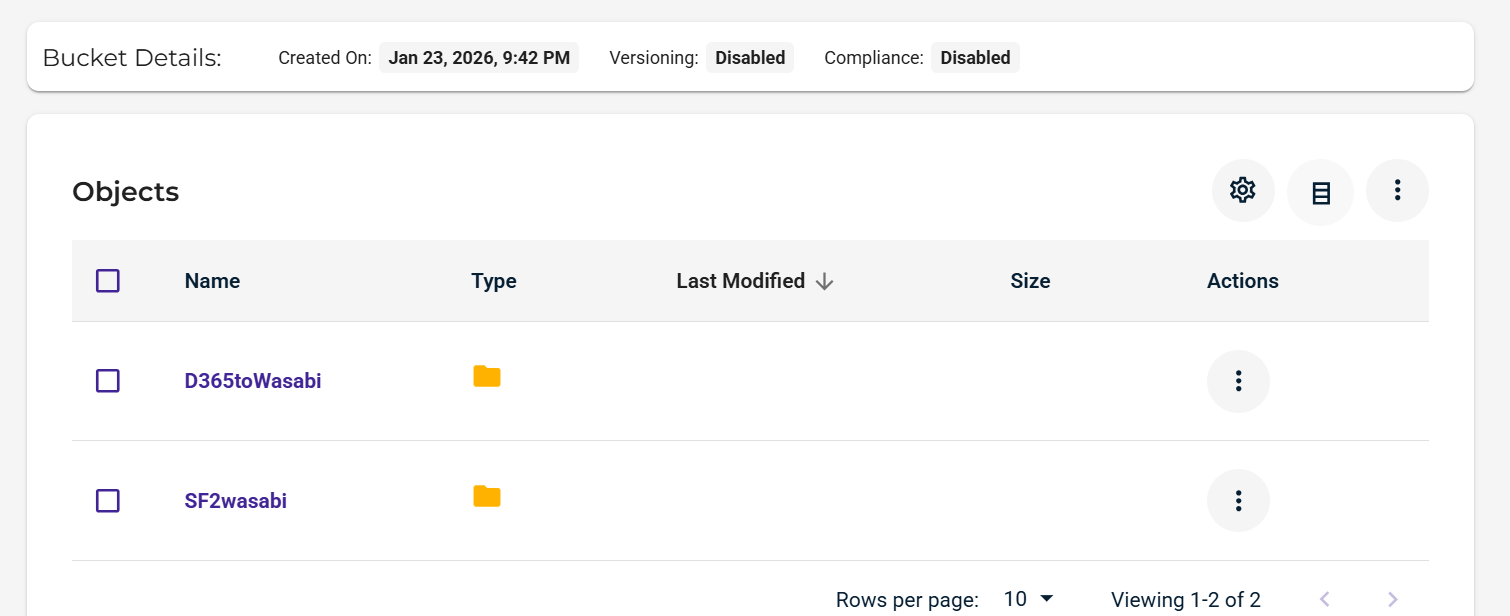
* Verify Sync: After a successful sync, a folder with the same name as the profile will appear in your Wasabi bucket.
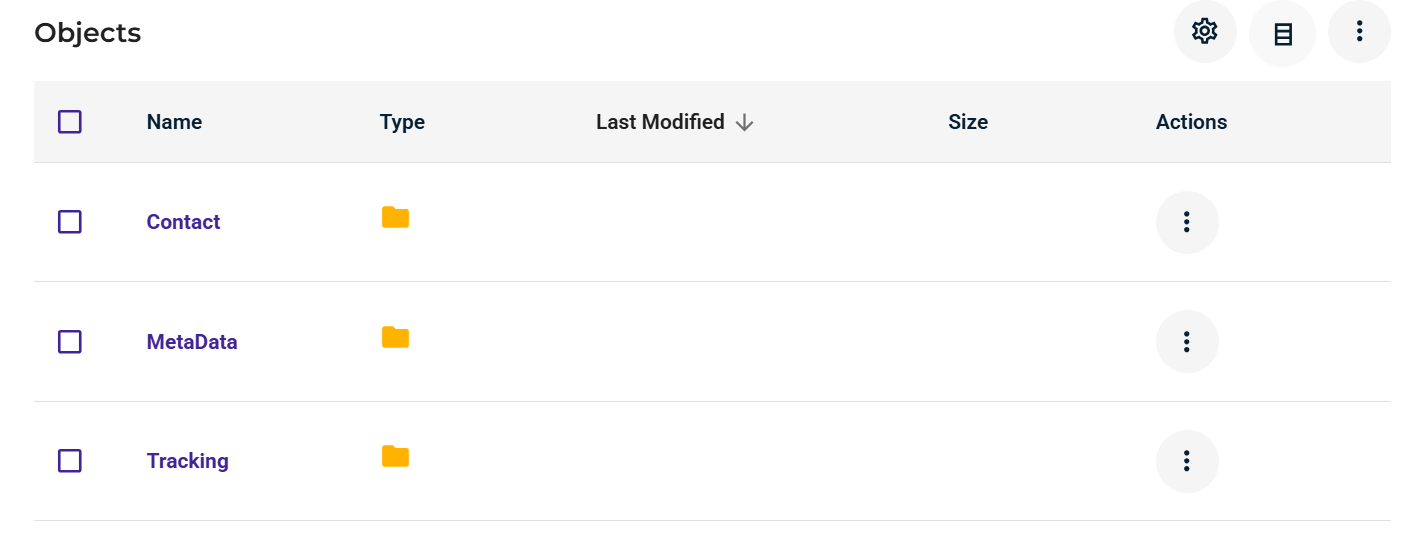
* Check Objects: Inside this folder, you will find sub-folders named after the objects that were synced.
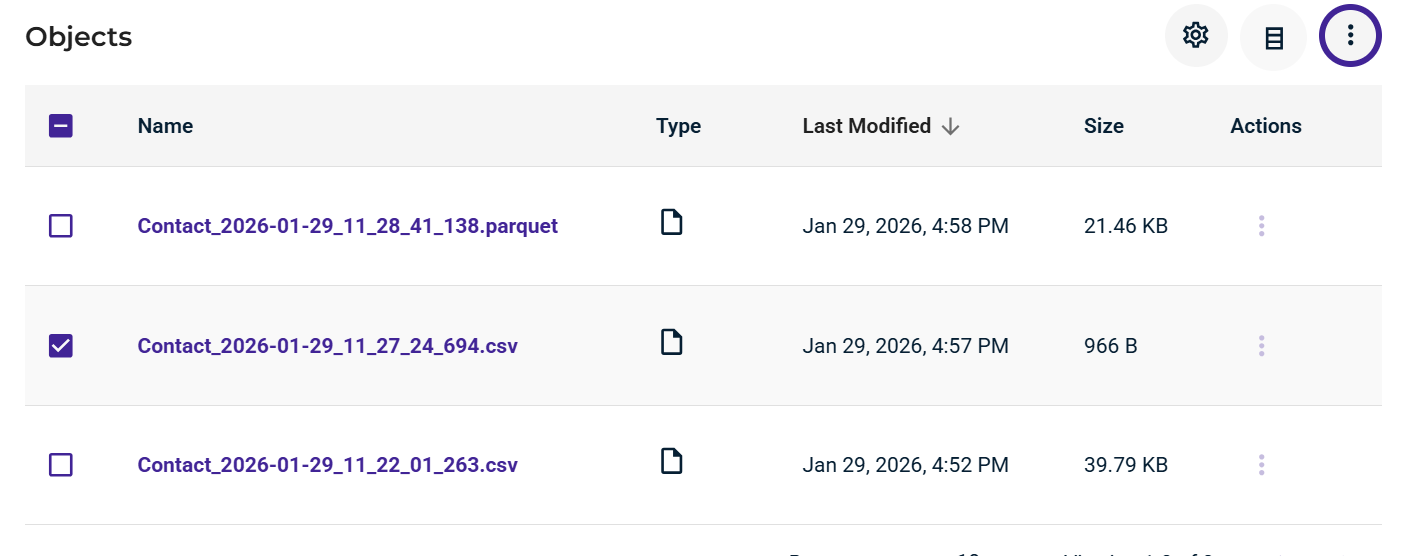
* Confirm Data Format: Within each object folder, the data will be saved in the selected CSV or Parquet format.