> For the complete documentation index, see [llms.txt](https://docs.mydbsync.com/cloud-replication-main/llms.txt). Markdown versions of documentation pages are available by appending `.md` to page URLs; this page is available as [Markdown](https://docs.mydbsync.com/cloud-replication-main/target-setup/azure-synapse.md).
# Azure Synapse
* DBSync Cloud Replication (Salesforce with Azure Synapse)
* Azure Synapse Database details in DBSync Replication Profile
* [Capacity limits for dedicated SQL pool in Azure Synapse Analytics](https://learn.microsoft.com/en-us/azure/synapse-analytics/sql-data-warehouse/sql-data-warehouse-service-capacity-limits)
* [Known limitations](https://learn.microsoft.com/en-us/azure/synapse-analytics/synapse-link/synapse-link-for-sql-known-issues)
### **DBSync Cloud Replication (Salesforce with Azure Synapse)**
Most of the features of DBSync Replication will work the same irrespective of the database.
The general process of Replicating Salesforce to Database and Database to Salesforce is explained in the below links.
[Salesforce setup remains the same](/cloud-replication-main/source-setup/salesforce.md), to Start with the database setup tab, fill all the necessary details and follow the same procedure for testing and validating your database credentials.
Follow these steps to configure your database credentials
* **Select Database**

* **Select Azure Synapse Analytics as a destination.**

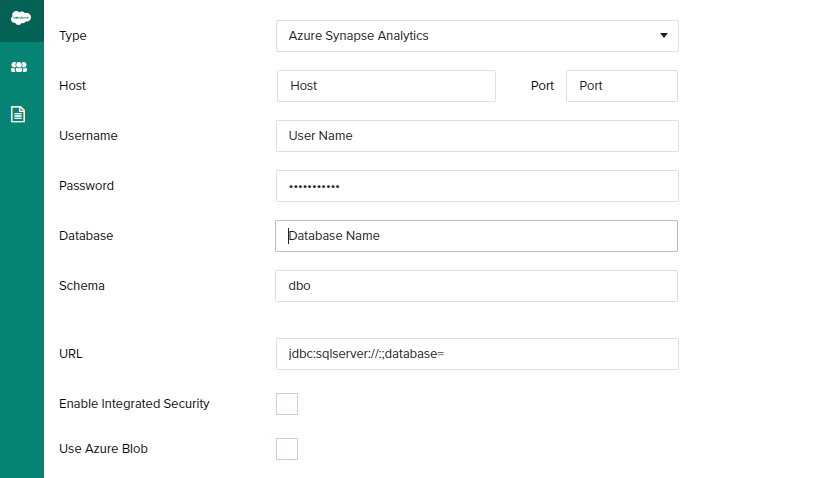
* Enter the necessary connection properties. To connect to Azure Synapse, provide authentication properties (see below) and set the following properties to connect to a Azure Synapse database:
**Use with Azure Blob:**
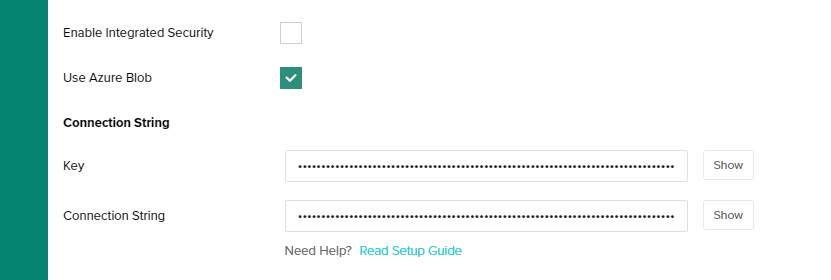
To obtain optimal performance with replicating to Azure Synapse it is recommended for batch uploads using files, please refer to the link for more details
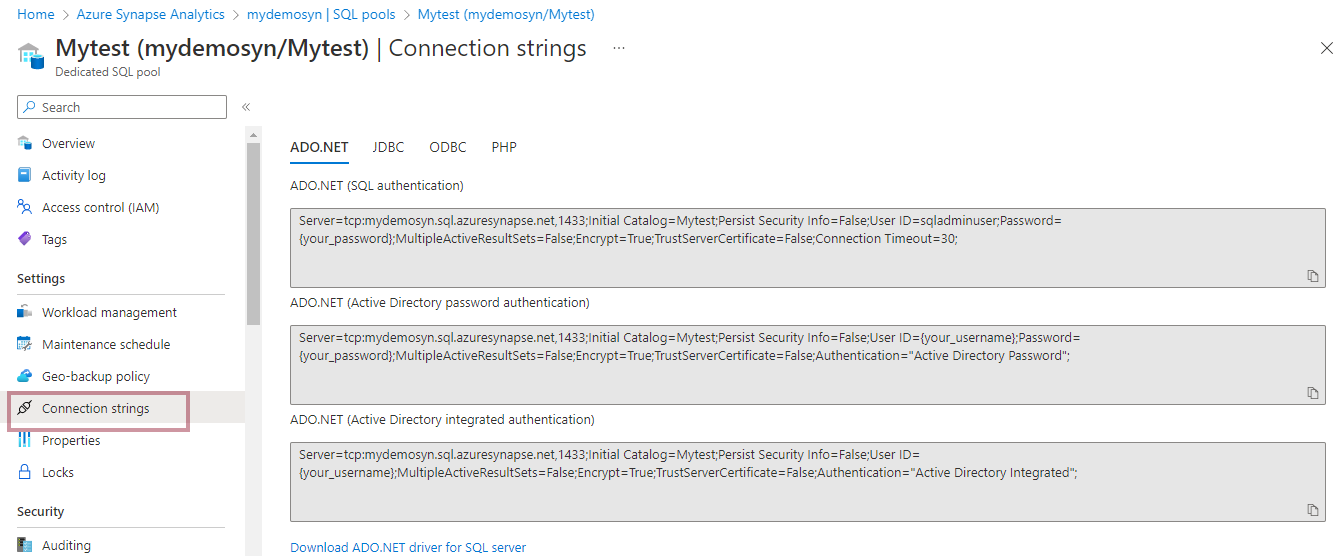
**Steps to obtain Azure Synapse SQL pool connection details:**
* You can find login details by logging into the Azure portal and navigating to
* Azure Synapse Analytics -> SQL Pool -> Select your database -> Select connection string
\
**Steps to Get Access key and connection string for Using Azure Blob.**
**Step 1- Login to your** [**Azure portal**
](https://login.microsoftonline.com/organizations/oauth2/v2.0/authorize?redirect_uri=https%3A%2F%2Fportal.azure.com%2Fsignin%2Findex%2F\&response_type=code%20id_token\&scope=https%3A%2F%2Fmanagement.core.windows.net%2F%2Fuser_impersonation%20openid%20email%20profile\&state=OpenIdConnect.AuthenticationProperties%3DQKAF7iE5hiUvzXXH_lVZu0ytKIsIuKOazTwX06t762bl7KCx3bSDw4RElkaJ-geBfgdrRD2wdrf_EtOSmuPX6vZIK1HhdRSEtUM_Yps2pk-z3QrnleGLWnxsDo11_c6zGNgct7YIAssWziJYe3AMN1O78JUb0040gXx162ucAyZHkIK6jldgy7Jdi_5VUVHt6gsLZywX7QwzTtN0FOFRzrDXQ7ui8Ap3sQatVHaHSLlNXH-9amZ3b3qvBQuX9R0DNSAG7OPQ-KZNYVaJD77jJkvJGmx3BGdpvyD9-6bnxnHGm6h6r5GHnIpc1oVr-MukZSCFjdntXtIl44QBSRJJqqCGU6KV6DdGlJMxC4p8KnzRtEpvAYyWxP3NeAtuDkwwIaijxD8whuZOeKxROLqqAHu5tOee01bzTSDbxF0DvxNJ7X1HIXhLfT_xNz4EEMv0xg0MEW2ZtKey7O6M13J6K0vsYYuN2Zq1zDdPuUtcQp4\&response_mode=form_post\&nonce=637998796405180311.YmQwOTM3ZTYtNjk4NS00MGNmLTk3MWEtNDRiZDc2MDcyYThlY2UwMjQzMmItZjhhNi00MTBmLTgwMTItMmU2MzlmYTM5ZWQw\&client_id=c44b4083-3bb0-49c1-b47d-974e53cbdf3c\&site_id=501430\&client-request-id=e546651e-772c-4c28-a231-b83a7765db72\&x-client-SKU=ID_NET472\&x-client-ver=6.16.0.0\&sso_reload=true)**Step 2- On the home screen select the Storage account From Azure services**

\
**Step 3- Inside Storage accounts select the Desired storage you want to connect with**

**Step 4- Inside the selected storage click on access key from left hand panel**
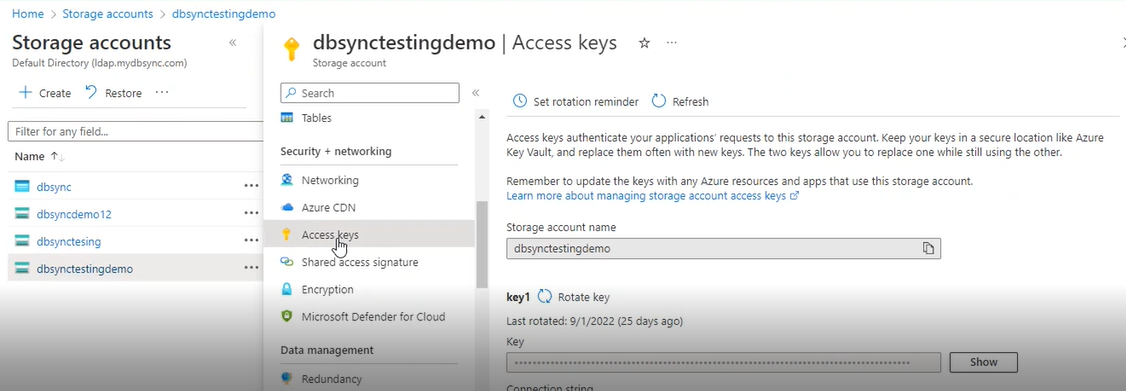
**Step 5 - Copy the Key and connection string and paste them to the Given space on DBSync Database connection page**\

#### DBSync Limitation(s)
With Azure Synapse as the target database, following functionalities are not yet supported.
1. Export
2. Restore
3. Metadata
4. History tracking