# Create a Private QuickBooks Online (QBO) App on Intuit Developer portal

{% stepper %}
{% step %}

### Sign in or create an Intuit developer account

* Navigate to [developer.intuit.com](https://developer.intuit.com/).
* Sign in or sign up for a developer profile. This account is where you will create your apps and sandboxes.
  {% endstep %}

{% step %}

### Create a new Workspace

* In the developer portal, go to My Hub → Workspaces. You will be directed to the Workspaces page, where you will see existing workspaces.
* Click (+) to add a new Workspace.

<figure><img src="https://content.gitbook.com/content/v9avy716UiAsS24zOznZ/blobs/k0vrJuReB1JdmTnRg16o/Unknown%20image" alt=""><figcaption></figcaption></figure>

* On the Create a Workspace screen, click **Get Started**.

<figure><img src="https://content.gitbook.com/content/v9avy716UiAsS24zOznZ/blobs/nn9GyhG3rkvL8357CNlb/Unknown%20image" alt=""><figcaption></figcaption></figure>

* Fill in the required details in the Basic Workspace Information, Company Information, and Contact Information screens.

<figure><img src="https://content.gitbook.com/content/v9avy716UiAsS24zOznZ/blobs/3Iu7O1PyGjtysskaB1Jw/Unknown%20image" alt=""><figcaption><p>Basic Workspace Information</p></figcaption></figure>

<figure><img src="https://content.gitbook.com/content/v9avy716UiAsS24zOznZ/blobs/zHg23OjZTyrHpjsfYwnb/Unknown%20image" alt=""><figcaption><p>Company Information</p></figcaption></figure>

<figure><img src="https://content.gitbook.com/content/v9avy716UiAsS24zOznZ/blobs/y4iiZdtSBDVIBVJhYgUa/Unknown%20image" alt=""><figcaption><p>Contact Information</p></figcaption></figure>

<figure><img src="https://content.gitbook.com/content/v9avy716UiAsS24zOznZ/blobs/zfDHy8eLWrWhjhOxh0my/Unknown%20image" alt=""><figcaption><p>Workspace Created</p></figcaption></figure>

Your Workspace will be created.&#x20;

* Click **Open Workspace**.
  {% endstep %}

{% step %}

### Create a new app in the new workspace

* In the new Workspace, click (+) to add a new app.
* Create an app. Select QuickBooks Online (Accounting) — or QuickBooks Online & Payments if you need payment functionality — and enter a name for your app.

Note: If you have multiple QuickBooks files, create a separate workspace and private app for each. For example, two QuickBooks files require two workspaces, each with its own private app.

<figure><img src="https://content.gitbook.com/content/v9avy716UiAsS24zOznZ/blobs/bRd3g2HlgU8junfPQwkx/Unknown%20image" alt=""><figcaption></figcaption></figure>

* Click **Get Started** to continue creating a new app.

<figure><img src="https://content.gitbook.com/content/v9avy716UiAsS24zOznZ/blobs/Y2M6uPwbgYay0NsBL9QN/Unknown%20image" alt=""><figcaption></figcaption></figure>

* Enter the **App name** for your private app and click **Next**.

<figure><img src="https://content.gitbook.com/content/v9avy716UiAsS24zOznZ/blobs/FYXrdpQruxL1Te3vqMLB/Unknown%20image" alt=""><figcaption></figcaption></figure>

* In the **Add permissions** screen, select both permission options shown, then click **Done**.

<figure><img src="https://content.gitbook.com/content/v9avy716UiAsS24zOznZ/blobs/YyVXh62lPdSkELeWuSVP/Unknown%20image" alt=""><figcaption></figcaption></figure>

* In the **Permission confirmation** screen, click **Confirm**. The app is ready for testing.

<figure><img src="https://content.gitbook.com/content/v9avy716UiAsS24zOznZ/blobs/aTlpGc5XlTIlOhIubPF0/Unknown%20image" alt=""><figcaption></figcaption></figure>

* Click **Open app**.&#x20;

<figure><img src="https://content.gitbook.com/content/v9avy716UiAsS24zOznZ/blobs/4GDjoj7Tz0Ihr6Xt80ge/Unknown%20image" alt=""><figcaption></figcaption></figure>

You will be directed to the **App Overview** screen.

<figure><img src="https://content.gitbook.com/content/v9avy716UiAsS24zOznZ/blobs/r9dHxbONYCA7IkJSiIW2/Unknown%20image" alt=""><figcaption></figcaption></figure>
{% endstep %}

{% step %}

### Generate your App’s Credentials

* In the developer portal, open your app and navigate to **Keys & Credentials** from the left pane.

<figure><img src="https://content.gitbook.com/content/v9avy716UiAsS24zOznZ/blobs/GaXWDYMZY02racqdyZJy/Unknown%20image" alt=""><figcaption></figcaption></figure>

* In **Keys & Credentials**, click the Development / Production toggle to switch to **Production**.

<figure><img src="https://content.gitbook.com/content/v9avy716UiAsS24zOznZ/blobs/RG6b5ZfbLSYrKF15PKE6/Unknown%20image" alt=""><figcaption></figcaption></figure>

* To generate the credentials (Client ID and Client Secret), complete the questionnaire under the **Complete these tasks in order to unlock your production credentials** header.
  {% endstep %}

{% step %}

### Complete the questionnaire to obtain your credentials:

* Fill in the required questionnaire that appears to receive your Client ID and Client Secret.

Notes:

1. This section is divided into two sections: App Details and Compliance. Complete each section to generate the **Client ID** and **Client Secret**.
2. Complete the App Details questionnaire using the recommended responses below.
   {% endstep %}

{% step %}

#### App Details — required fields and recommended responses

Review your Intuit Developer Portal profile and verify your email.

| Field         | Recommended Response        | Notes                        |
| ------------- | --------------------------- | ---------------------------- |
| Email address | Your business email address | Required contact information |
| First name    | Your first name             | Required contact information |
| Last name     | Your last name              | Required contact information |
| Phone number  | Your business phone number  | Required contact information |
| Address       | Your business address       | Required contact information |

<figure><img src="https://content.gitbook.com/content/v9avy716UiAsS24zOznZ/blobs/yak1YCx2LRc1SLAijWh0/Unknown%20image" alt=""><figcaption></figcaption></figure>

Add your app’s end-user license agreement and privacy policy (copy URLs exactly):

* End-user license agreement URL: <https://www.mydbsync.com/content/eula>
* Privacy policy URL: <https://www.mydbsync.com/privacy-policy>

| Field                          | Recommended Response                      | Notes                          |
| ------------------------------ | ----------------------------------------- | ------------------------------ |
| End-user license agreement URL | <https://www.mydbsync.com/content/eula>   | Copy this URL exactly as shown |
| Privacy policy URL             | <https://www.mydbsync.com/privacy-policy> | Copy this URL exactly as shown |

<figure><img src="https://content.gitbook.com/content/v9avy716UiAsS24zOznZ/blobs/RaMes6sbLcoHk7ixYVt4/Unknown%20image" alt=""><figcaption></figcaption></figure>

Add your app’s host domain, launch URL, and disconnect URL (copy URLs/values exactly):

* Host domain: [www.mydbsync.com](http://www.mydbsync.com)
* Launch URL: <https://app03.mydbsync.com/appcenter/qb/openid>
* Disconnect URL: <https://app03.mydbsync.com/appcenter/qb/openid/disconnect/callback?realmId=>

| Field          | Recommended Response                                                          | Notes                                                   |
| -------------- | ----------------------------------------------------------------------------- | ------------------------------------------------------- |
| Host domain    | [www.mydbsync.com](http://www.mydbsync.com)                                   | Enter without https\://                                 |
| Launch URL     | <https://app03.mydbsync.com/appcenter/qb/openid>                              | Copy this URL exactly as shown                          |
| Disconnect URL | <https://app03.mydbsync.com/appcenter/qb/openid/disconnect/callback?realmId=> | Copy this URL exactly as shown, including the parameter |

<figure><img src="https://content.gitbook.com/content/v9avy716UiAsS24zOznZ/blobs/saTt0jgoi803yxcrXVcK/Unknown%20image" alt=""><figcaption></figcaption></figure>

Select at least one app category for your app (choose the category that best describes your integration):

Example categories:

* Banking
* Income Management
* Invoicing
* Data Management

| Field        | Recommended Response                                                                  | Notes                                                             |
| ------------ | ------------------------------------------------------------------------------------- | ----------------------------------------------------------------- |
| App category | Select one or more: - Banking, - Income Management, - Invoicing, or - Data Management | Choose the category that best describes your integration use case |

<figure><img src="https://content.gitbook.com/content/v9avy716UiAsS24zOznZ/blobs/INGEv4SKTrPHGpGcxrAI/Unknown%20image" alt=""><figcaption></figcaption></figure>

Tell us about any regulated industries that use your app:

* Select *None of the above* when no industries apply.

| Field                | Recommended Response | Notes |
| -------------------- | -------------------- | ----- |
| Regulated industries |                      |       |

<figure><img src="https://content.gitbook.com/content/v9avy716UiAsS24zOznZ/blobs/rLkLexqU8X0ChZvp7iFy/Unknown%20image" alt=""><figcaption></figcaption></figure>

Tell us where your App is hosted:

* Select **United States**.

| Field                | Recommended Response |
| -------------------- | -------------------- |
| App hosting location | United States        |

<figure><img src="https://content.gitbook.com/content/v9avy716UiAsS24zOznZ/blobs/Va2vPNEMyFUdkhi429E8/Unknown%20image" alt=""><figcaption></figcaption></figure>
{% endstep %}
{% endstepper %}

### Compliance questionnaire

* After completing the App Details section, click **Start Questionnaire** to begin the Compliance section.

<figure><img src="https://content.gitbook.com/content/v9avy716UiAsS24zOznZ/blobs/i0NqMWemYCqJKNH2vWVC/Unknown%20image" alt=""><figcaption></figcaption></figure>

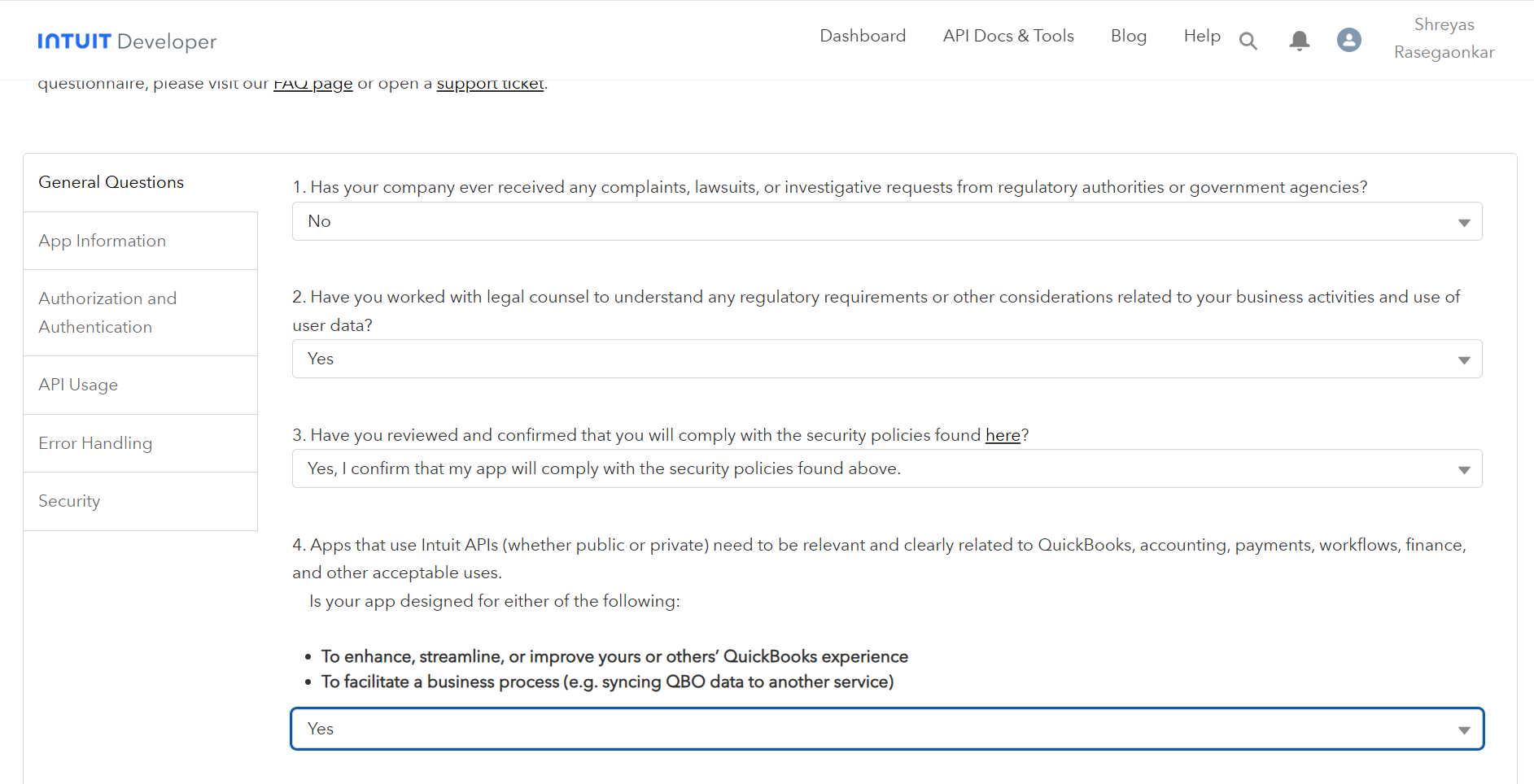
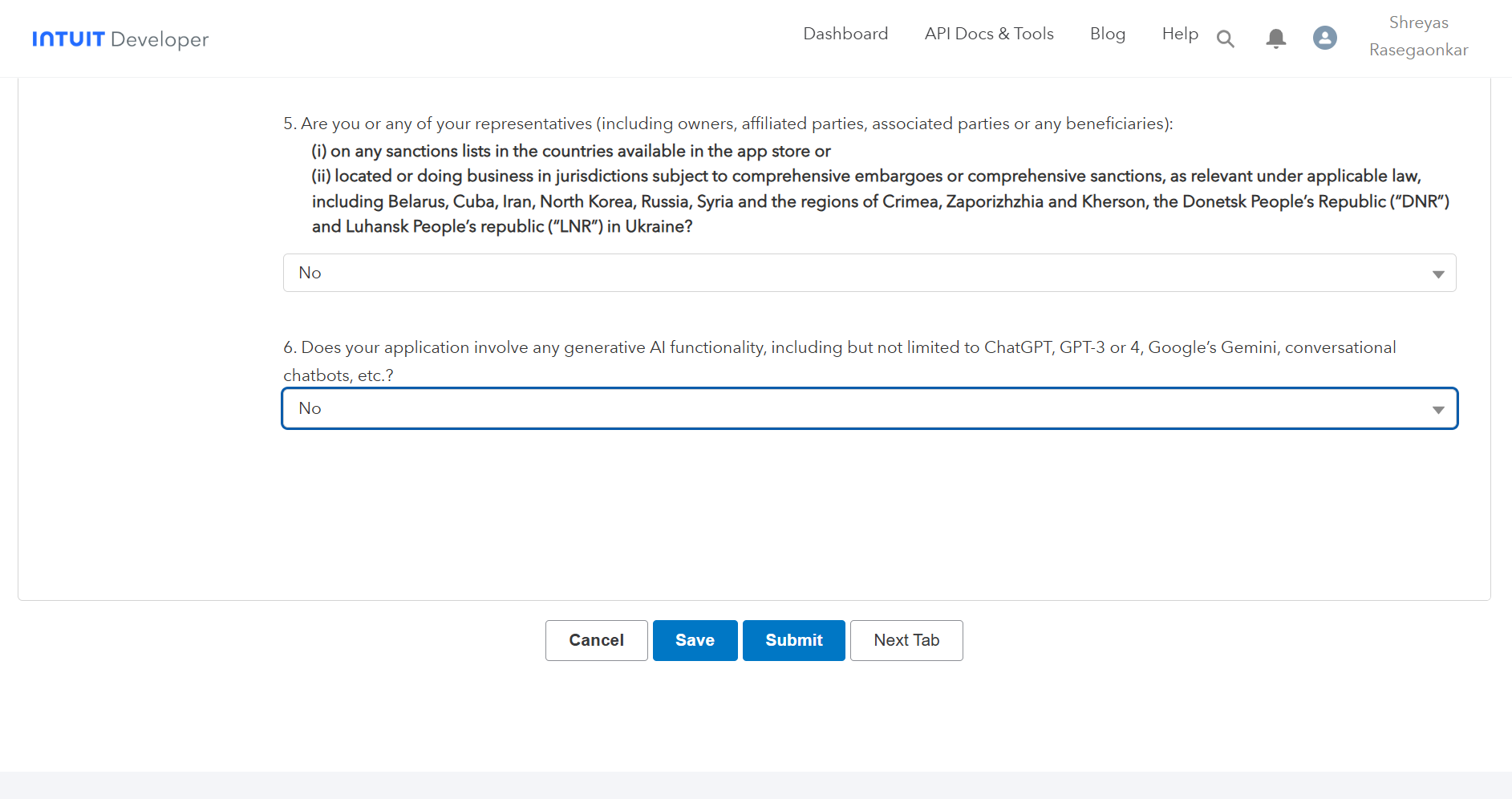
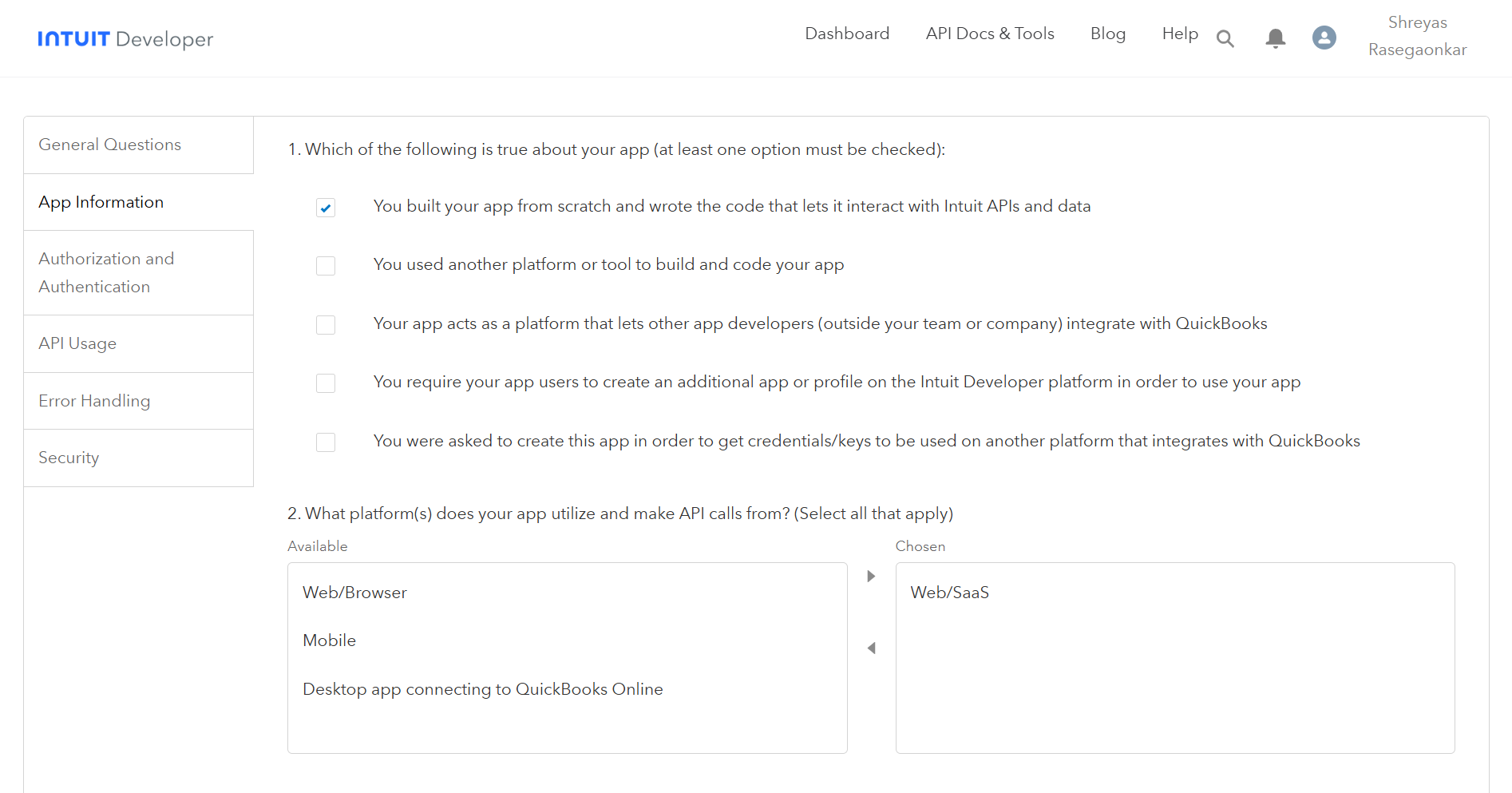
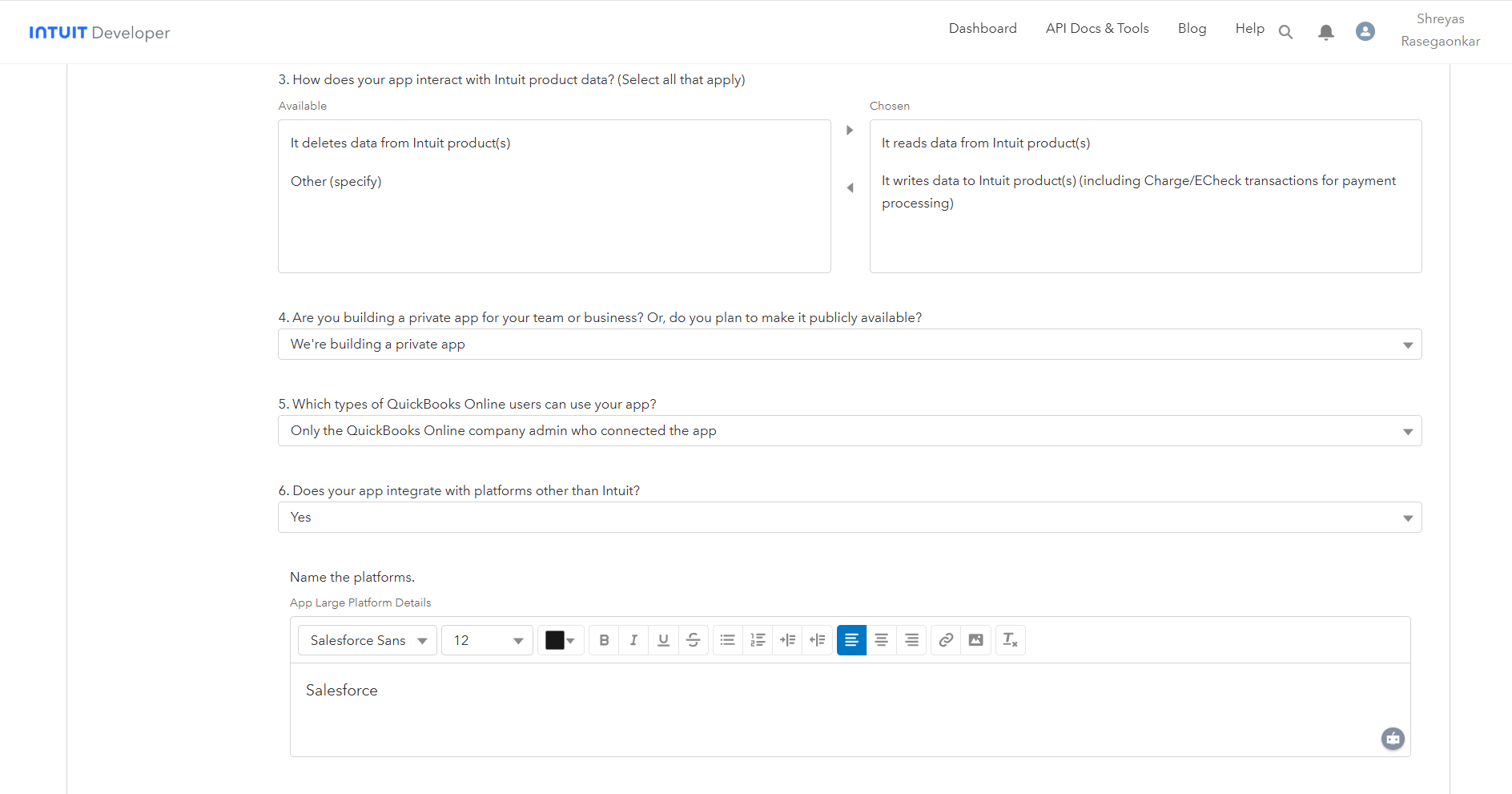
* Complete each tab of the Compliance questionnaire in order:

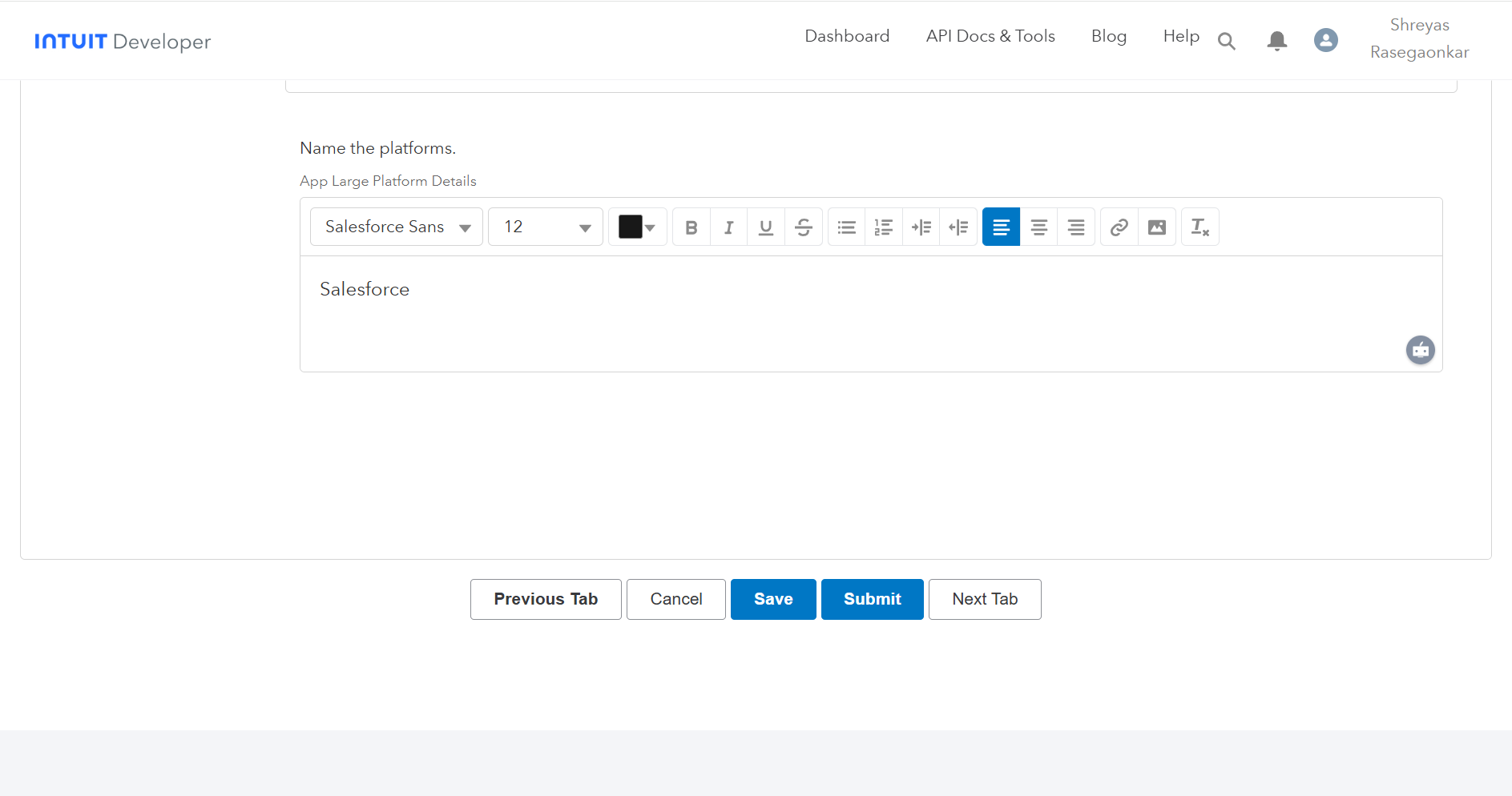
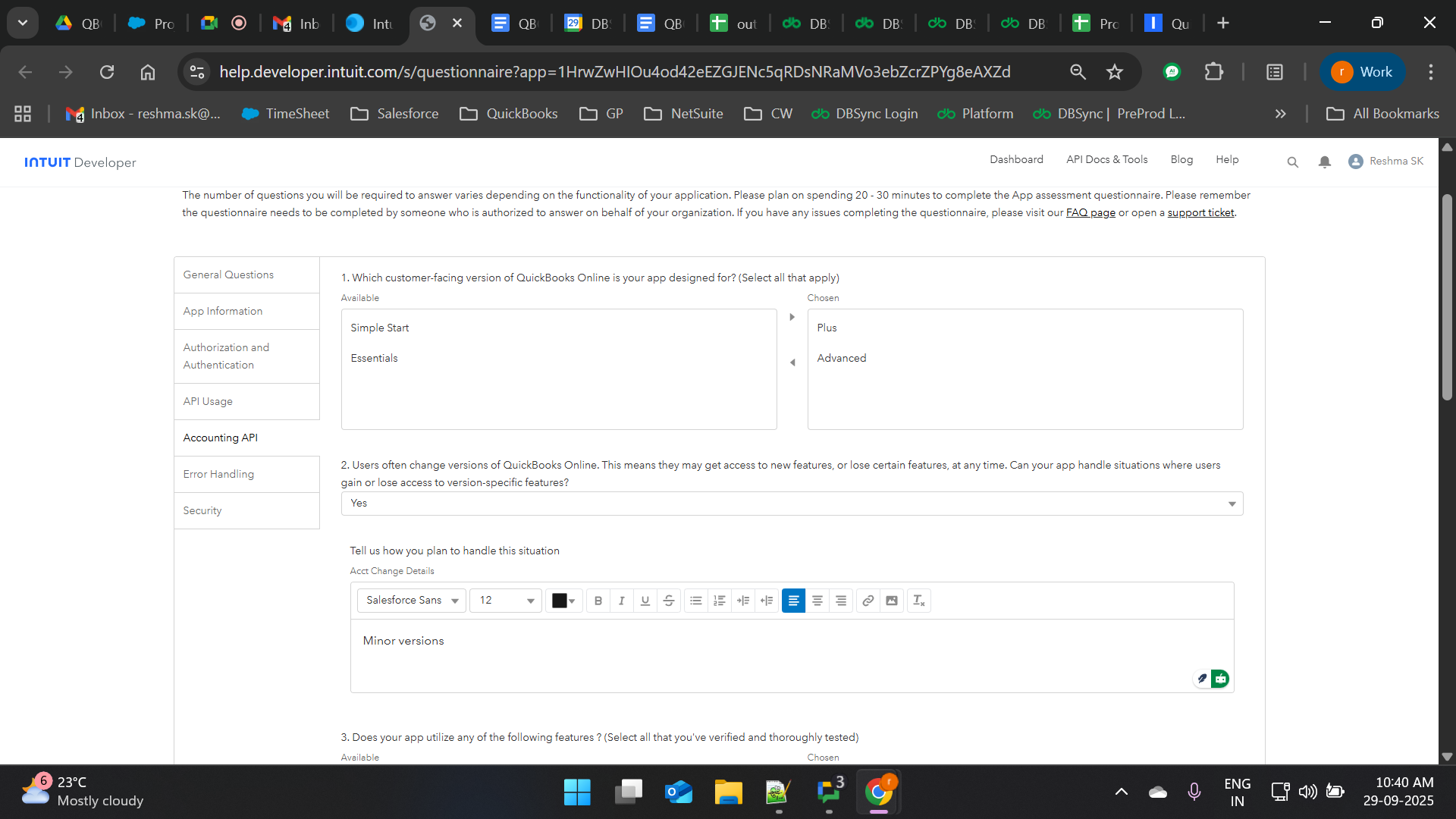
1. General Questions — select the appropriate options, then click **Next Tab**.

   <figure><img src="https://1036205596-files.gitbook.io/~/files/v0/b/gitbook-x-prod.appspot.com/o/spaces%2Fv9avy716UiAsS24zOznZ%2Fuploads%2FsC1uwFV9R8Jf42jzB4bk%2Fimage.png?alt=media&#x26;token=f8c0e9c3-7dd1-405d-a9c5-4bb81f2f3a79" alt=""><figcaption></figcaption></figure>
2. App Information — select the appropriate options, then click **Next Tab**.

   <figure><img src="https://1036205596-files.gitbook.io/~/files/v0/b/gitbook-x-prod.appspot.com/o/spaces%2Fv9avy716UiAsS24zOznZ%2Fuploads%2FJCIRicDOMPukmvfp2CSK%2Fimage.png?alt=media&#x26;token=3b55b7d0-18e4-479b-904c-bf6029dce623" alt=""><figcaption></figcaption></figure>
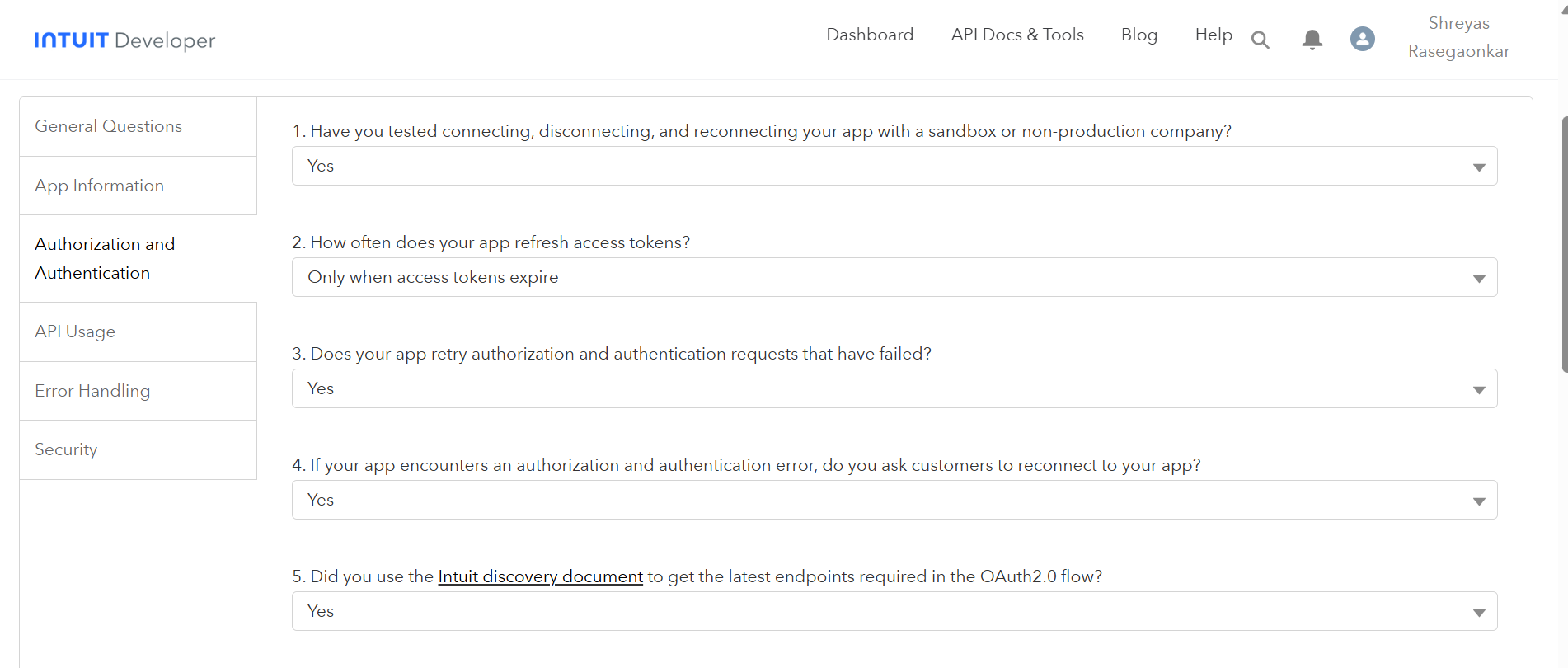
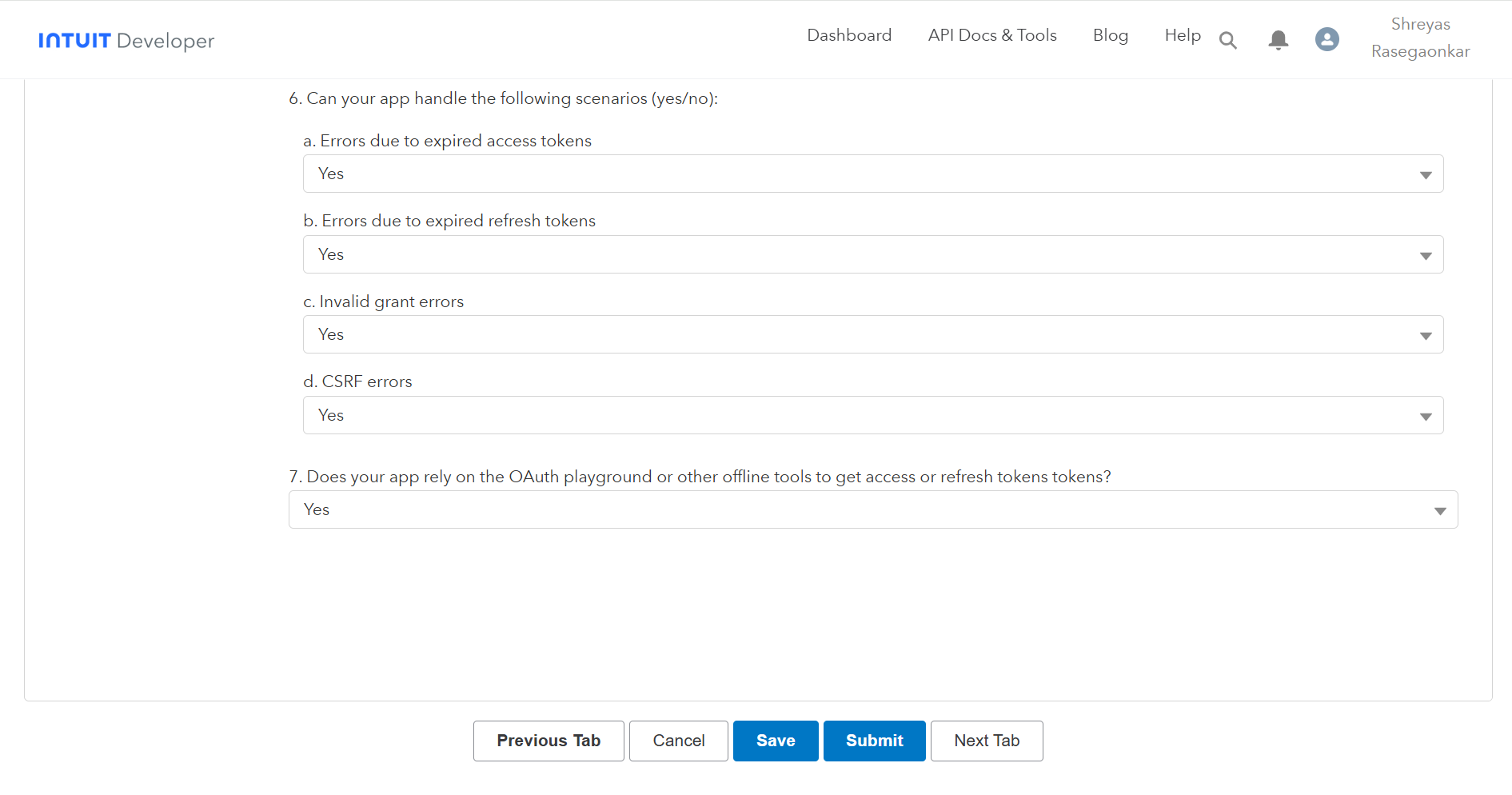
3. Authorization & Authentication — select the appropriate options, then click **Next Tab**.

   <figure><img src="https://1036205596-files.gitbook.io/~/files/v0/b/gitbook-x-prod.appspot.com/o/spaces%2Fv9avy716UiAsS24zOznZ%2Fuploads%2FXzXvst97KIFjbKUZxblE%2Fimage.png?alt=media&#x26;token=70e39e78-909b-4db1-b8c7-2d62a2253feb" alt=""><figcaption></figcaption></figure>

   <br>

   <figure><img src="https://1036205596-files.gitbook.io/~/files/v0/b/gitbook-x-prod.appspot.com/o/spaces%2Fv9avy716UiAsS24zOznZ%2Fuploads%2FIHfKC5PvISZt3aTI1bBW%2Fimage.png?alt=media&#x26;token=9c028962-a676-448f-959b-bd25d8e48389" alt=""><figcaption></figcaption></figure>

   <br>

   <figure><img src="https://1036205596-files.gitbook.io/~/files/v0/b/gitbook-x-prod.appspot.com/o/spaces%2Fv9avy716UiAsS24zOznZ%2Fuploads%2FiVJGP1ZeAtYj4SAsjPdK%2Fimage.png?alt=media&#x26;token=cc47b388-c530-4904-ad5c-908164a188c9" alt=""><figcaption></figcaption></figure>

   <br>

   <figure><img src="https://1036205596-files.gitbook.io/~/files/v0/b/gitbook-x-prod.appspot.com/o/spaces%2Fv9avy716UiAsS24zOznZ%2Fuploads%2FhmOX2jNedg3XWRAkxerG%2Fimage.png?alt=media&#x26;token=993396a4-a0bb-4b17-ba65-5ad095ac34a7" alt=""><figcaption></figcaption></figure>

   <br>

   <figure><img src="https://1036205596-files.gitbook.io/~/files/v0/b/gitbook-x-prod.appspot.com/o/spaces%2Fv9avy716UiAsS24zOznZ%2Fuploads%2FpB7nuBdYAVT7dmsN1oJK%2Fimage.png?alt=media&#x26;token=3b063efe-e1c1-41d1-9043-4725d3282040" alt=""><figcaption></figcaption></figure>
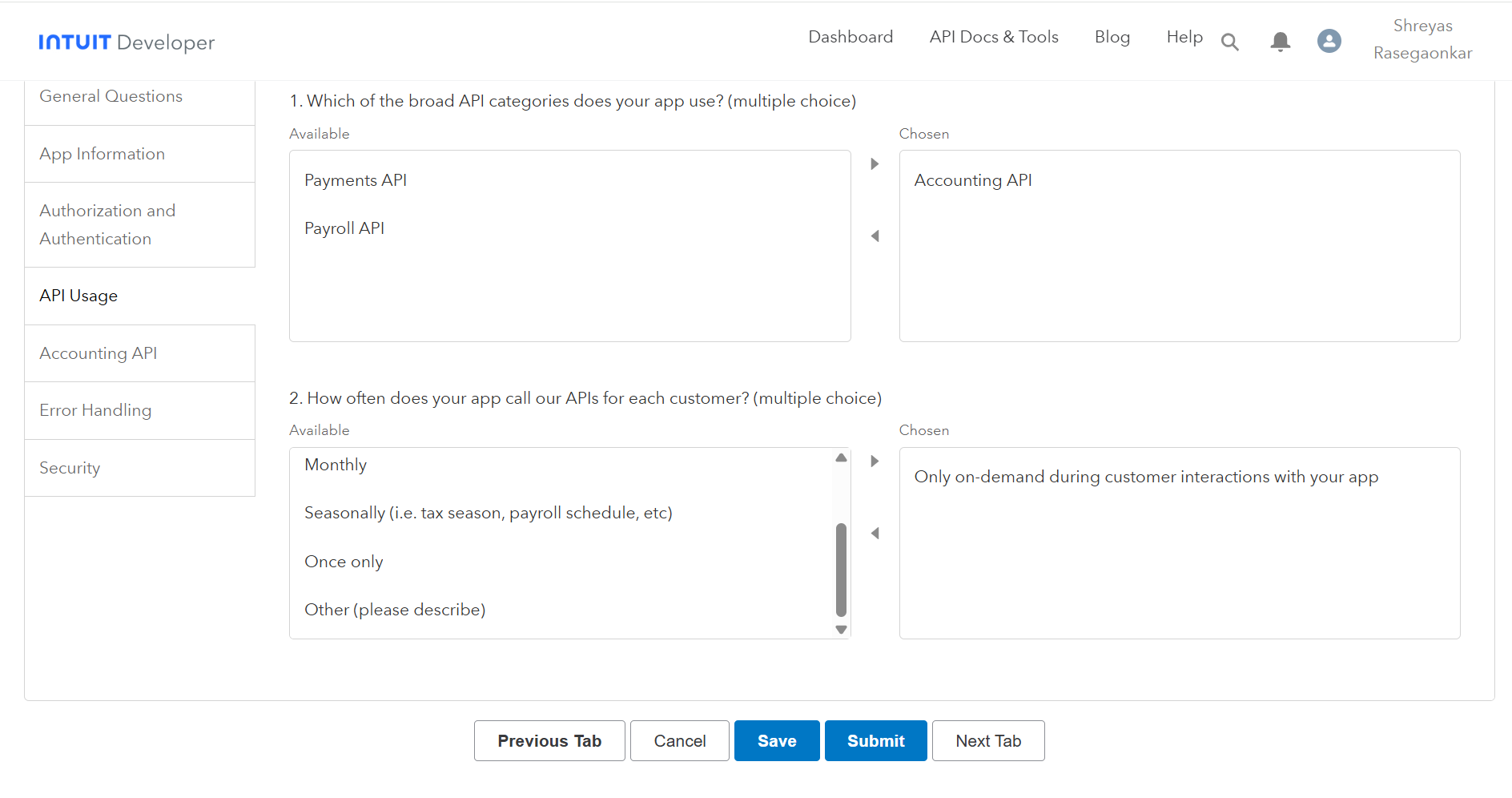
4. API Usage — select the appropriate options, then click **Next Tab**.

   <figure><img src="https://1036205596-files.gitbook.io/~/files/v0/b/gitbook-x-prod.appspot.com/o/spaces%2Fv9avy716UiAsS24zOznZ%2Fuploads%2F7ammG1IBFXoZnfDlMbfy%2Fimage.png?alt=media&#x26;token=f4e85f77-f16c-4ac3-a843-a8ff2cf9071d" alt=""><figcaption></figcaption></figure>
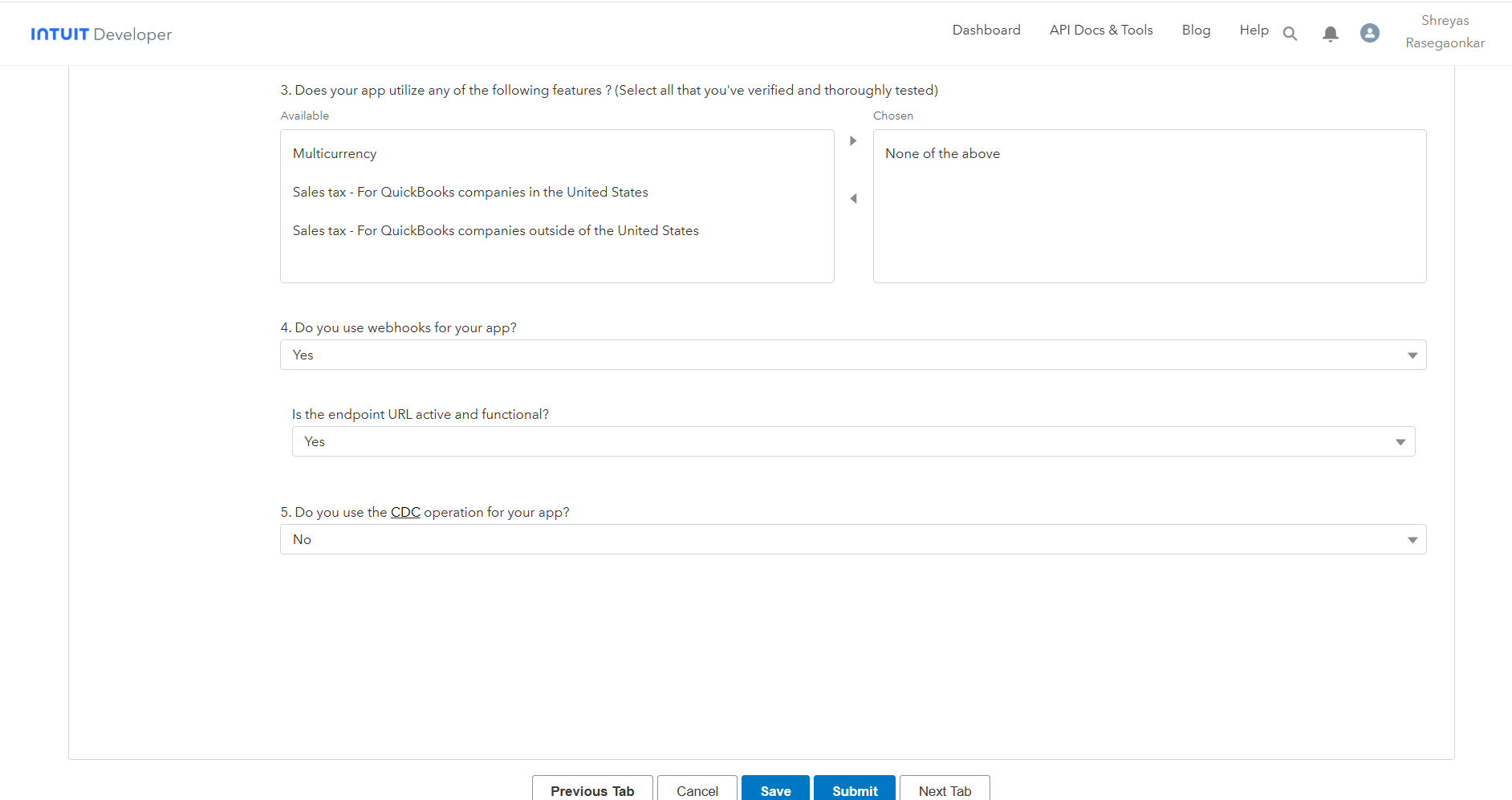
5. Accounting API — select the appropriate options, then click **Next Tab**.

   <figure><img src="https://1036205596-files.gitbook.io/~/files/v0/b/gitbook-x-prod.appspot.com/o/spaces%2Fv9avy716UiAsS24zOznZ%2Fuploads%2FOqRHQRZ7fXPU6AXIgH2A%2Fimage.png?alt=media&#x26;token=92633185-1016-49eb-b188-ab3d2184f2d3" alt=""><figcaption></figcaption></figure>

   <br>

   <figure><img src="https://1036205596-files.gitbook.io/~/files/v0/b/gitbook-x-prod.appspot.com/o/spaces%2Fv9avy716UiAsS24zOznZ%2Fuploads%2FtSbmog1cYmnai97gwBFh%2Fimage.png?alt=media&#x26;token=12489567-2f10-418a-9edc-ca0e6af93511" alt=""><figcaption></figcaption></figure>
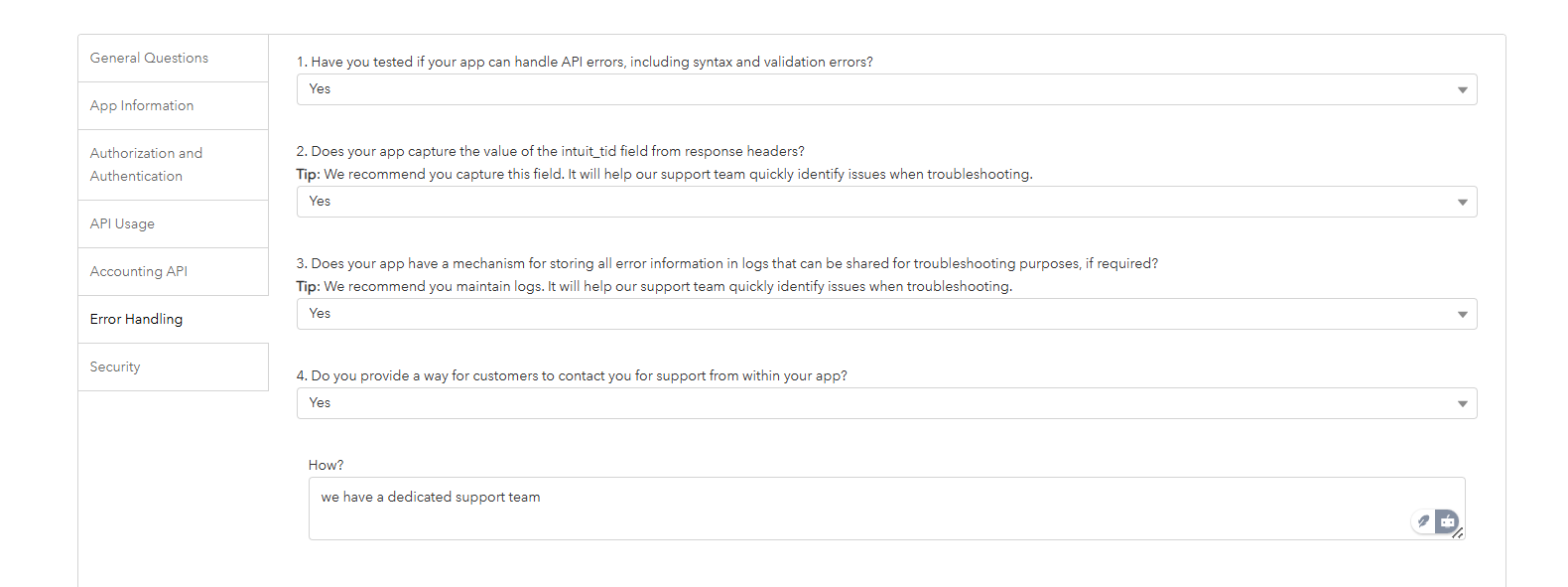
6. Error Handling — select the appropriate options, then click **Next Tab**.

   <figure><img src="https://1036205596-files.gitbook.io/~/files/v0/b/gitbook-x-prod.appspot.com/o/spaces%2Fv9avy716UiAsS24zOznZ%2Fuploads%2Fkyzz7T901zHtRsqwliZG%2Fimage.png?alt=media&#x26;token=308a0cbc-02d9-4ff6-ab5e-41ba87a062c3" alt=""><figcaption></figcaption></figure>
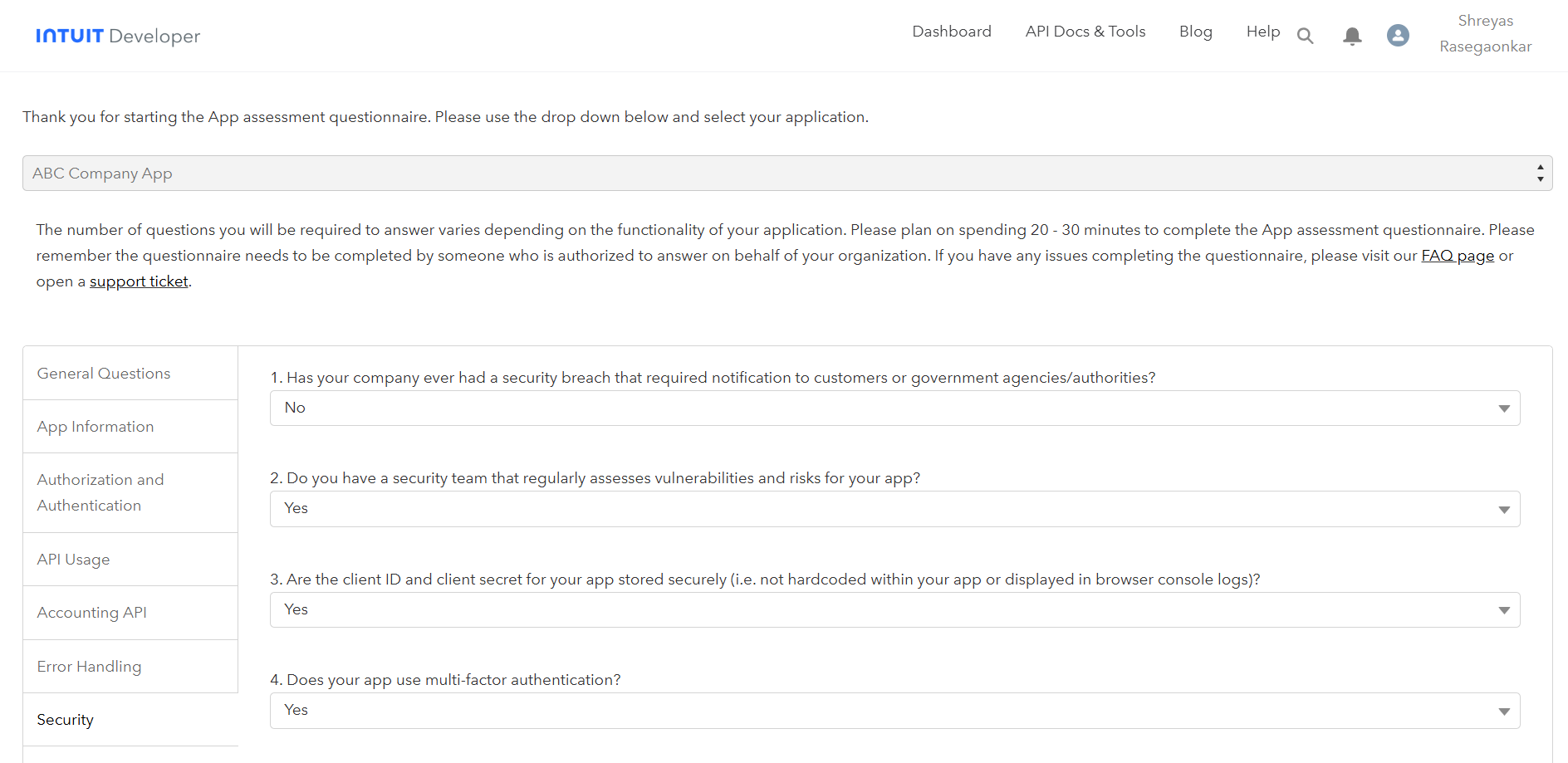
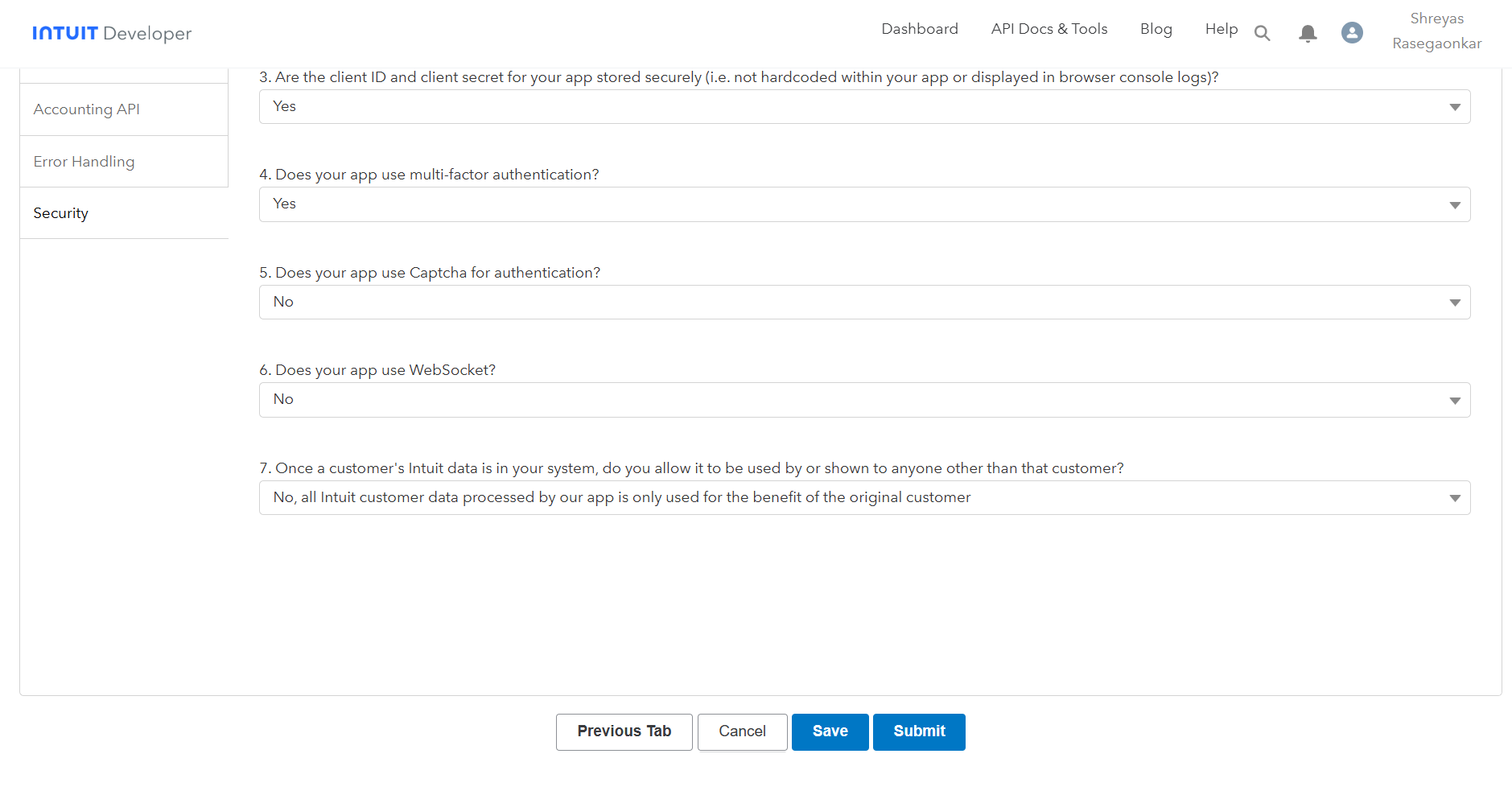
7. Security — select the appropriate options, then click **Submit**.

   <figure><img src="https://1036205596-files.gitbook.io/~/files/v0/b/gitbook-x-prod.appspot.com/o/spaces%2Fv9avy716UiAsS24zOznZ%2Fuploads%2Fm3xG6eAJncNhlsPDYv6f%2Fimage.png?alt=media&#x26;token=de00816e-728c-4fa2-b142-8ac98a87e610" alt=""><figcaption></figcaption></figure>

   <br>

   <figure><img src="https://1036205596-files.gitbook.io/~/files/v0/b/gitbook-x-prod.appspot.com/o/spaces%2Fv9avy716UiAsS24zOznZ%2Fuploads%2FSr6vTlgugewhGzB9f02s%2Fimage.png?alt=media&#x26;token=43520111-9442-4eb6-926e-05df891646ef" alt=""><figcaption></figcaption></figure>

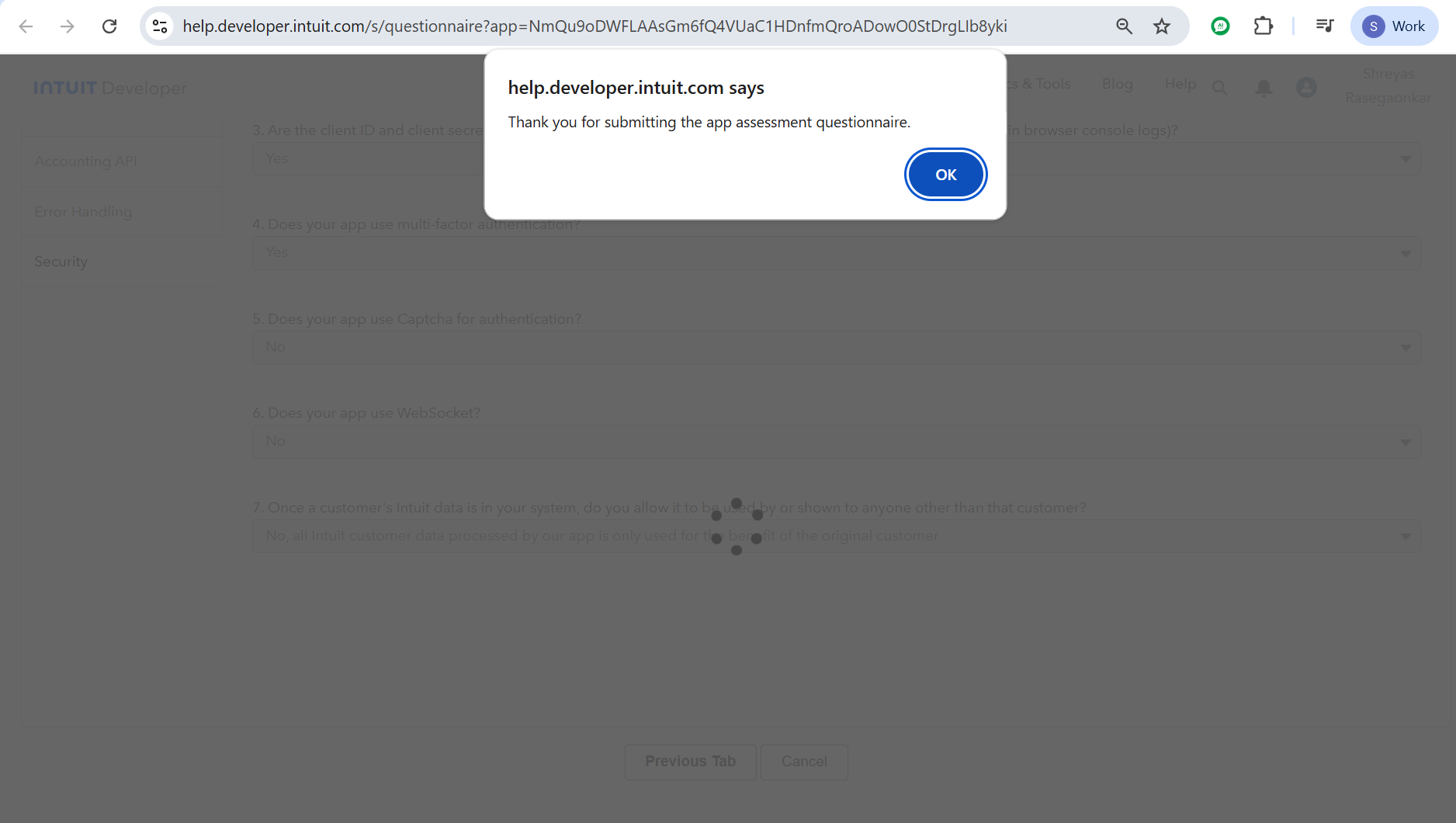
* After submitting, you will see a questionnaire submission confirmation pop-up. Click **OK**.

  <figure><img src="https://1036205596-files.gitbook.io/~/files/v0/b/gitbook-x-prod.appspot.com/o/spaces%2Fv9avy716UiAsS24zOznZ%2Fuploads%2FswJk6HHqv3HrA6wjW3Yo%2Fimage.png?alt=media&#x26;token=36d5c248-e1e4-465e-a62c-27f62c434bb4" alt=""><figcaption></figcaption></figure>

{% stepper %}
{% step %}

### Retrieve Client ID & Client Secret

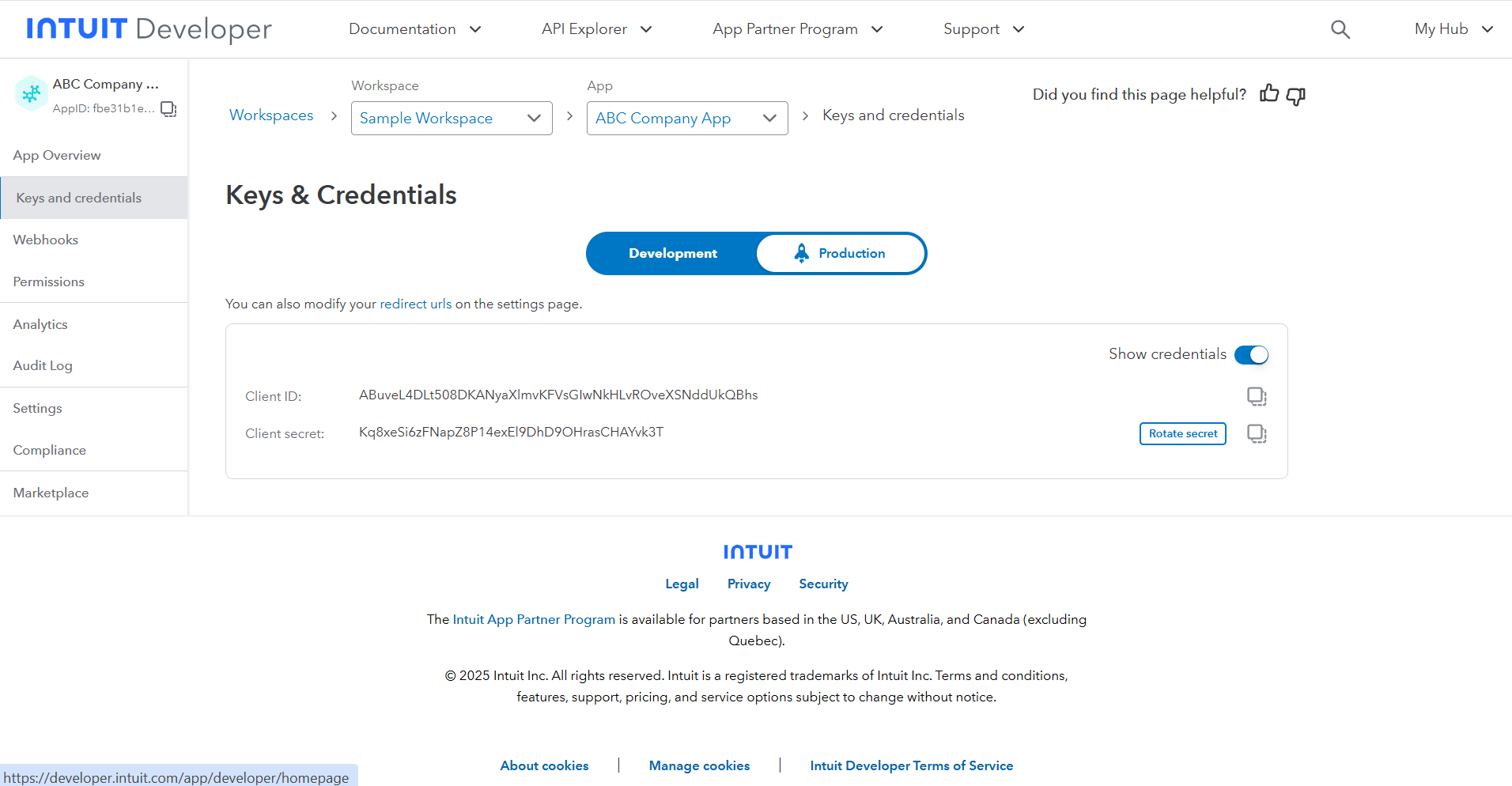
* Go back to the **Keys & Credentials** tab. It will now display your **Client ID** & **Client secret**.

  <figure><img src="https://1036205596-files.gitbook.io/~/files/v0/b/gitbook-x-prod.appspot.com/o/spaces%2Fv9avy716UiAsS24zOznZ%2Fuploads%2FwVLVQL1yJtIntB9sFgfe%2Fimage.png?alt=media&#x26;token=04113cd9-fc53-4ffb-80b5-b80306179140" alt=""><figcaption></figcaption></figure>

Copy the Client ID and Client Secret and store them securely. You will need these credentials to configure the DBSync connector.
{% endstep %}

{% step %}

### Configure Webhooks

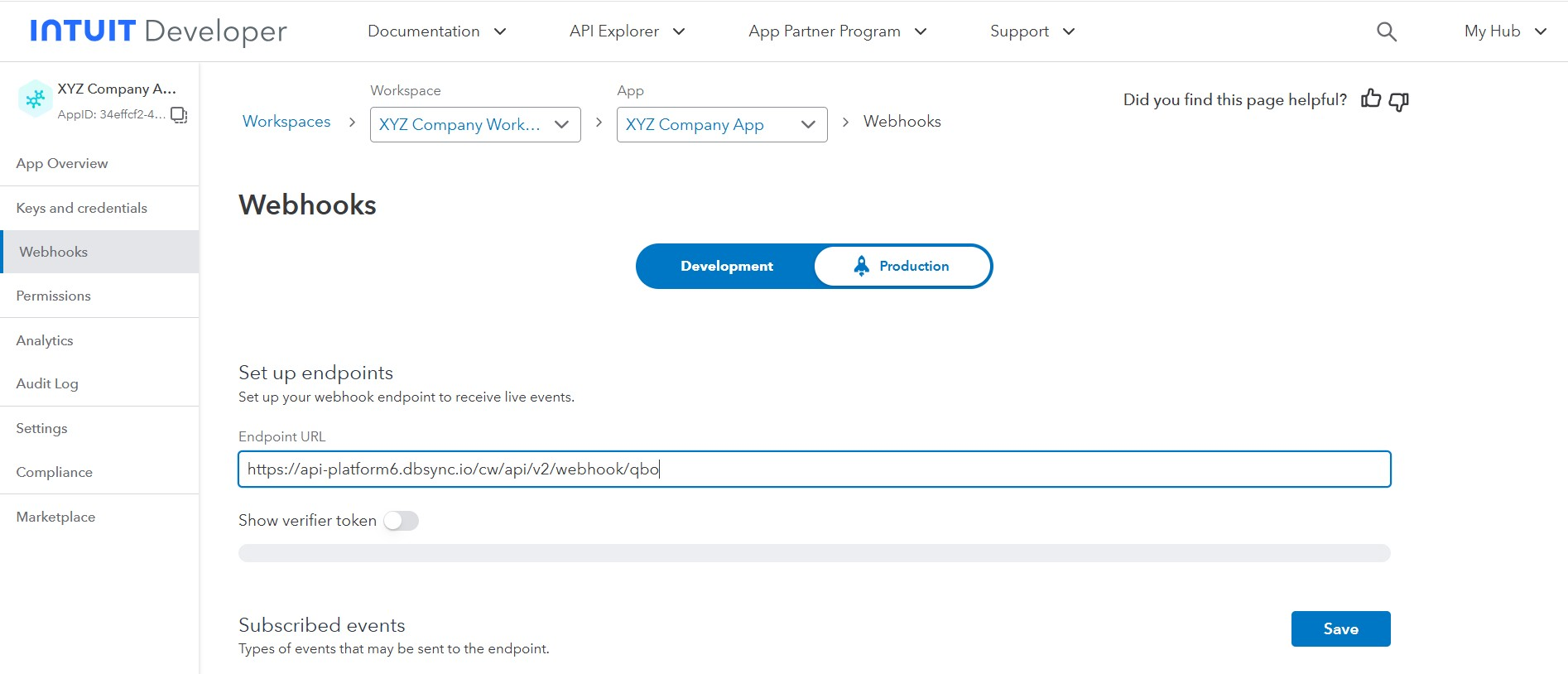
* Navigate to the **Webhooks** section in your app.
* Click the Development / Production toggle to switch to Production.
* In the production **Endpoint URL**, paste the following URL exactly:

*<https://api-platform6.dbsync.io/cw/api/v2/webhook/qbo>*

<figure><img src="https://1036205596-files.gitbook.io/~/files/v0/b/gitbook-x-prod.appspot.com/o/spaces%2Fv9avy716UiAsS24zOznZ%2Fuploads%2FNPsI2V6iypAL5yJ6KIui%2Fimage.png?alt=media&#x26;token=b063781e-c035-40d5-bb06-2a96ed60e852" alt=""><figcaption></figcaption></figure>

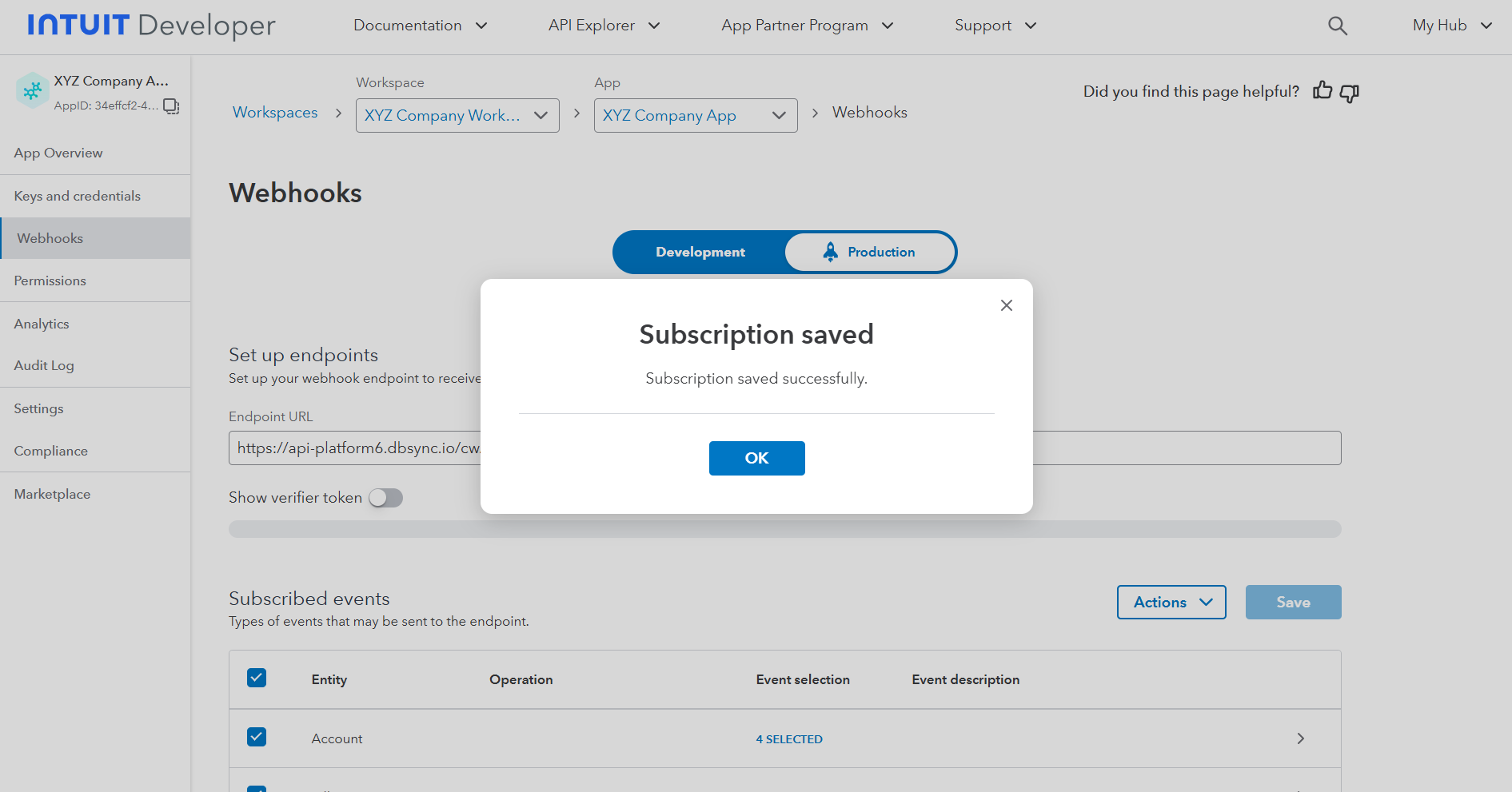
* Click **Save**.

  <figure><img src="https://1036205596-files.gitbook.io/~/files/v0/b/gitbook-x-prod.appspot.com/o/spaces%2Fv9avy716UiAsS24zOznZ%2Fuploads%2Ff81PN6A1KBfiW9Z49Bir%2Fimage.png?alt=media&#x26;token=e08f4a13-b680-40f3-8a21-fc0118c43086" alt=""><figcaption></figcaption></figure>
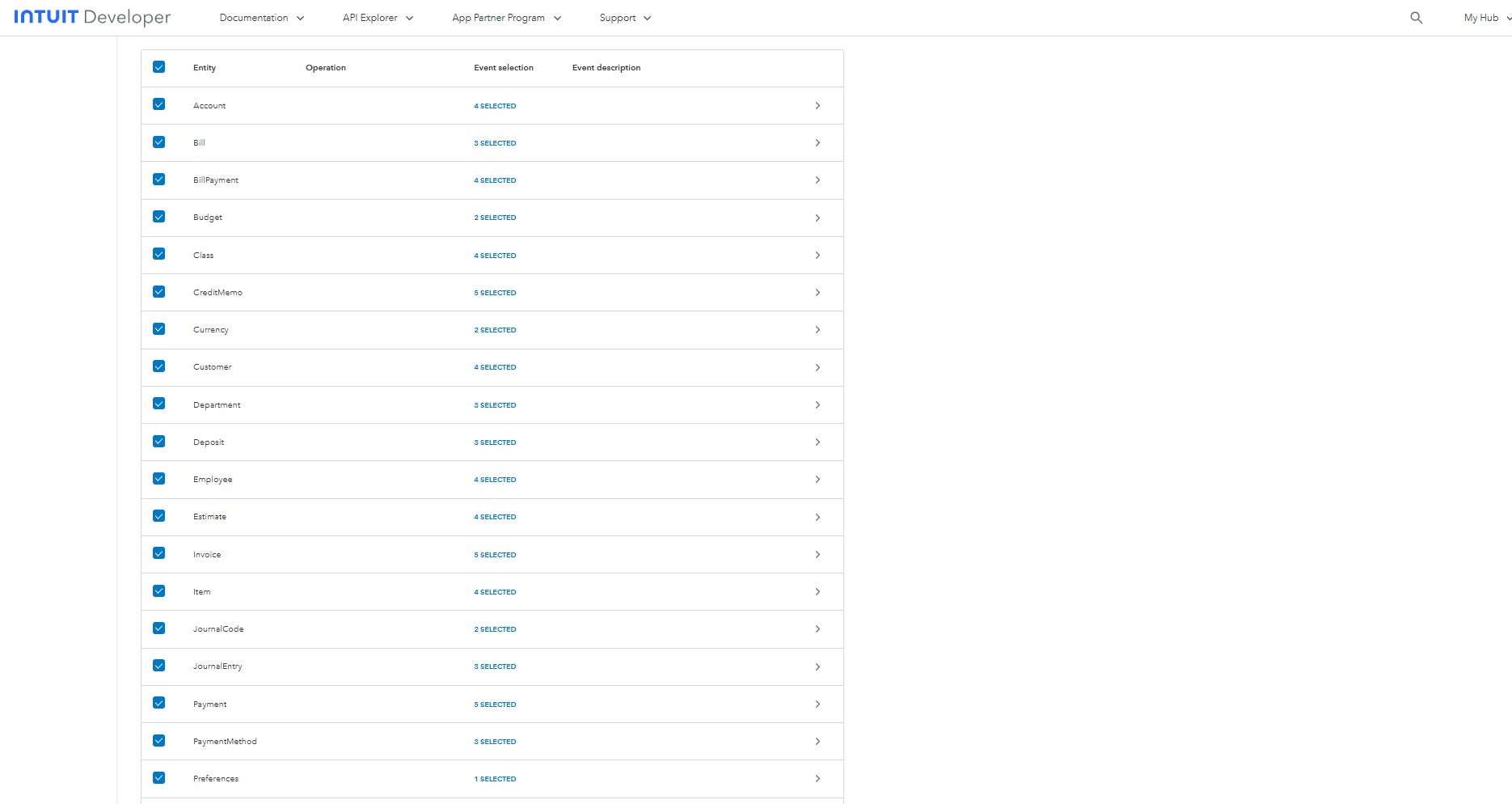
* Scroll down and make sure you have checked all the Subscribed events checkboxes as required.

  <figure><img src="https://1036205596-files.gitbook.io/~/files/v0/b/gitbook-x-prod.appspot.com/o/spaces%2Fv9avy716UiAsS24zOznZ%2Fuploads%2FAnVCjanGWo89NokcI0eq%2Fimage.png?alt=media&#x26;token=30eaefe7-9182-4169-9d14-fb983af60816" alt=""><figcaption></figcaption></figure>

{% endstep %}

{% step %}

### Configure Redirect URIs

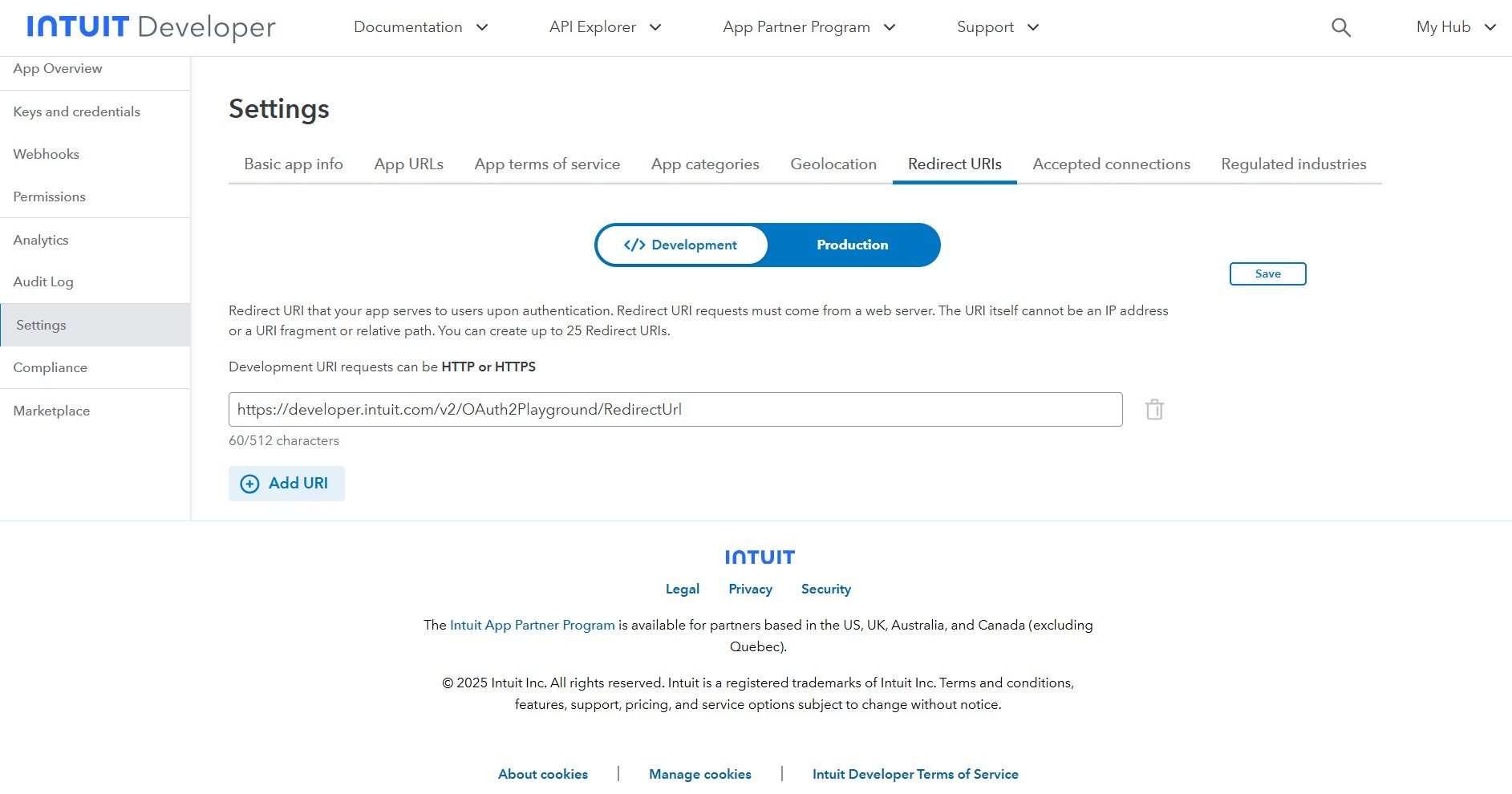
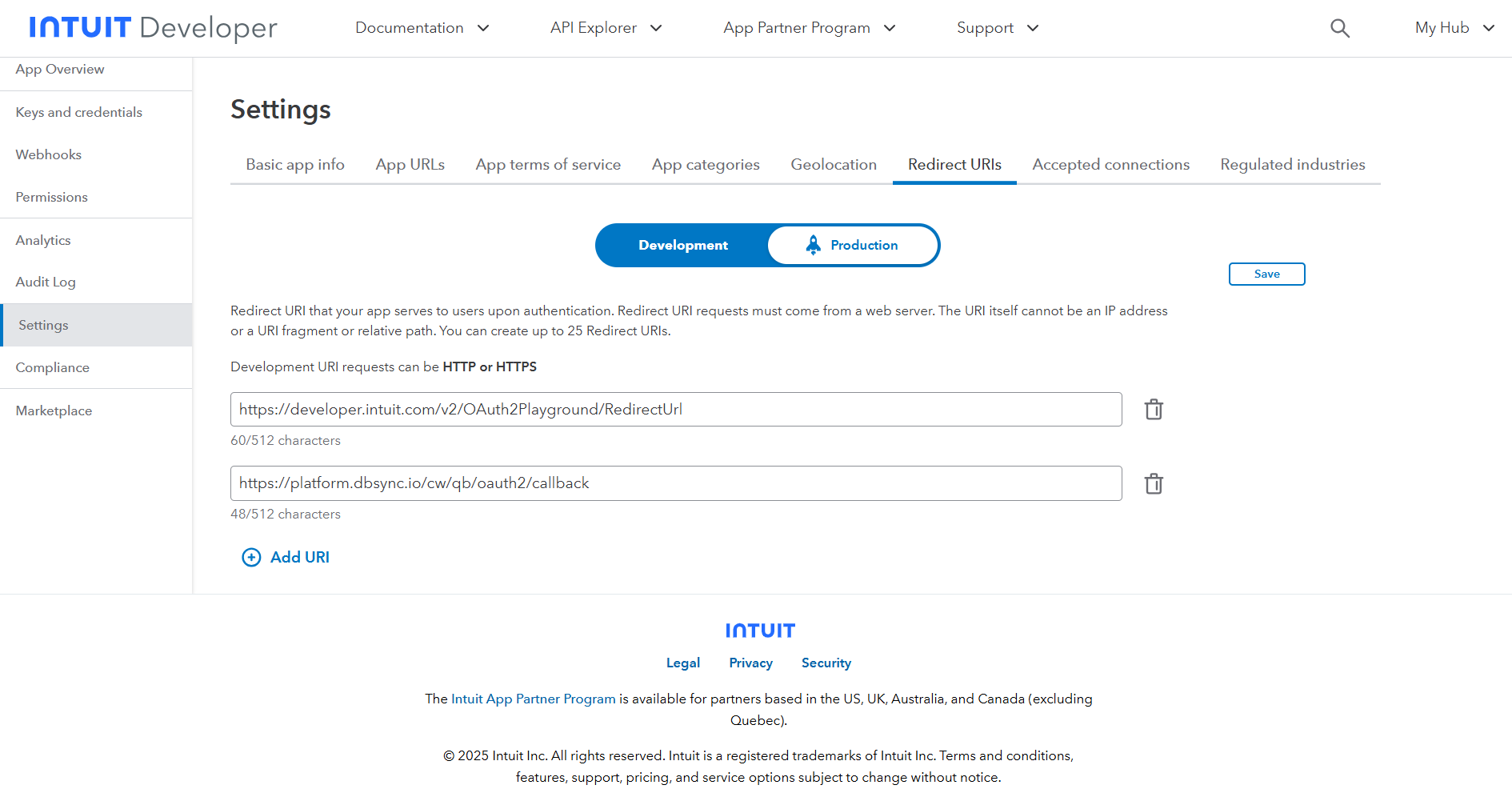
* Navigate to **Settings** and click the **Redirect URLs** section tab.

  <figure><img src="https://1036205596-files.gitbook.io/~/files/v0/b/gitbook-x-prod.appspot.com/o/spaces%2Fv9avy716UiAsS24zOznZ%2Fuploads%2FuRrJpjAPFsRuRuHcetBK%2Fimage.png?alt=media&#x26;token=83041757-bd30-4f7c-bbc6-726df66b5f87" alt=""><figcaption></figcaption></figure>
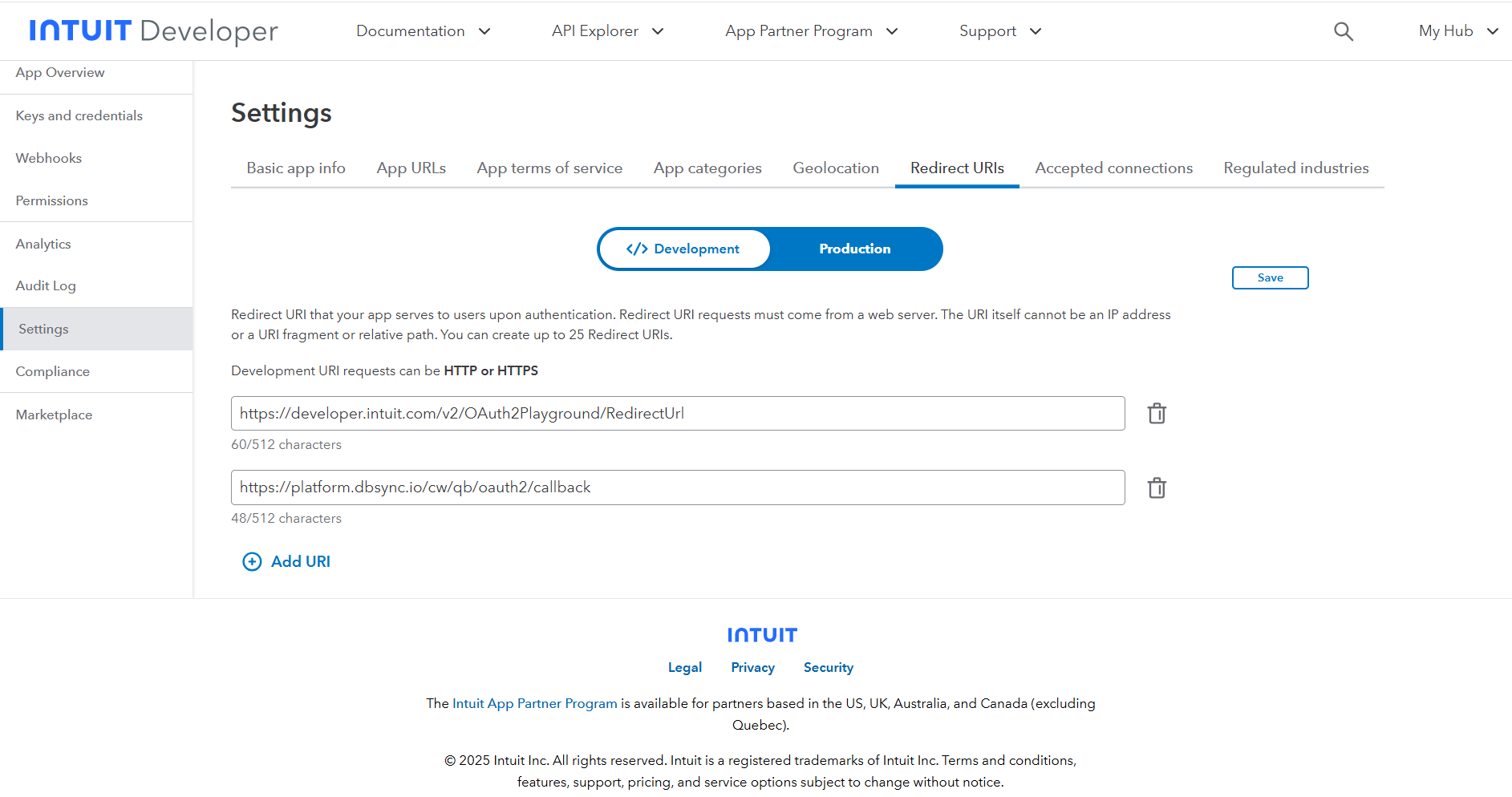
* Under Development, click **Add URL** and enter the following redirect URI, then click **Save**:

<https://platform.dbsync.io/cw/qb/oauth2/callback>

<figure><img src="https://1036205596-files.gitbook.io/~/files/v0/b/gitbook-x-prod.appspot.com/o/spaces%2Fv9avy716UiAsS24zOznZ%2Fuploads%2FJ2r8DNbyqeBt9TCmnRyt%2Fimage.png?alt=media&#x26;token=93b9a0cc-09bb-42da-9322-11cf48e9fc0b" alt=""><figcaption></figcaption></figure>

* Toggle Development / Production to switch to Production.

  <figure><img src="https://1036205596-files.gitbook.io/~/files/v0/b/gitbook-x-prod.appspot.com/o/spaces%2Fv9avy716UiAsS24zOznZ%2Fuploads%2FK26Udzm0lrNi9DHCuxvq%2Fimage.png?alt=media&#x26;token=34b366a2-3cfe-4ae1-85bc-9df282d35f58" alt=""><figcaption></figcaption></figure>
* Click **Add URL** under Production and enter the same redirect URI:

<https://platform.dbsync.io/cw/qb/oauth2/callback>

* Click **Save**.
  {% endstep %}

{% step %}

### Connect DBSync to your QuickBooks App

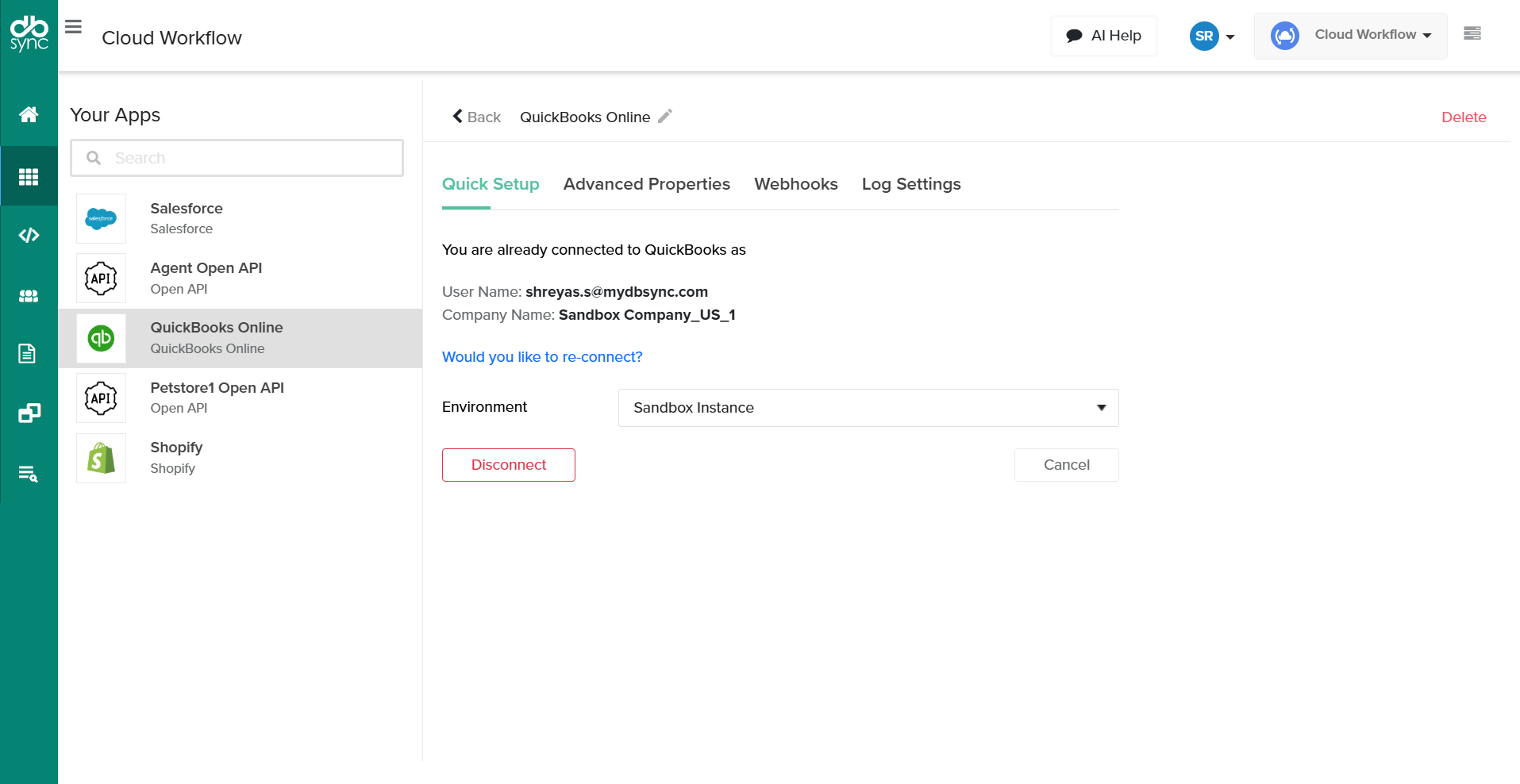
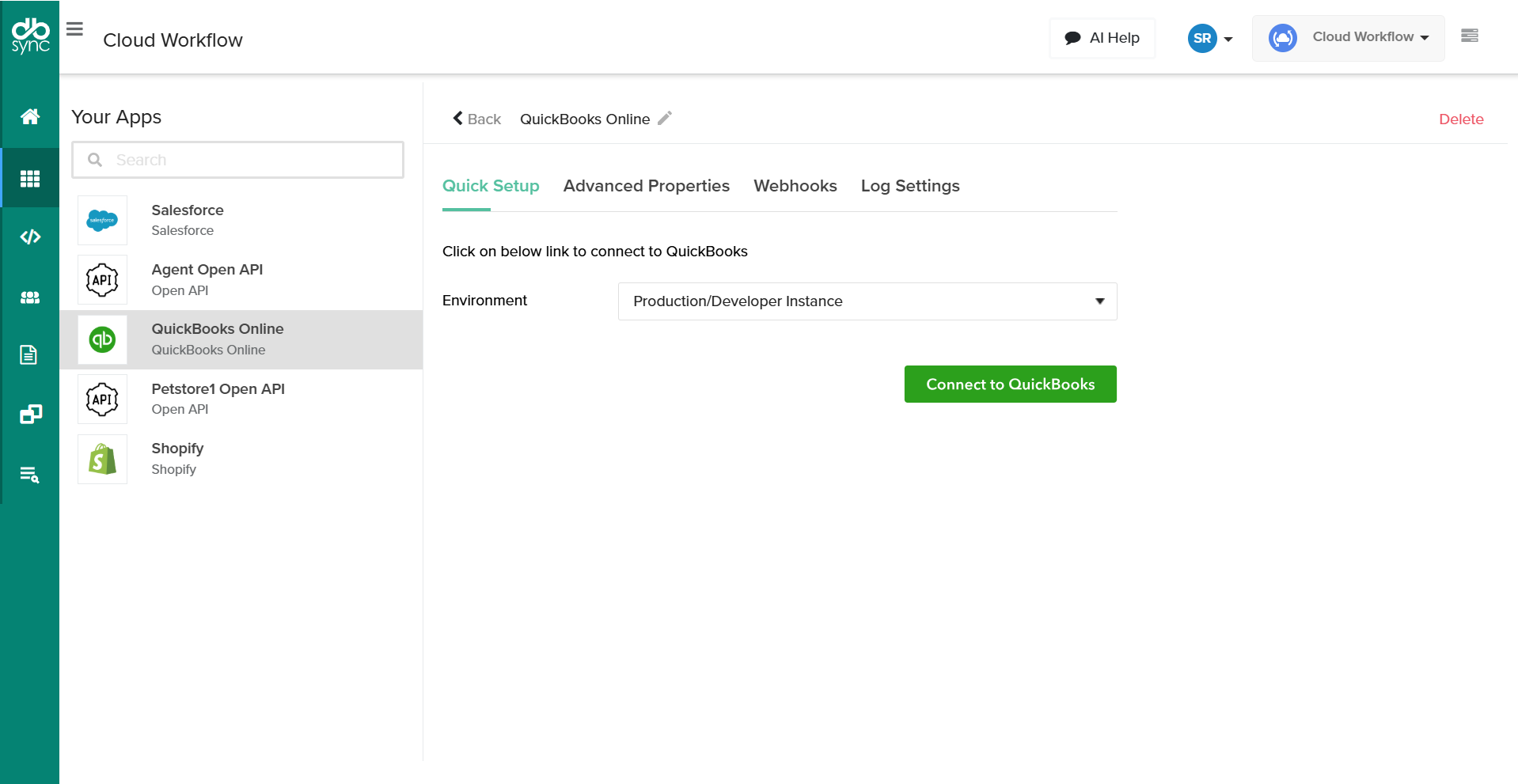
* Log in to your DBSync Cloud Workflow platform and navigate to the QuickBooks Online connector.
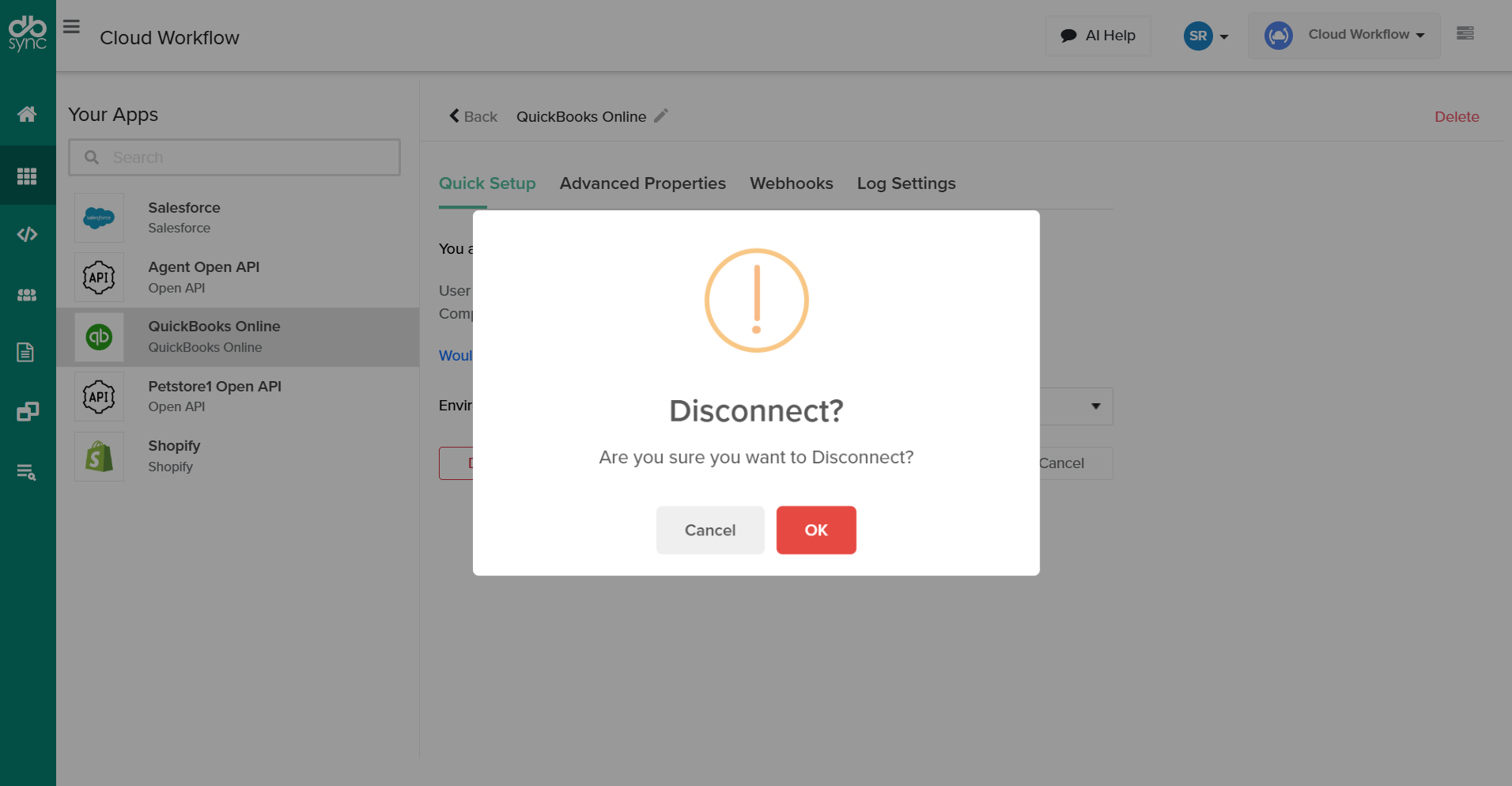
* If an existing connection exists, click **Disconnect** to remove it.

  <figure><img src="https://1036205596-files.gitbook.io/~/files/v0/b/gitbook-x-prod.appspot.com/o/spaces%2Fv9avy716UiAsS24zOznZ%2Fuploads%2FtmXu5EKGChpNj2HVyTSr%2Fimage.png?alt=media&#x26;token=3697daed-92c4-431d-b944-c78f27584673" alt=""><figcaption></figcaption></figure>

  <br>

  <figure><img src="https://1036205596-files.gitbook.io/~/files/v0/b/gitbook-x-prod.appspot.com/o/spaces%2Fv9avy716UiAsS24zOznZ%2Fuploads%2FpGDU01NeVUBcQr9CxpNs%2Fimage.png?alt=media&#x26;token=b2f68c6f-28c6-4824-98d9-018c9e234a73" alt=""><figcaption></figcaption></figure>
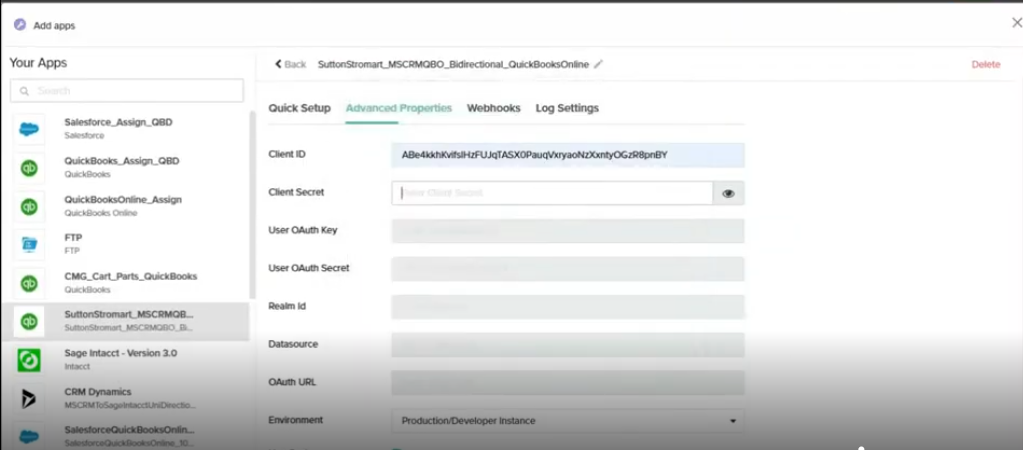
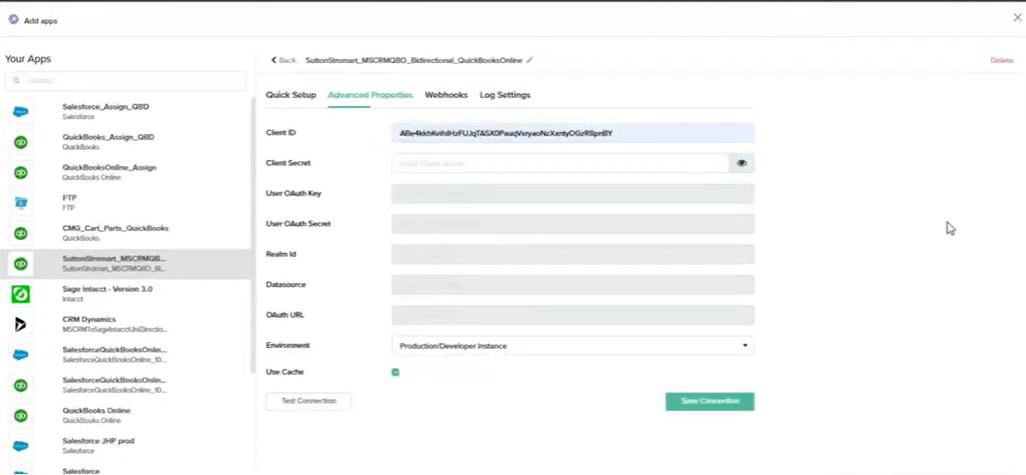
* Go to the **Advanced Properties** tab. Enter **Client ID** and **Client Secret**, then click **Save**.

  <figure><img src="https://1036205596-files.gitbook.io/~/files/v0/b/gitbook-x-prod.appspot.com/o/spaces%2Fv9avy716UiAsS24zOznZ%2Fuploads%2FF2ofATQRsGcLtovELc83%2Fimage.png?alt=media&#x26;token=526a58ae-5bf1-4fe7-a516-83af3b7d30bf" alt=""><figcaption></figcaption></figure>
* Navigate to the **Quick Setup** tab and click **Connect to QuickBooks**.

  <figure><img src="https://1036205596-files.gitbook.io/~/files/v0/b/gitbook-x-prod.appspot.com/o/spaces%2Fv9avy716UiAsS24zOznZ%2Fuploads%2FRI9wiIykKT8esseznCO7%2Fimage.png?alt=media&#x26;token=b72f8a1b-0fc3-4cfc-a168-93fa93033f19" alt=""><figcaption></figcaption></figure>
* Return to **Advanced Properties** to **Test Connection**, then **Save Connection**.

  <figure><img src="https://1036205596-files.gitbook.io/~/files/v0/b/gitbook-x-prod.appspot.com/o/spaces%2Fv9avy716UiAsS24zOznZ%2Fuploads%2FlBSV3KhXWt7o8CzrmaPg%2Fimage.png?alt=media&#x26;token=0044b356-5738-4497-b418-8c1915ade468" alt=""><figcaption></figcaption></figure>

{% endstep %}

{% step %}

### Multiple connections and support

* If you have multiple QuickBooks connections and are not sure which one to reconnect, contact the support team for assistance.
* If you encounter any issues during setup, [schedule a meeting](https://calendly.com/support_notifications-mydbsync/30min) with DBSync support for personalized assistance.
  {% endstep %}
  {% endstepper %}