# Azure Datalake Gen2

* DBSync Cloud Replication (Salesforce with Azure Synapse)
* Azure Synapse Database details in DBSync Replication Profile

### **DBSync Cloud Replication (Salesforce with Azure Data Lake Gen2** <a href="#azuredatalakegen2-dbsynccloudreplication-salesforcewithazuredatalakegen2" id="azuredatalakegen2-dbsynccloudreplication-salesforcewithazuredatalakegen2"></a>

* Go to the database section and select database type as Azure Data Lake Gen2\
  ![](https://lh5.googleusercontent.com/m0cw78JAX36pP8ZbOIoVDlwRfW4A0nAHjOZHFpFTTWdvlw8NUw0h7E6QrqERbNCh94DK7ttGvpGh_0LS6C-rsJmq_d1VOkM6-jgb7WoLKil69K55GFHtiRdHQ93FwXKKqAUlxGlPmktF4fIU3FesaQ)
* The credential you will get from the Azure portal:&#x20;
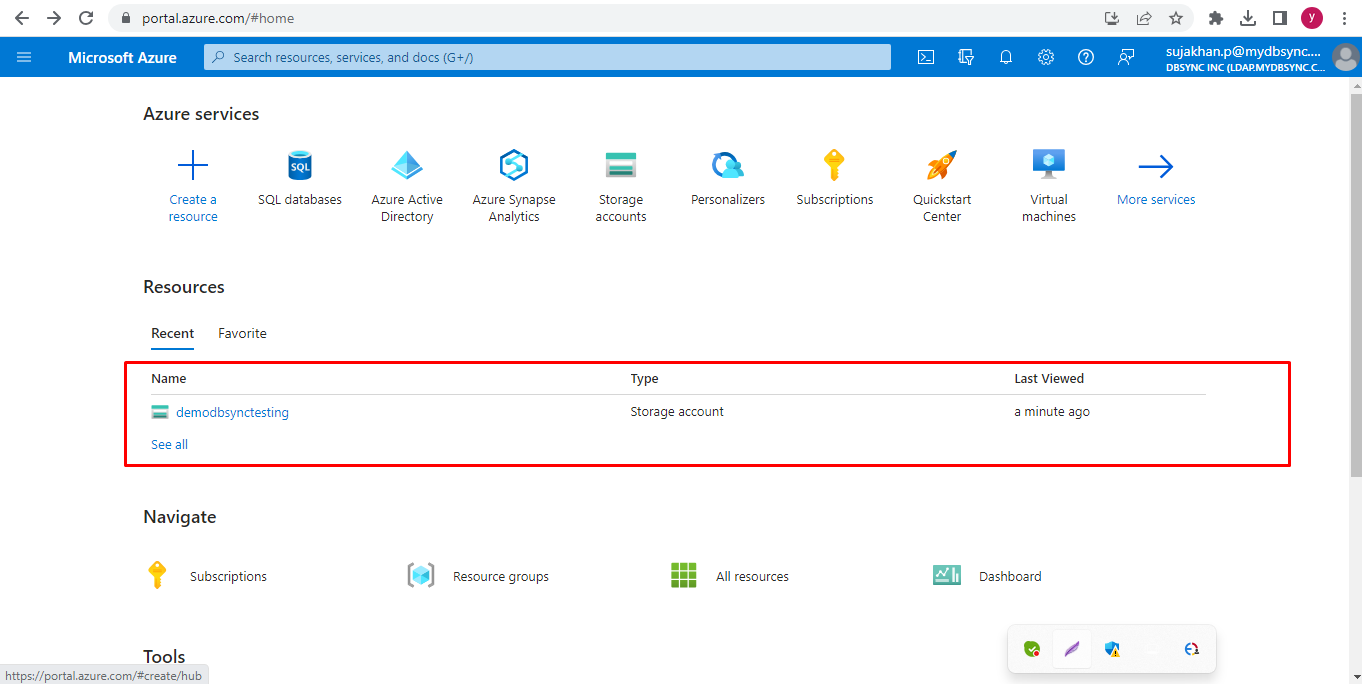
* Just log in to [portal.azure.com](http://portal.azure.com/) and create a storage account:\
  ![](https://lh4.googleusercontent.com/-fJbJSAmI3_tERKR1-_DbL97sJks-1pgCbe9Xd6L0_xKhZzeVhrdNf8XaNIOO5elBR2UHuufIOf_kMDPn_kLwZ1V2k7jJYMroyFL1KlVeycWUrzAZIswfIMWE4_Piiiw-UULpSr8kHFGh5V5wuRLHA)
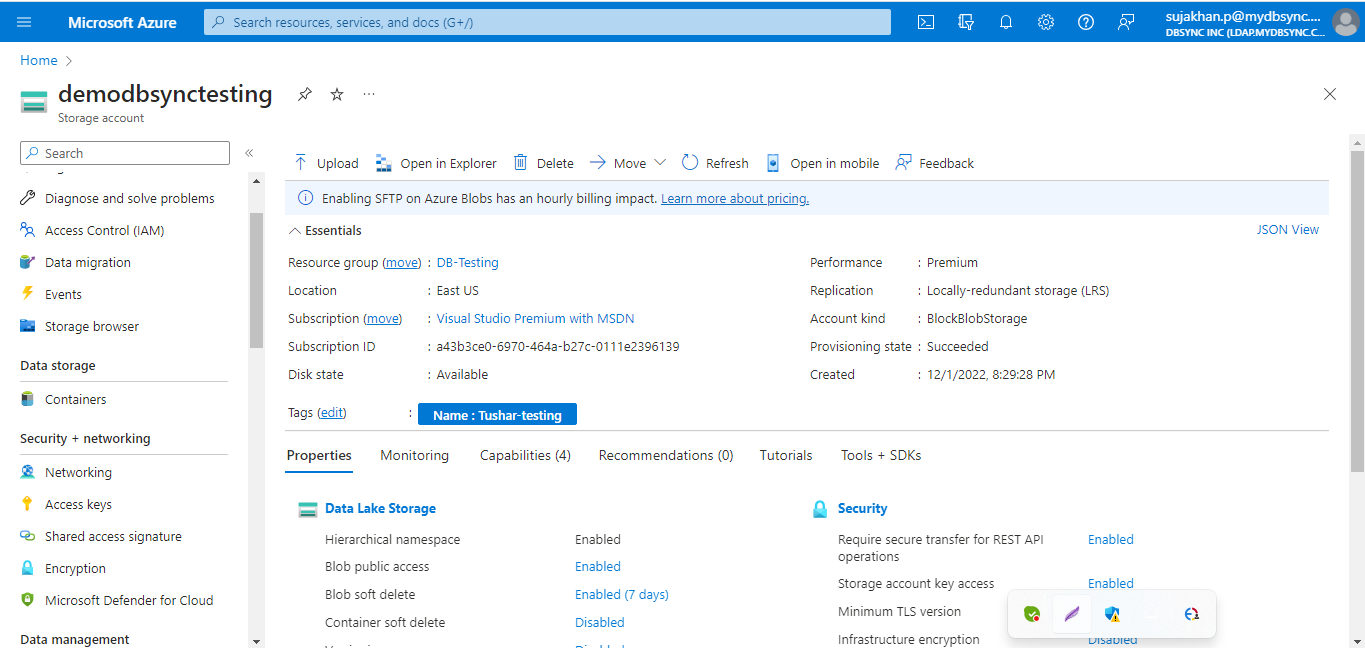
* Get inside of the storage account(demodbsynctesting in my case\
  &#x20;![](https://lh4.googleusercontent.com/tSt5CDHaPFEUXp3SB6XMzUizQIUWFjhCNX0NSb56gh0xwGef26vTj5aQknNKPXMr1_i5XxBQs3NkVwxA8m4u2btzpAud47_QdyVa9gdYRKSLbEmJmzhPOZpjdbpVNhrYD9y1J0XiXdzGljIfyHiVgA)
* Now scroll down the left panel and search for Access keys in the Security+Networking section.\
  &#x20;![](https://lh3.googleusercontent.com/ooiEtP-rK8yQNSusA7O9e-eZOERfKX9Xj4nxXvmV0__OUf0M37LIHdOtxXgVtkxBPBEMjSRbtrVN9C8ZQfBb8eGBT59Jx8NTFLaEnikELYzaClVvQIGeinEDXNc_WGznNj7GYbTaxGXxA7JbI_1d6w)
* Click on the Show button and Copy the Storage Key.&#x20;

<br>

<br>

![](https://lh5.googleusercontent.com/7wq9gNGpd7COd-4r6WOzZfigFG6Ccl_z6IDwQAfKMloipoGrIVlsjbbtwC8SE5lEckjEhvPFudxp1IGzIuvoe2D6R6JhrzC9ML_D-FojbfG1aeSJifADHFRiMlR3KEjDTklver3J0diqHFhIm4H8-A)

* Now copy the storage account name and key copy the database section in the database section:

![](https://lh3.googleusercontent.com/0ZSk-iYEwJDLjVpkXmqI9HOt6SabDmb89dQ78DZSa5QmrMcqmri4wMXtDVi3h7_Jv2avBTmIizPKoykJxhmoZcb42TQUjld3lkwRd1ko8tR6--Rj91OF40MPO6Pph3R3uGJ5xpz4N1Z13OrMsrPtTg)

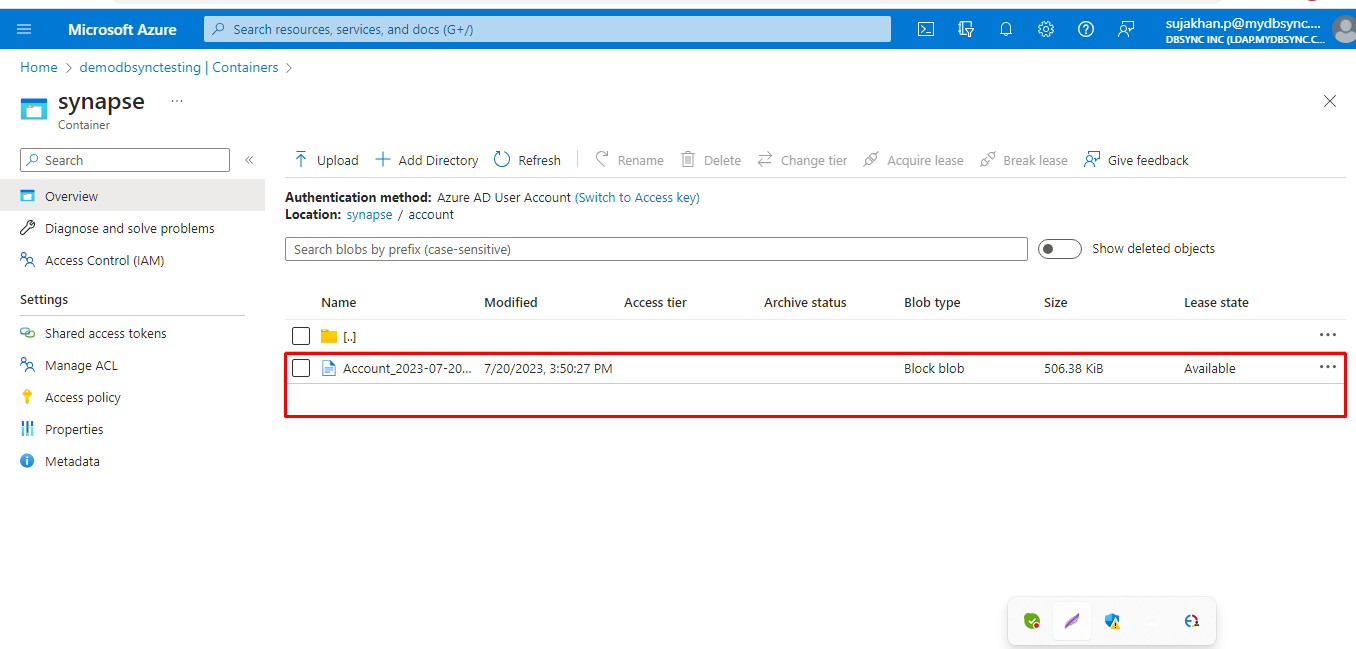
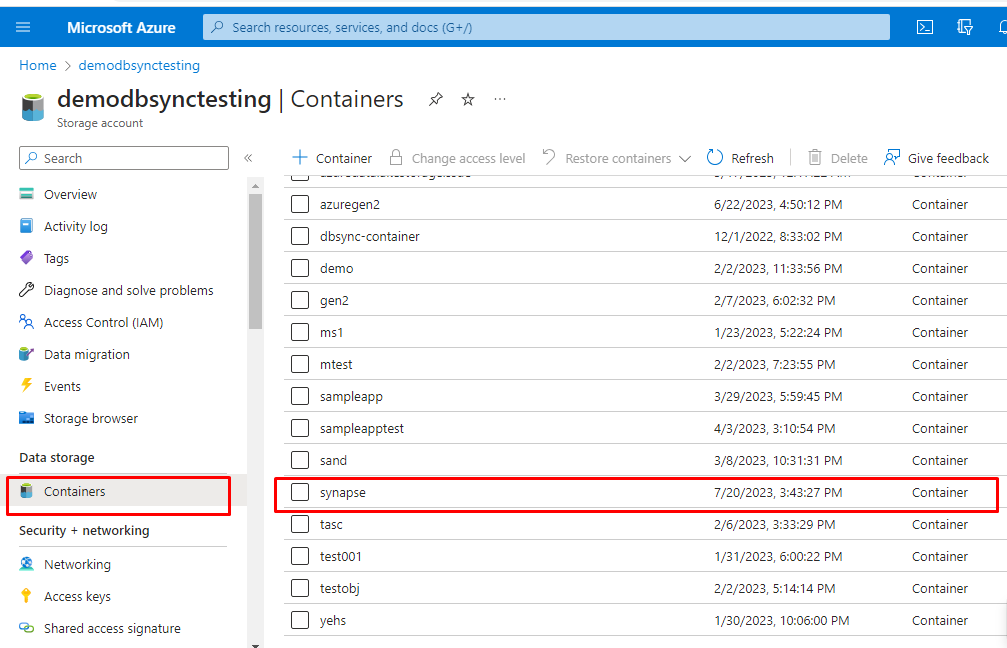
* After the Sync goes on the container in the Azure portal, A folder is created with the name same as your profile name.
<br>

<br>

&#x20;      ![](https://lh6.googleusercontent.com/wSZD8yUDZziu4UA59MCaGGlDbdba0pRjwz0VXawJENTT3zqXb2TcERM_Nhi6SSmzXeNij8rLEXsGuYolfy97Y1fmn8tixaZygpASLT2DWnpHsMx7Cp9a2dlgd7rFZ2pbZxi8KHDlG3KQJeoInim-2w)

<br>

* Click on it, and all the objects you sync, those folders get created (Account in my case)\
  ![](https://lh3.googleusercontent.com/r0SE-MpCzuwbtsje-MK_lmFEeP62UoLMod_UywMoUMvwoaSP28nmxsLnf7zYdwWOeS2WdNhF_aXwBH8MjuQ3ucaM_CYwzehVwDNsU1CZzat--5P8i9EMRUsCETwxxDYD8EH4kIQq7EcPd31M5JmeFQ)
* The data is saved in CSV format.\
  ![](https://lh6.googleusercontent.com/YfsKo1ID_eCQipErgLZg8Lj1KUmrcMiqyq-ksCcTsEqzfqq6uMomYRP0WSmlufqI4vEl8uXuCTHsSAcFIBkWARp2sZVLIFKnjtOfMwRGSEmLdp8JuyBgQbmOLN3kcKYQDMTzSnNTxO8TOvwlJi0Nqg)